Dashboard Customization
The settings on the Dashboard let you match the Share Button and Pop-Up to your store, control who sees them and how links behave, and design how discounts appear to customers.
This page is a map of every settings card on the Dashboard. Each card has a short summary here and a link to its detailed guide.
How the Settings List Works#
The settings list sits on the left of the Dashboard. It has four rows: Design, Display Settings, Order Note Attributes and Incentive Design.
Step 1: Click a row to open it. Its cards replace the list, with a back arrow and the row name at the top.
Step 2: Click a card to expand it and see its settings. Click it again to collapse it.
Step 3: Change the settings you want. The Design Preview on the right updates as you go.
Step 4: Click Save in the save bar at the top of the page. Changes are not live on your store until you save. Click Discard to undo your changes instead.
Step 5: Click the back arrow to return to the list of rows.
Note: Incentive Design is part of the Pro plan. Without Pro, the row is dimmed with a PRO badge and can't be opened.
Design Preview#
Design Preview shows how your Share Button and Pop-Up will look on your store, and updates as you change settings. A caption above the preview tells you who sees the current view, for example Every visitor will see this on your cart page for the Share Button.
Use the dropdown next to the heading to switch views:
- Share Button
- Share Pop-Up
- Recipient Discount Banner, Recipient Discount Pop-Up and Referrer Discount Pop-Up (Pro, shown only when the matching discount display is turned on)
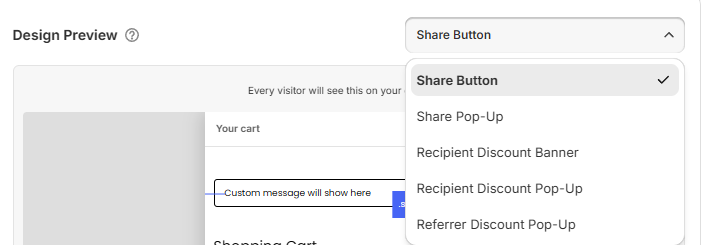
Text fields under the preview let you change the words shown in the current view. For example, choose Share Button to edit Title Text and Button Text, or Share Pop-Up to edit Pop Up Title and Footnote Text. See Share Button and Share Pop-Up.
Click the ? next to Design Preview to reopen the guided tour.
Design#
Open Design to style the Share Button and Pop-Up.
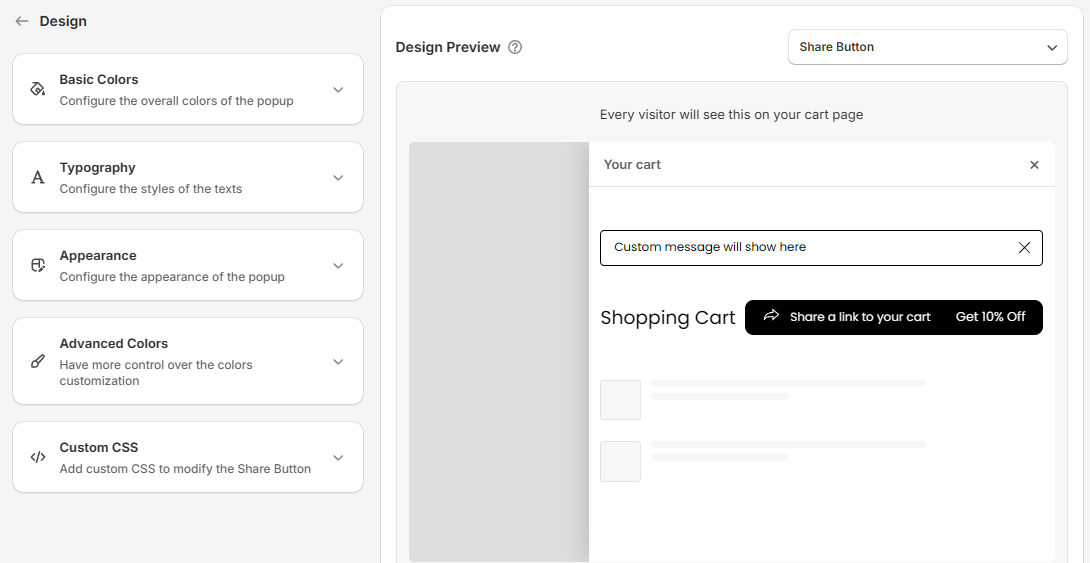
Basic Colors#
Configure the overall colors of the popup
Set four colors that apply across the Share Button and Pop-Up at once: Background Color, General Text Color, Button Color and Button Text Color. This is the quickest way to match your brand. See Basic Colors.
Typography#
Configure the styles of the texts
Choose a Font Family (or add your own font) and set the weight and size of each text. Under Text Customization, you can also change the Copy Confirmation Text, Copy Button Text and Separator Text. See Typography.
Appearance#
Configure the appearance of the popup
Change the Share Button Icon, place the button above or below the cart with Share Widget Position, and adjust Share Button Height, Border Radius and Share Title & Button Alignment. See Appearance.
Advanced Colors#
Have more control over the colors customization
Set the color of each element on its own, such as the share title, the copy button, the pop-up background and border, and the footnote. Use this when Basic Colors is not precise enough. See Advanced Colors.
Custom CSS#
Add custom CSS to modify the Share Button
Write your own CSS for anything the other settings don't cover. Click Show Examples to label the parts of the preview with the class names you can target. See Custom CSS.
Display Settings#
Open Display Settings to control how customers share, who sees the Share Button, and where it appears.
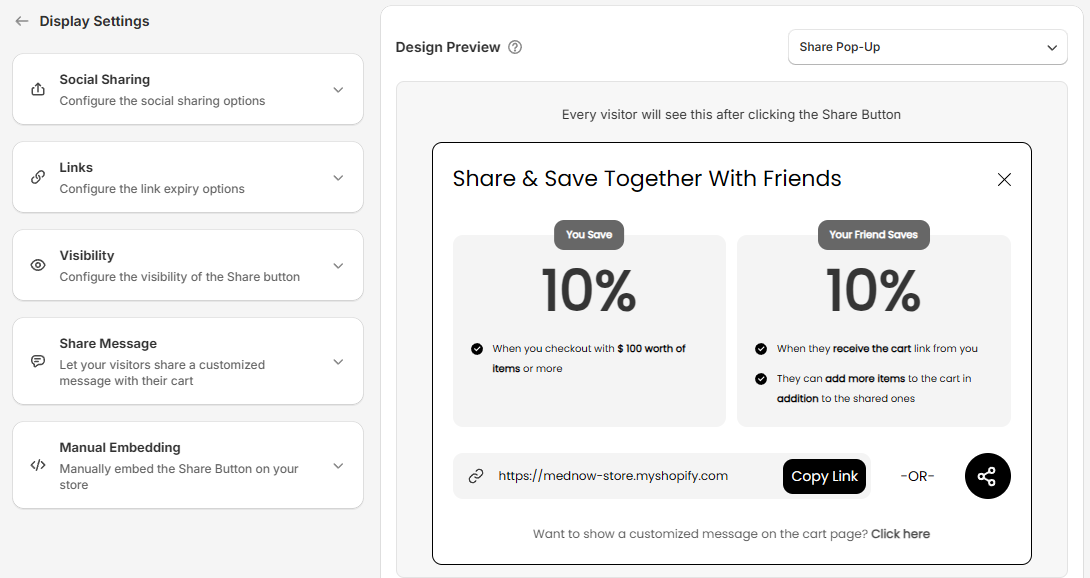
Social Sharing#
Configure the social sharing options
Turn social sharing on or off, and click Customize Content to set the text shared on each platform. Shoppers can share on Facebook, Messenger, X, Tumblr, Pinterest, WhatsApp, Reddit and email. Messenger shares the cart link on its own, so it has no content to customize. See Social Sharing.
Links#
Configure the link expiry options
Under Expire Shared Links After, make shared links stop working after a Number of Visits, a Number of Days, or both. Leave both off and links don't expire. See Links.
Visibility#
Configure the visibility of the Share button
Turn on Visible to Only Logged in Customers to hide the Share Button from guests. You can also limit it to customers who have all the tags you enter. See Visibility.
Share Message#
Let your visitors share a customized message with their cart
Turn on Share Message to let customers add a personal note to the cart they share, and style how the message looks on the cart page. See Share Message.
Manual Embedding#
Manually embed the Share Button on your store
Copy a code snippet with Copy To Clipboard and paste it into your theme to place the Share Button exactly where you want. See Manual Embedding.
Order Note Attributes#
Open Order Note Attributes to add Share Cart details to orders.
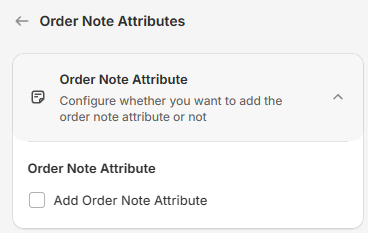
Order Note Attribute#
Configure whether you want to add the order note attribute or not
Turn on Add Order Note Attribute to add the referrer's and recipient's details to orders placed with a Share Cart discount. You can see them in the order's Additional details. It is off by default. See Order Note Attribute.
Incentive Design (Pro)#
Open Incentive Design to choose how your discounts appear to customers. You set the discounts themselves on the Incentives page. See What are Incentives?
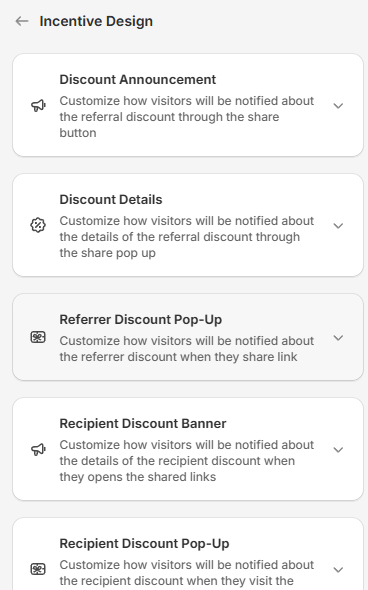
Note: Incentives are part of the Pro plan. On Pro, Incentive Design appears once you turn on a recipient or referrer discount. Referrer Discount Pop-Up appears only when the referrer discount is on, and Recipient Discount Banner and Recipient Discount Pop-Up appear only when the recipient discount is on.
Discount Announcement#
Customize how visitors will be notified about the referral discount through the share button
Turn on Show Incentive Offering On Share Button to show the discount on the Share Button, for example "Get 10% Off". Choose Inline Text, Discount Bubble or Discount Badge in Show Incentive As, then edit the text and colors. See Discount Announcement.
Discount Details#
Customize how visitors will be notified about the details of the referral discount through the share pop up
Turn on Show Incentive Banner Inside Share Pop Up to show what the customer and their friend save inside the Share Pop-Up, and set its colors. See Discount Details and Referrer Incentive Banner.
Referrer Discount Pop-Up#
Customize how visitors will be notified about the referrer discount when they share link
Turn on Show Referrer Incentive Pop-Up Announcement to show a pop-up that tells customers about their discount after they share their cart. Set its colors here and its text in the Design Preview. See Referrer Discount Pop-Up.
Recipient Discount Banner#
This card controls how visitors learn the details of the recipient discount when they open a shared link.
Turn on Show Recipient Incentive Announcement to show a banner on the shared cart that tells the recipient about their discount. Set its font size, borders and colors here and its text in the Design Preview. See Recipient Discount Banner and Recipient Discount Announcement.
Recipient Discount Pop-Up#
Customize how visitors will be notified about the recipient discount when they visit the shared links
Turn on Show Recipient Incentive Announcement to show recipients a pop-up announcing their discount, followed by a pop-up with the discount details. Set its colors here and its text in the Design Preview. See Recipient Announcement Modal and Recipient Discount Details Modal.
For any queries, reach out to us via live chat or drop an email at support@bevycommerce.com. We're always here to help!