Manual Embedding
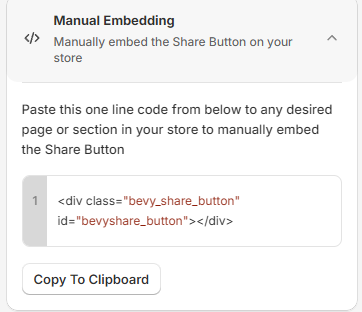
By default, Share Cart shows the Share Button on your cart. The Manual Embedding card gives you a one-line code snippet that places the Share Button anywhere else in your theme, for example in a cart drawer or on a custom page.
When the snippet is on a page, Share Cart shows the Share Button where you pasted it instead of in its usual place on that page. The button only appears when the cart has at least one item.
This page shows you how to copy the snippet and paste it into your theme code.
Before You Start#
Manual embedding only tells Share Cart where to place the button. The Share Cart app embed must still be on in your theme, or the button will not appear. If the app embed is off, the Dashboard shows the banner Important: add Bevy Share Cart to your store theme. In the theme editor, the app embed is listed under App embeds as Share Cart, with Bevy Share Cart - Social Link under it. See Installing Share Cart.
How to Embed the Share Button Manually#
Step 1: In your Shopify admin, under Apps, click Bevy Share Cart - Social Link. The app opens on its Dashboard.
Step 2: In the settings list, click Display Settings.
Step 3: Click the Manual Embedding card to expand it.
Step 4: Click Copy To Clipboard. You see "Copied to clipboard!". You can also copy the snippet from here:
<div class="bevy_share_button" id="bevyshare_button"></div>
Step 5: In your Shopify admin, go to Online Store > Themes.
Step 6: Next to the theme you want to change, click the ... (three dots) button, then click Edit code.
Step 7: In the file list on the left, open the file for the page or section where you want the Share Button, for example your cart drawer file.
Step 8: Paste the snippet where you want the button to appear, then click Save.
Step 9: Open your store and check that the Share Button appears in the new place.
Note: Edit a copy of your theme first if you are not sure where the snippet should go. Ask your theme developer for help if you can't find the right file.
If you have any questions, contact support via live chat or email support@bevycommerce.com. We're always here to help!