Discount Announcement
The Discount Announcement card shows your share discount on the Share Button, for example "Get 10% Off". It tells shoppers they can save by sharing their cart before they even open the Share Pop-Up.
This page shows you how to turn on the announcement, choose how it looks, and edit its text.
Note: Incentives are part of the Pro plan.
Before You Start#
- Turn on at least one discount on the Incentives page: Offer a discount to referrers or Offer a discount to recipients. See Referrer Incentives and Recipient Incentives.
- On the Pro plan, the Incentive Design row appears on the Dashboard once at least one discount is on. If your store isn't on Pro, the row is shown with a PRO badge and can't be opened.
How to Show the Discount on the Share Button#
Step 1: In your Shopify admin, under Apps, click Bevy Share Cart - Social Link. The app opens on its Dashboard.
Step 2: In the settings list, click Incentive Design.
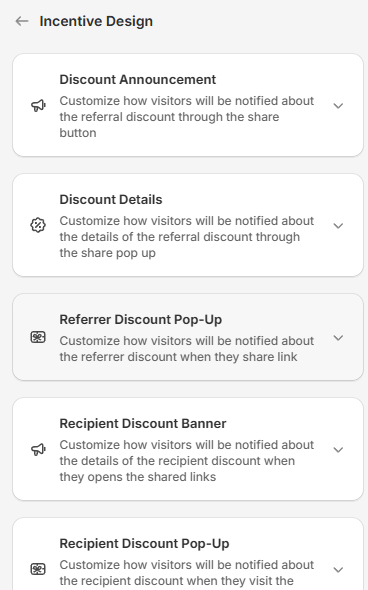
Step 3: Click the Discount Announcement card to expand it.
Step 4: Make sure Show Incentive Offering On Share Button is selected. Share Cart selects it for you when you turn on a discount on the Incentives page. Clear it to hide the offer. To see the offer, select Share Button from the view dropdown in the Design Preview.
Step 5: Under Show Incentive As, choose Inline Text, Discount Bubble or Discount Badge. The default is Inline Text.
Step 6: Edit the Incentive Text and the other settings for your style. See the tables below.
Step 7: Click Save in the save bar at the top of the page. Your changes are not live on your store until you save. To undo unsaved changes, click Discard.
Inline Text#
The discount appears inside the Share Button, after the button text.
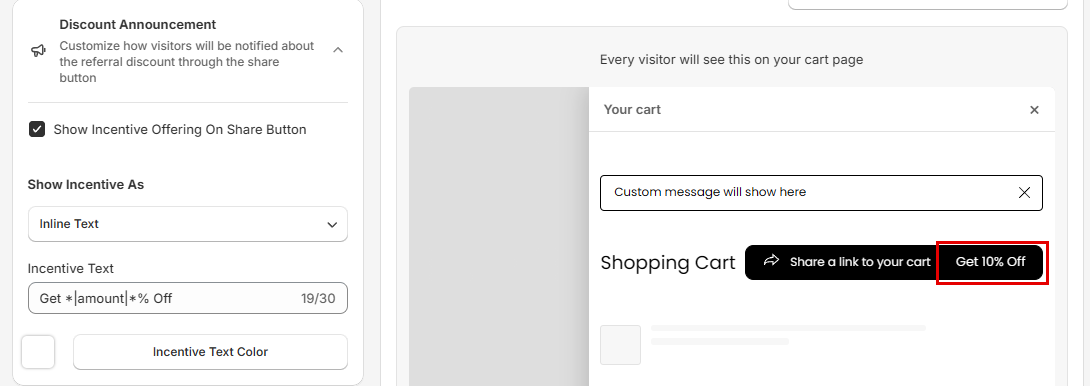
| Setting | What it changes | Options or limit |
|---|---|---|
| Incentive Text | The discount text | 30 characters |
| Incentive Text Color | The color of the discount text. Until you set it, it matches the Share Button text color. | Color picker |
Discount Bubble#
The discount appears in a bubble next to the Share Button.
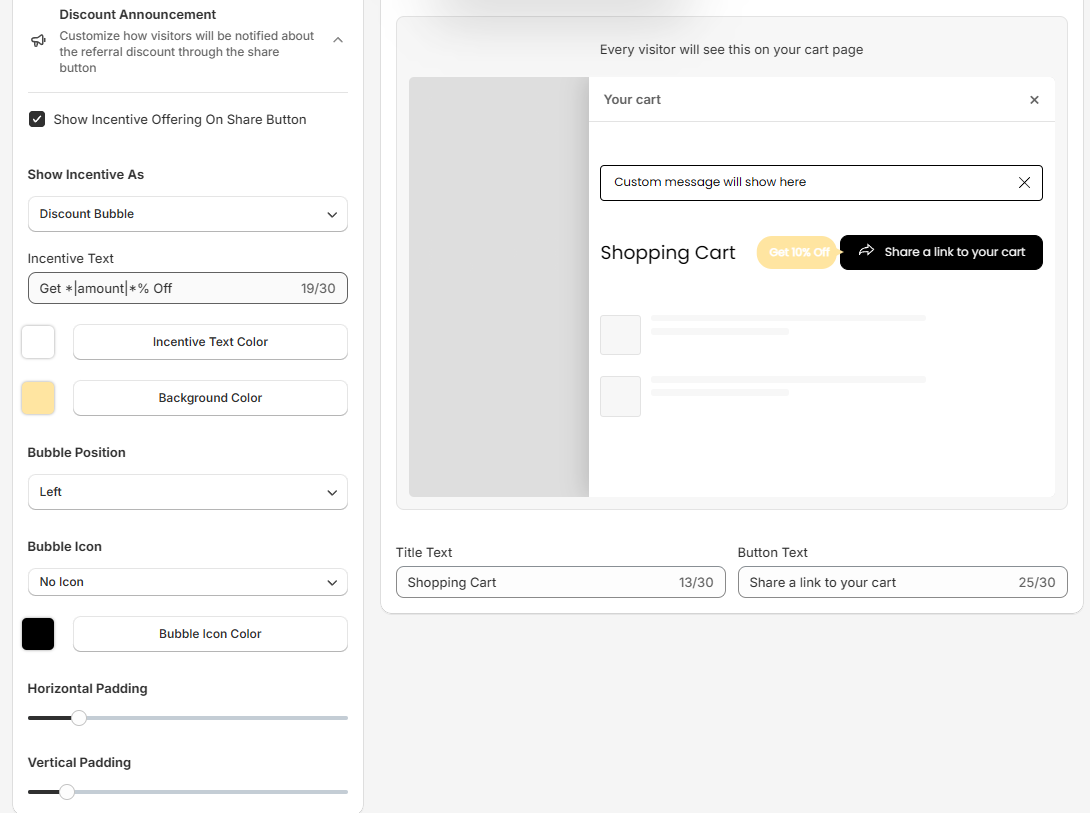
| Setting | What it changes | Options or limit | Default |
|---|---|---|---|
| Incentive Text | The discount text | 30 characters | Depends on your discount setup (see below) |
| Incentive Text Color | The color of the discount text | Color picker | Matches the Share Button text color |
| Background Color | The bubble color | Color picker | Light yellow |
| Bubble Position | Which side of the Share Button the bubble sits on | Left, Right | Left |
| Bubble Icon | An icon inside the bubble | The same icons as the Share Button Icon in Appearance, including No Icon | No Icon |
| Bubble Icon Color | The color of the bubble icon | Color picker | Black |
| Horizontal Padding | The space to the left and right of the text | Slider, 1 to 50 | 8 |
| Vertical Padding | The space above and below the text | Slider, 1 to 50 | 6 |
Discount Badge#
The discount appears in a small badge on top of the Share Button.
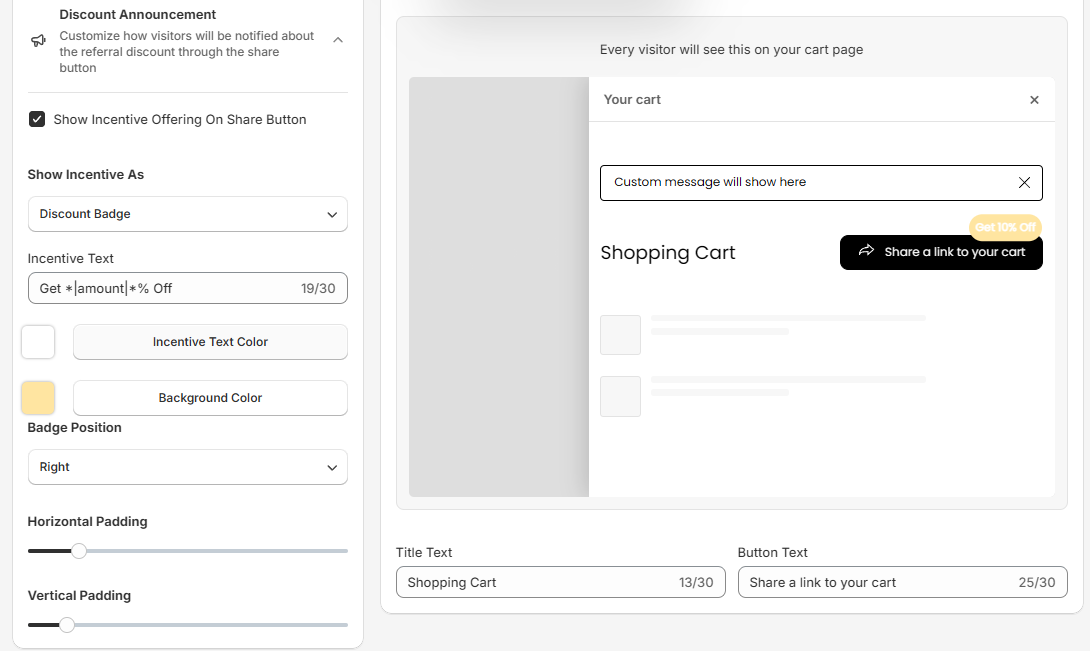
| Setting | What it changes | Options or limit | Default |
|---|---|---|---|
| Incentive Text | The discount text | 30 characters | Depends on your discount setup (see below) |
| Incentive Text Color | The color of the discount text | Color picker | Matches the Share Button text color |
| Background Color | The badge color | Color picker | Light yellow |
| Badge Position | Where the badge sits on the Share Button | Left, Middle, Right | Right |
| Horizontal Padding | The space to the left and right of the text | Slider, 1 to 50 | 8 |
| Vertical Padding | The space above and below the text | Slider, 1 to 50 | 6 |
Note: Discount Bubble and Discount Badge share the same Background Color, Horizontal Padding and Vertical Padding settings. Changing one also changes the other.
How Does the Incentive Text Work?#
Use the tag *|amount|* in Incentive Text to show your discount amount. Share Cart replaces it with the amount you set on the Incentives page.
- Fixed amount: keep the tag written as
$*|amount|*. On your store, Share Cart replaces the$with your store's currency symbol (the preview always shows$). - Percentage:
*|amount|*is only the number, so keep the%after it.
Share Cart keeps a separate text for each discount setup. The Incentive Text field always edits the text for your current setup:
| Your discount setup | Default text |
|---|---|
| Referrer discount, fixed amount | Save $*|amount|* |
| Referrer discount, percentage | Get *|amount|*% Off |
| Referrer discount, manual discounts | Save Big! |
| Recipient discount only, fixed amount | Help Save $*|amount|* |
| Recipient discount only, percentage | Help Get *|amount|*% Off |
| Recipient discount only, manual discounts | Help to Save! |
When only the recipient discount is on, the text says "Help", because the shopper sharing the cart helps their friend save.
For any queries, reach out to us via live chat or email support@bevycommerce.com. We're always here to assist!