Advanced Colors
The Advanced Colors card lets you set the color of each single element of the Share Button and Share Pop-Up. Use it when Basic Colors are not precise enough.
This page shows you where to find Advanced Colors, what each color changes, and why some colors only appear in certain setups.
How to Change the Advanced Colors#
Step 1: In your Shopify admin, under Apps, click Bevy Share Cart - Social Link. The app opens on its Dashboard.
Step 2: In the settings list, click Design.
Step 3: Click the Advanced Colors card to expand it.
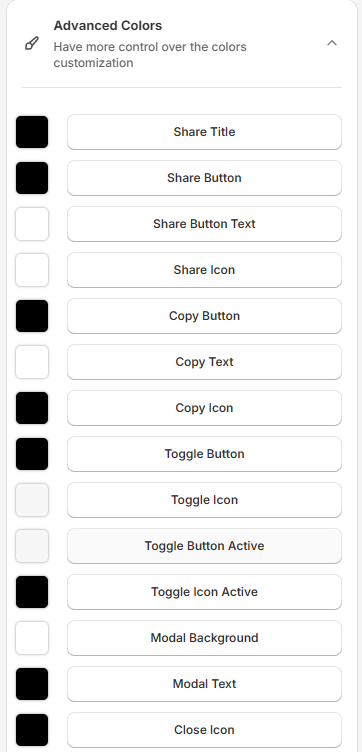
Step 4: Click a color button to open the color picker and choose a color. The Design Preview updates as you go.
Step 5: Click Save in the save bar at the top of the page. Your changes are not live on your store until you save. To undo unsaved changes, click Discard.
Note: Changing a basic color overwrites the matching advanced colors. Set your Basic Colors first, then fine-tune here.
Share Button Colors#
| Setting | What it changes |
|---|---|
| Share Title | The title next to the Share Button |
| Share Button | The Share Button background |
| Share Button Text | The text on the Share Button |
| Share Icon | The icon on the Share Button |
Share Pop-Up Colors#
| Setting | What it changes |
|---|---|
| Copy Button | The copy button background |
| Copy Text | The text on the copy button |
| Copy Icon | The link icon in the input bar |
| Toggle Button | The social sharing button |
| Toggle Icon | The icon on the social sharing button |
| Toggle Button Active | The social sharing button while the social icons are open |
| Toggle Icon Active | The icon on the social sharing button while the social icons are open |
| Modal Background | The background of the Share Pop-Up |
| Modal Text | The text in the Share Pop-Up |
| Close Icon | The close icon of the Share Pop-Up |
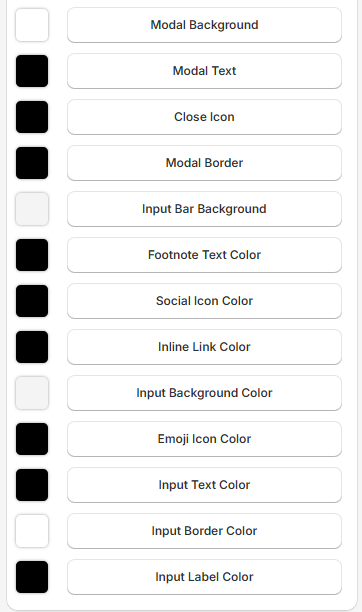
| Modal Border | The border of the Share Pop-Up |
| Input Bar Background | The background of the bar that shows the cart link |
| Footnote Text Color | The footnote at the bottom of the Share Pop-Up |
| Social Icon Color | The social media icons |
Why Can't I See Some Colors?#
Some colors only appear when they apply:
- The four toggle colors (Toggle Button, Toggle Icon, Toggle Button Active, Toggle Icon Active) appear only when Social Sharing is on. They are also hidden when the White & Blue theme is applied.
- Social Icon Color appears only when Social Sharing is on and the White & Black or Aquamarine theme is applied.
To change themes, click Pick a theme at the top of the Dashboard. See Themes.
Colors That Appear When Share Message Is On#
When Share Message is on, six more colors appear for the clickable footnote link and the message input in the Share Pop-Up.
| Setting | What it changes |
|---|---|
| Inline Link Color | The clickable part of the footnote, such as "Click here" |
| Input Background Color | The background of the message input |
| Emoji Icon Color | The emoji icon in the message input |
| Input Text Color | The text shoppers type in the message input |
| Input Border Color | The border of the message input |
| Input Label Color | The label above the message input |
For any queries, feel free to reach us via live chat or email support@bevycommerce.com.