Social Sharing
The Social Sharing card controls the social sharing button in the Share Pop-Up. When it is on, shoppers can share their cart on Facebook, Messenger, X, Tumblr, Pinterest, WhatsApp, Reddit and by email. You can also write the text that goes out with each share, such as a greeting, a hashtag or a note about an offer.
This page shows you how to turn social sharing on, how to customize the content for each platform, and how to save it.
How to Turn On Social Sharing#
Step 1: In your Shopify admin, under Apps, click Bevy Share Cart - Social Link. The app opens on its Dashboard.
Step 2: In the settings list, click Display Settings.
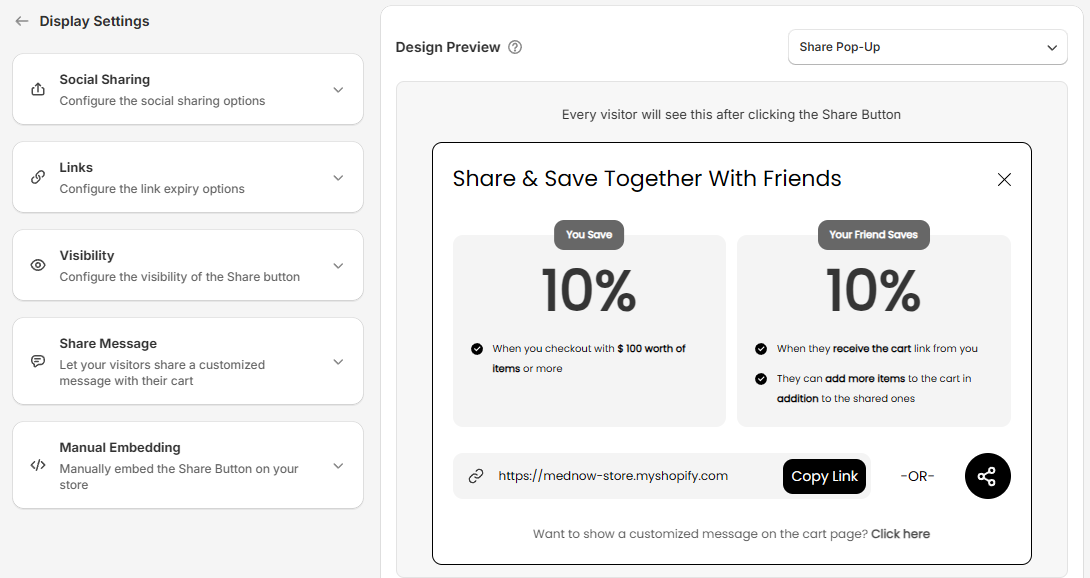
Step 3: Click the Social Sharing card to expand it.
Step 4: Select the checkbox. Its label reads Social Sharing Enabled when it is on and Social Sharing Disabled when it is off. Social sharing is on by default.
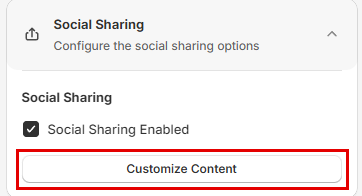
Step 5: Click Save in the save bar at the top of the page. Your changes are not live on your store until you save. To undo unsaved changes, click Discard.
Note: When social sharing is off, the toggle colors in Advanced Colors are hidden because the social sharing button is not shown.
How to Customize the Shared Content#
Step 1: In the Social Sharing card, click Customize Content. The Customize social share content dialog opens on Email Sharing.
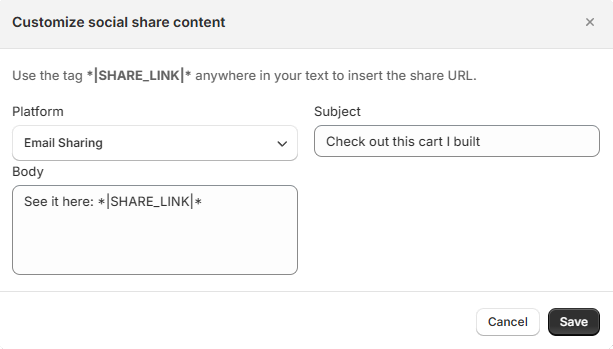
Step 2: Choose a platform from the Platform dropdown.
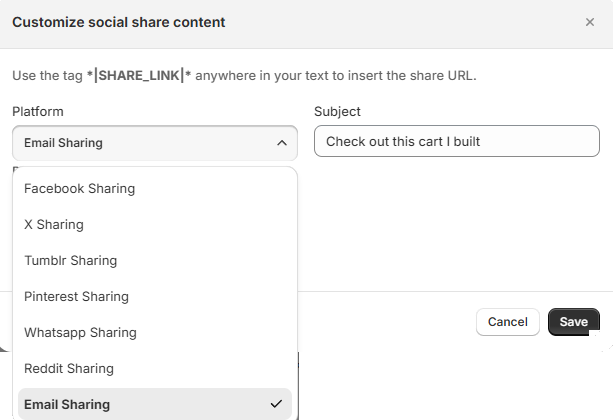
Step 3: Fill in the fields for that platform. See the table below.
Step 4: Repeat steps 2 and 3 for any other platform you want to change.
Step 5: Click Save in the dialog. This saves the content for all platforms. The dialog closes and you see "Saved Successfully".
Note: The dialog has its own Save and Cancel buttons. Content you save in the dialog is saved right away, separately from the save bar at the top of the page. Cancel closes the dialog and discards edits you haven't saved, going back to your last saved content.
Platforms and Fields#
| Platform | Fields | Default content |
|---|---|---|
| Facebook Sharing | Hashtag | Hashtag: ShareCartApp |
| X Sharing | Hashtag, Text | Hashtag: ShareCartApp. Text: Check out this cart I built: *|SHARE_LINK|* |
| Tumblr Sharing | Title, Content | Title: My Shopping Cart and Share Cart, separated by a dash. Content: Check out this cart I built: *|SHARE_LINK|* |
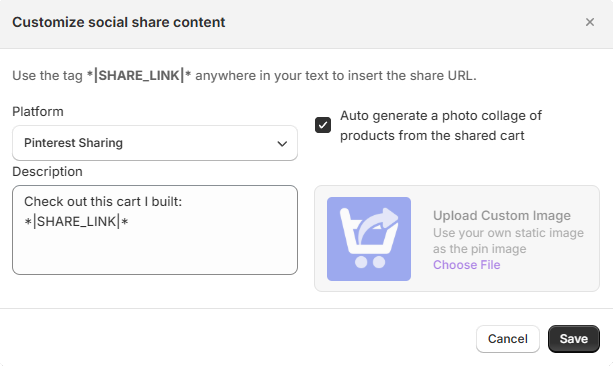
| Pinterest Sharing | Description, photo collage checkbox, custom image | Description: Check out this cart I built: *|SHARE_LINK|* |
| Whatsapp Sharing | Message | Message: Check out this cart I built: *|SHARE_LINK|* |
| Reddit Sharing | Title, Text | Title: Check out this cart I built. Text: See it here: *|SHARE_LINK|* |
| Email Sharing | Subject, Body | Subject: Check out this cart I built. Body: See it here: *|SHARE_LINK|* |
Messenger shares the cart link on its own, so it has no content to customize and is not in the Platform list.
How to Add the Cart Link#
Use the tag *|SHARE_LINK|* anywhere in your text. Share Cart replaces it with the link to the shopper's cart. For example, Check out this cart I built: *|SHARE_LINK|* is shared as the sentence followed by the cart link.
Pinterest Image Options#
Pinterest shares need an image. You have two options:
- Auto generate a photo collage of products from the shared cart: Share Cart builds a collage from the products in the cart. This checkbox is on by default.
- Upload Custom Image: Use your own static image as the pin image. Clear the collage checkbox first, then click Choose File and pick an image from your computer.
To learn more about our app, reach out to us via live chat or email support@bevycommerce.com.