Dashboard Overview
The Dashboard is the home page of Share Cart. From here you turn cart sharing on or off, see your results, pick a theme and customize the Share Button and Pop-Up.
This page shows you how to move around the app, what each part of the Dashboard does, and how to save your changes.
Navigating the App#
In your Shopify admin, under Apps, click Bevy Share Cart - Social Link to open the app. Once the app is open, its pages are listed under the app name in the left sidebar of your Shopify admin:
| Item | What it opens |
|---|---|
| Bevy Share Cart - Social Link (the app name) | The Dashboard. |
| Incentives | Discounts for referrers and recipients (Pro). |
| Academy | These help articles, inside the app. |
| Subscription | Your plan, free trial and billing options. |
Dashboard at a Glance#
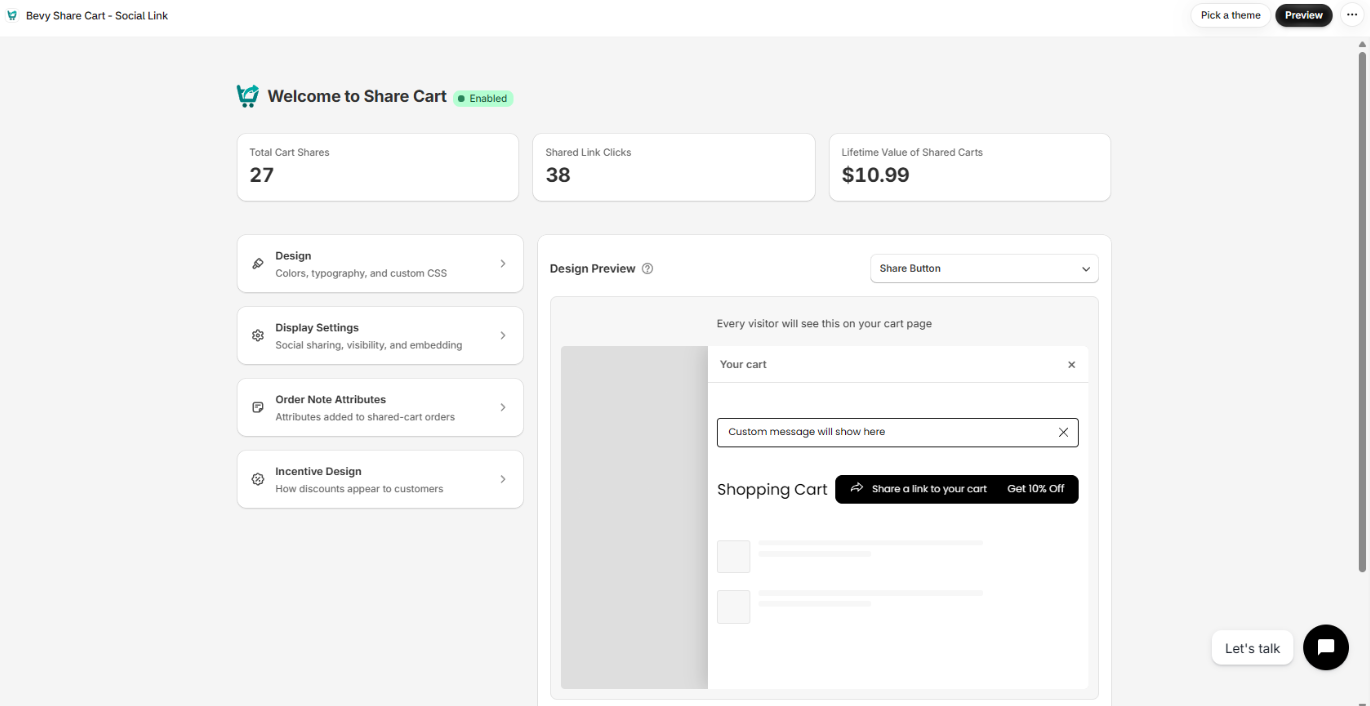
From top to bottom, the Dashboard shows the following.
Title Bar Actions#
Two buttons sit in the title bar at the top of the page:
- Preview opens your store's cart page in a new tab so you can see the Share Button on your storefront.
- Pick a theme opens Share Cart themes, where you can apply one of five pre-built designs. See Themes.
Status Badge#
The badge next to Welcome to Share Cart shows whether cart sharing is on:
- Enabled: customers can share their cart from your store. Click the badge to turn it off.
- Disabled: the Share Button is hidden from your store. Click the badge to turn it on.
Clicking the badge takes effect right away. You don't need to click Save, and you see a short confirmation message.
While no plan is active, the badge shows Disabled and can't be clicked. Start a free trial on the Subscription page to turn cart sharing on.
Setup Banners#
Banners appear under the title when something needs your attention. You see one at a time:
- Important: add Bevy Share Cart to your store theme: the app embed is off in your theme, so the Share Button can't appear. Click Follow setup instructions. See Installing Share Cart.
- Choose a plan to turn on cart sharing: no plan or trial is active. Click See plans.
- Welcome to Bevy Share Cart: shown after a new install, once the app embed is on and a plan is active. Click Take the tour for a short walkthrough. You can reopen the tour later from the ? icon next to Design Preview.
Analytics Cards#
Three cards show your all-time results: Total Cart Shares, Shared Link Clicks and Lifetime Value of Shared Carts. See Analytics.
Settings List#
On the left, four rows hold all your design and display settings:
| Row | Description in the app |
|---|---|
| Design | Colors, typography, and custom CSS |
| Display Settings | Social sharing, visibility, and embedding |
| Order Note Attributes | Attributes added to shared-cart orders |
| Incentive Design | How discounts appear to customers |
Click a row to open it. Its cards replace the list, with a back arrow and the row name at the top. Click a card to expand it. Click the back arrow to return to the list.
If you are not on Pro, Incentive Design is dimmed with a PRO badge and can't be opened.
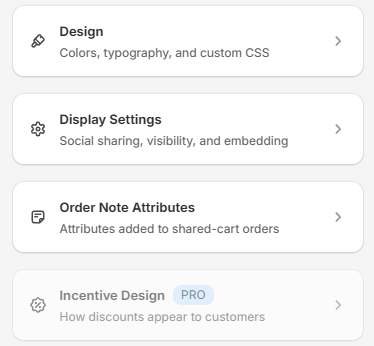
On Pro, it appears once you turn on a recipient or referrer discount. If you don't have a plan yet, a Did you know? banner under the rows tells you about Pro incentives. Click View plans to compare plans.
For everything inside each row, see Dashboard Customization.
Design Preview#
On the right, Design Preview shows how your Share Button and Pop-Up look as you change settings. Use the dropdown to switch between views, such as Share Button and Share Pop-Up. Text fields under the preview let you edit the words shown in the current view. See Dashboard Customization.
Saving Your Changes#
When you change a setting or apply a theme, a save bar appears at the top of the page with Unsaved changes. Your changes are not live on your store until you save them. The only exception is the Status Badge, which takes effect as soon as you click it.
- Click Save to publish your changes.
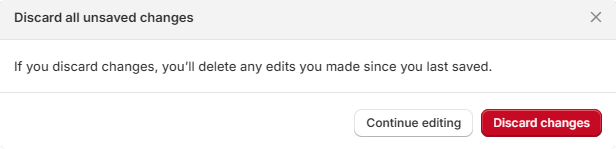
- Click Discard to undo everything since your last save.

When you click Discard, the Discard all unsaved changes dialog asks you to confirm. Click Discard changes to undo your edits, or Continue editing to keep them.
Note: The save bar also appears on the Incentives page. Save your changes there the same way.
Incentives#
The Incentives page lets you reward sharing with discounts. It has three sections: Customer eligibility, Recipient discount and Referrer discount. See What are Incentives?, Recipient Incentives and Referrer Incentives.
Note: Incentives are part of the Pro plan. Without Pro, the sections show a PRO badge, the settings can't be changed, and a See plans button appears at the top of the page.
Academy#
The Academy page opens Share Cart's help articles inside the app, so you can read a guide while you set things up.
Subscription#
The Subscription page shows the Starter and Pro plans, what each includes, and your current plan. From here you can start a free trial, upgrade, switch plans or cancel. See How to Switch Subscriptions and Why Use Share Cart?
For any queries, feel free to contact us via live chat or email support@bevycommerce.com. We're always here to help!