Themes
Share Cart comes with five pre-built themes that change the look of the Share Button and Pop-Up in one go. A theme is a quick starting point: you can fine-tune every color, font and size afterwards.
This page shows you how to browse the themes, apply one and save it, and what each theme looks like.
How to Open the Theme Picker#
On the Dashboard, click Pick a theme in the title bar at the top of the page.

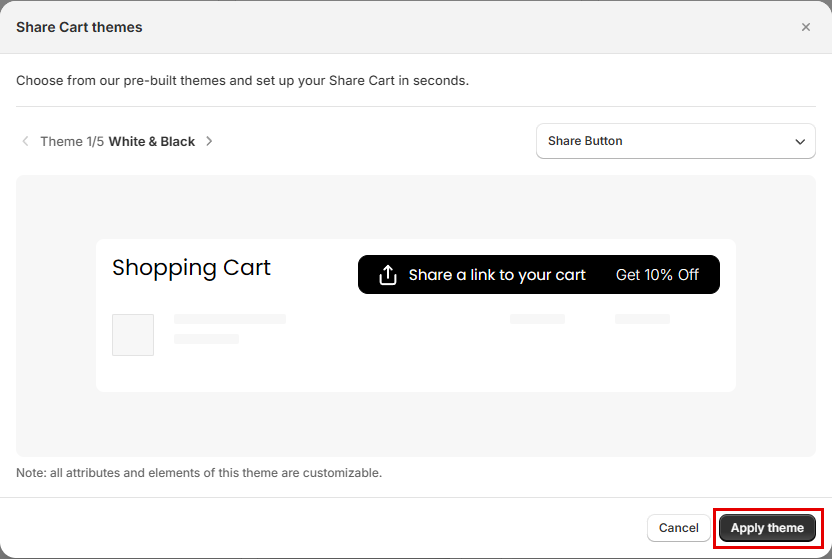
The Share Cart themes dialog opens.
How to Browse Themes#
- Click the left and right arrows next to the theme name to move between themes. The counter, for example Theme 1/5 White & Black, shows which theme you're viewing.
- Use the dropdown on the right to preview the theme on Share Button or Share Pop-Up. On the Pro plan, you can also preview Recipient Discount Banner, Recipient Discount Pop-Up and Referrer Discount Pop-Up.
How to Apply a Theme#
Step 1: Browse to the theme you want.
Step 2: Click Apply theme. The dialog closes and the Design Preview shows the new look.
Step 3: Click Save in the save bar at the top of the page. The theme is not live on your store until you save.
To leave without changing anything, click Cancel. If you applied a theme but changed your mind, click Discard in the save bar.
Note: Applying a theme replaces your design settings: colors, fonts, sizes, the Share Button icon, the Share Pop-Up layout, the Share Message box style and the colors of your discount banners and pop-ups. Your texts are kept. If you have customized your design, those changes are overwritten when you save.
Available Themes#
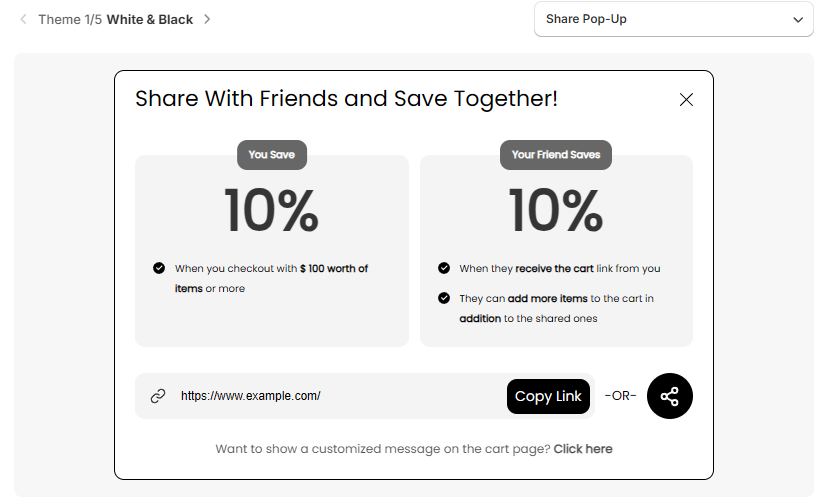
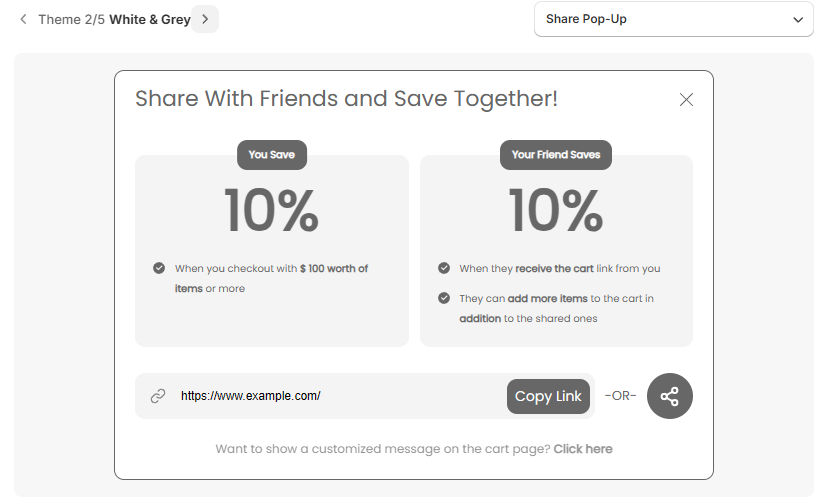
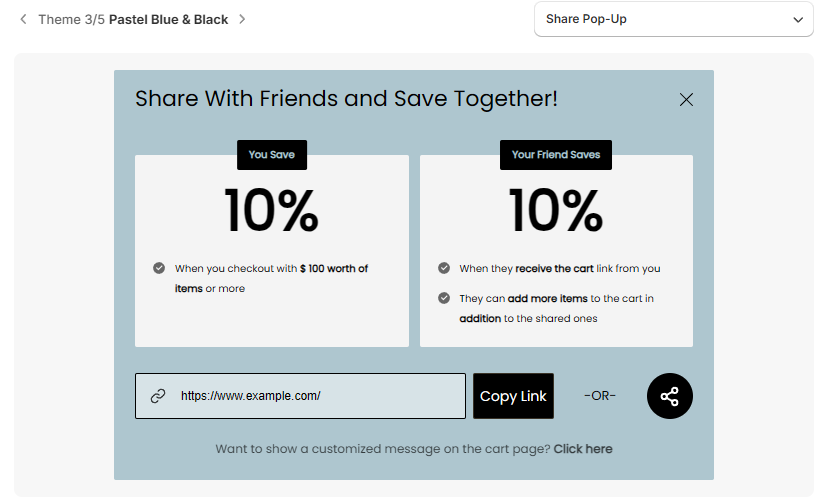
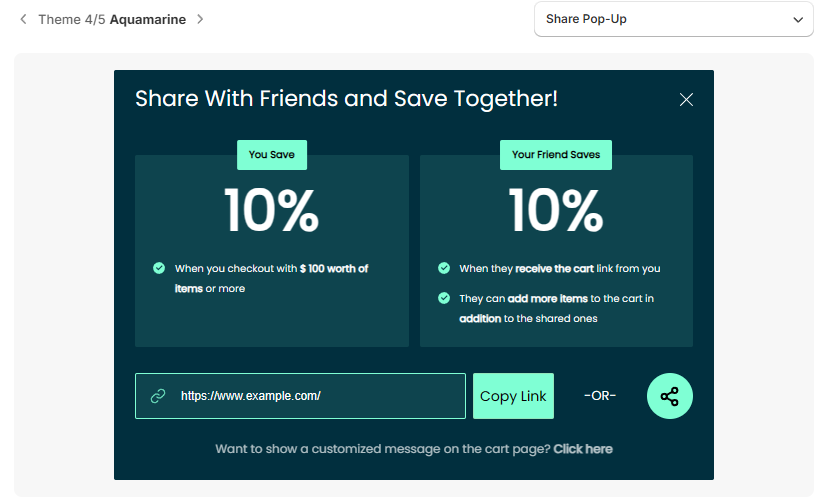
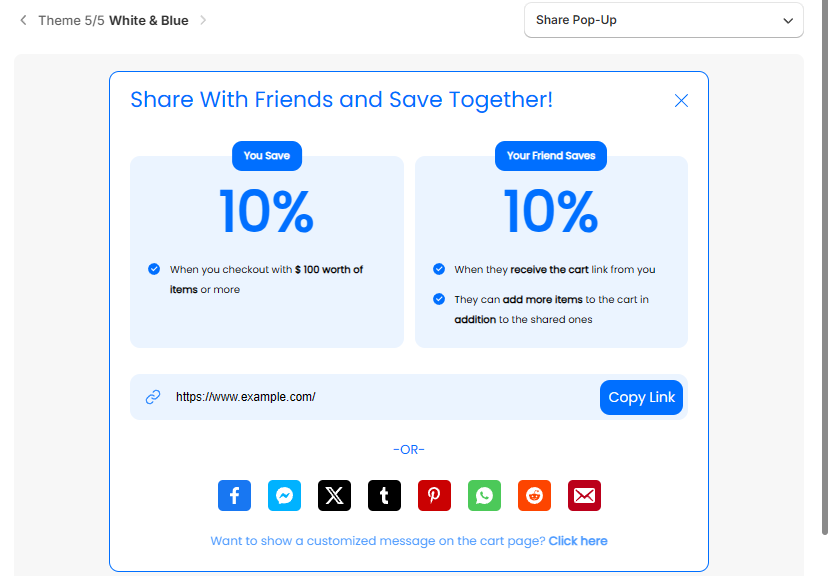
Each image below shows the theme on the Share Pop-Up. Themes differ in layout as well as color. For example, White & Blue shows the social sharing icons in a row under the link.
White & Black#
White & Grey#
Pastel Blue & Black#
Aquamarine#
White & Blue#
Customize Further#
Every part of a theme can be changed. After applying a theme, open Design on the Dashboard to adjust colors, fonts, sizes and more. See Dashboard Customization.
For any queries, reach out to us via live chat or drop an email at support@bevycommerce.com. We're always ready to assist!