Recipient Discount Details Modal
The recipient discount details modal is a pop-up that shows recipients the checkout conditions they must meet to get their discount. It opens when the recipient clicks Tell Me How in the announcement modal or in the discount banner. Closing it, or clicking its button, shows the discount banner above the Share Button.

This page shows you how to turn on the modal, change its colors in the Recipient Discount Pop-Up card, and edit its text.
Note: Incentives are part of the Pro plan.
Before You Start#
- Turn on Offer a discount to recipients on the Incentives page. The Recipient Discount Pop-Up card appears only when the recipient discount is on. See Recipient Incentives.
- On the Pro plan, the Incentive Design row appears on the Dashboard once at least one discount is on. If your store isn't on Pro, the row is shown with a PRO badge and can't be opened.
- The checkout conditions in the modal come from the conditions you set for the recipient discount on the Incentives page.
How to Customize the Discount Details Modal#
Step 1: In your Shopify admin, under Apps, click Bevy Share Cart - Social Link. The app opens on its Dashboard.
Step 2: In the settings list, click Incentive Design.
Step 3: Click the Recipient Discount Pop-Up card to expand it.
Step 4: Make sure Show Recipient Incentive Announcement is selected. Share Cart selects it for you when you turn on the recipient discount on the Incentives page. Clear it to hide the pop-ups and the banner. The color settings appear while it is selected.
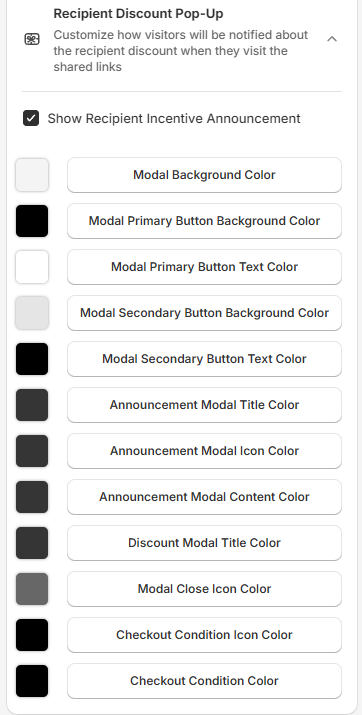
Note: Show Recipient Incentive Announcement is one shared setting. It turns on the banner, the announcement modal and the discount details modal together. See Recipient Discount Announcement.
Step 5: Change the colors and text you need. See below.
Step 6: Click Save in the save bar at the top of the page. Your changes are not live on your store until you save. To undo unsaved changes, click Discard.
Discount Details Modal Colors#
The Recipient Discount Pop-Up card styles both the announcement modal and the discount details modal. These colors apply to the discount details modal:
| Setting | What it changes | Default |
|---|---|---|
| Modal Background Color | The background of the modal. This also applies to the announcement modal. | Light grey |
| Modal Primary Button Background Color | The button background. This also applies to the primary button in the announcement modal. | Black |
| Modal Primary Button Text Color | The button text. This also applies to the primary button in the announcement modal. | White |
| Discount Modal Title Color | The title and heading at the top, such as "Get 10% discount" | Dark grey |
| Modal Close Icon Color | The close icon | Grey |
| Checkout Condition Icon Color | The check icons next to the checkout conditions | Black |
| Checkout Condition Color | The checkout condition text | Black |
How to Edit the Discount Details Modal Text#
Step 1: In the Design Preview, select Recipient Discount Pop-Up from the view dropdown. The preview opens on the announcement modal.
Step 2: In the preview, click the announcement modal's primary button (Tell Me How by default) to show the discount details modal.
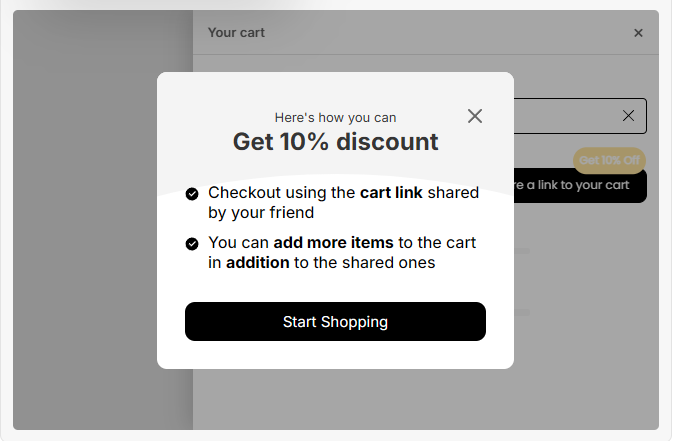
Step 3: Edit the discount information fields below the preview:
| Field | What it changes | Limit | Default |
|---|---|---|---|
| Discount Information Title | The small line at the top | 30 characters | Here's how you can |
| Discount Information Heading | The large heading with the discount | 30 characters | Get *|amount|* discount (manual discounts: Unlock Big Savings!) |
| Discount Information Primary Button | The button at the bottom | 15 characters | Start Shopping |
Use *|amount|* to show the recipient's discount amount.
Step 4: Click Save in the save bar.
For any queries, reach out to us via live chat or email support@bevycommerce.com. We're always here to assist!