Installing Share Cart
Getting Share Cart running on your store takes three short steps: install the app, turn on its app embed in your theme, and choose a plan. You don't need to edit any theme code.
This page walks you through each step, shows you how to check that the Share Button is live, and covers what to do if it doesn't appear.
How to Install Share Cart#
Step 1: Go to Install Share Cart on Shopify and install the app on your store.
Step 2: Once installed, the app opens in your Shopify admin. To open it again later: in your Shopify admin, under Apps, click Bevy Share Cart - Social Link. The app opens on its Dashboard, titled Welcome to Share Cart.
How to Turn On the App Embed#
The Share Button is added to your storefront through an app embed in your theme. Until the app embed is on, the Share Button does not appear on your store. While it is off, the Dashboard shows a yellow banner: Important: add Bevy Share Cart to your store theme, with an I already added it link and a Follow setup instructions button.
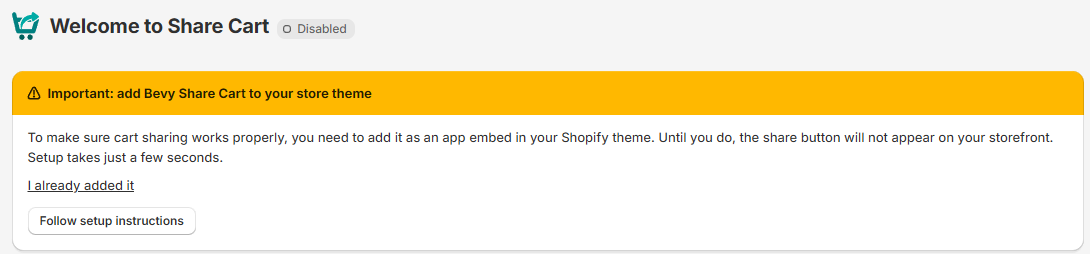
Step 1: In that banner, click Follow setup instructions. The Add the app embed to your theme dialog opens with three steps:
- Open your Shopify theme settings.
- Find Bevy Share Cart under App embeds.
- Switch it on, then select Save.
Step 2: Click Open Shopify theme settings. Your theme editor opens in a new tab on the App embeds panel.
Step 3: Find Share Cart (the app name Bevy Share Cart - Social Link shows under it). You can type "Share Cart" in the search field to find it quickly.
Step 4: Switch the toggle on.
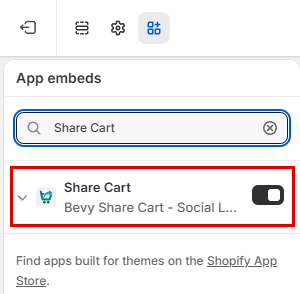
Step 5: Click Save in the theme editor.
Step 6: Go back to the Share Cart tab. The app checks your theme again when you return, and the yellow banner disappears once the app embed is detected.
If the banner is still there, click I already added it in the banner to check again. When the app embed is found, you see the message Share Cart is on in your theme.
Note: If you see Still not detected. Check that you selected Save in your theme., go back to the theme editor and make sure you clicked Save after switching the app embed on.
How to Choose a Plan#
Cart sharing stays off on your storefront until a plan or free trial is active. Without one, the Dashboard shows the banner Choose a plan to turn on cart sharing.
Step 1: In that banner, click See plans. The Subscription page opens.
Step 2: Pick Starter or Pro and click Start 30-Day Free Trial.
Step 3: Confirm in the dialog, then approve the charge on Shopify's page.
Both plans include a 30-day free trial, once per store. For the full steps and what each plan includes, read How to Switch Subscriptions.
Note: You can set up the look of the Share Button and Pop-Up before you choose a plan. Your settings are kept.
How to Check That Share Cart Is Working#
Step 1: On the Dashboard, look at the badge next to Welcome to Share Cart. It should say Enabled.

If the badge says Disabled, click it to turn cart sharing on. This takes effect right away. You don't need to click Save. While no plan is active, the badge can't be clicked.
Step 2: Click Preview in the title bar at the top of the page. Your store's cart page opens in a new tab so you can see the Share Button on your storefront. Click Close Preview on that page when you are done.
The preview shows your saved settings, so click Save first to see your latest changes.

Note: The Share Button appears on your cart page. If your cart is empty, add a product first.
When you first install the app, you may also see a Welcome to Bevy Share Cart banner. Click Take the tour for a short walkthrough of the Share Button, the Share Pop-Up, tracking revenue and incentives.
Troubleshooting#
The Share Button Doesn't Show on My Store#
Check each of these:
- The app embed is on and saved. If the yellow Important: add Bevy Share Cart to your store theme banner is on the Dashboard, follow How to Turn On the App Embed above.
- A plan or free trial is active. If you see Choose a plan to turn on cart sharing, start a trial or subscribe.
- The badge says Enabled. If it says Disabled, click it.
- Visibility settings. If Visible to Only Logged in Customers is on, the button is hidden from guests and, if you added tags, from customers who don't have all of those tags. See Visibility.
My Theme Places the Button in the Wrong Spot#
Some themes have a custom cart layout. You can move the button above or below the cart with Share Widget Position (see Appearance), or place it exactly where you want with a code snippet. See Manual Embedding.
The App Can't Check My Theme#
If you see We couldn't check your theme. Try again, or reload this page., wait a moment and click I already added it again, or reload the app.
For any queries, reach out to us via live chat or email support@bevycommerce.com. We're always here to assist!