Recipient Discount Announcement
When you offer a recipient discount, Share Cart tells recipients (the shoppers who open a shared cart link) about it on the shared cart. This page explains how recipients are notified and where you customize each part.
Note: Incentives are part of the Pro plan.
Before You Start#
- Turn on Offer a discount to recipients on the Incentives page. The recipient cards under Incentive Design appear only when the recipient discount is on. See Recipient Incentives.
- On the Pro plan, the Incentive Design row appears on the Dashboard once at least one discount is on. If your store isn't on Pro, the row is shown with a PRO badge and can't be opened.
How Are Recipients Notified?#
Recipients can see three things on the shared cart:
- Announcement modal: A pop-up that announces the discount the first time the recipient opens the shared link. No Thanks closes it and shows the banner. Tell Me How opens the discount details modal.
- Discount banner: A banner above the Share Button with the discount amount, a short message and a Tell Me How link. The recipient can close it with its close icon.
- Discount details modal: A pop-up with the checkout conditions the recipient must meet. It opens when the recipient clicks Tell Me How. Closing it, or clicking its button (Start Shopping by default), shows the banner.
The button texts above are the defaults. You can change them.
Where Do I Customize Them?#
Under Incentive Design, two cards control these:
| Card | What it controls | Read more |
|---|---|---|
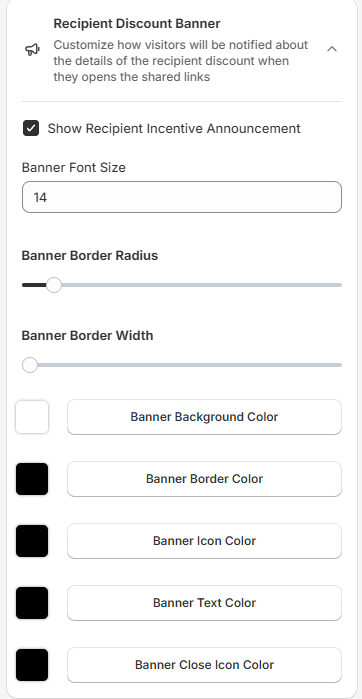
| Recipient Discount Banner | The banner's size, border and colors | Recipient Discount Banner |
| Recipient Discount Pop-Up | The colors of both modals | Recipient Announcement Modal and Recipient Discount Details Modal |
You edit the text of the banner and the modals in the Design Preview, using the Recipient Discount Banner and Recipient Discount Pop-Up views. Each linked page explains its fields.
How to Turn On Recipient Announcements#
Both cards have the same checkbox, Show Recipient Incentive Announcement. It is one shared setting: selecting it in either card turns on the banner and the modals together, and clearing it turns them all off. Share Cart selects it for you when you turn on the recipient discount on the Incentives page.
Step 1: In your Shopify admin, under Apps, click Bevy Share Cart - Social Link. The app opens on its Dashboard.
Step 2: In the settings list, click Incentive Design.
Step 3: Click the Recipient Discount Banner or Recipient Discount Pop-Up card to expand it.
Step 4: Make sure Show Recipient Incentive Announcement is selected. Clear it to hide the banner and the modals.
Step 5: Click Save in the save bar at the top of the page. Your changes are not live on your store until you save. To undo unsaved changes, click Discard.
For any queries, reach out to us via live chat or email support@bevycommerce.com. We're always here to assist!