Share Button
The Share Button is the button Share Cart adds to your cart page or cart drawer. When shoppers click it, the Share Pop-Up opens so they can copy a link to their cart or share it on social media.
This page shows you how to change the Share Button text and where to find every setting that styles it.
How to Change the Share Button Text#
You edit the Share Button text in the Design Preview on the Share Cart Dashboard.
Step 1: In your Shopify admin, under Apps, click Bevy Share Cart - Social Link. The app opens on its Dashboard.
Step 2: In the Design Preview card, select Share Button from the view dropdown. The caption reads "Every visitor will see this on your cart page", and the preview shows the button inside a sample cart.
Step 3: Edit the fields below the preview:
| Field | What it changes | Limit | Default |
|---|---|---|---|
| Title Text | The title shown next to the Share Button | 30 characters | Shopping Cart |
| Button Text | The text on the Share Button | 30 characters | Share a link to your cart |
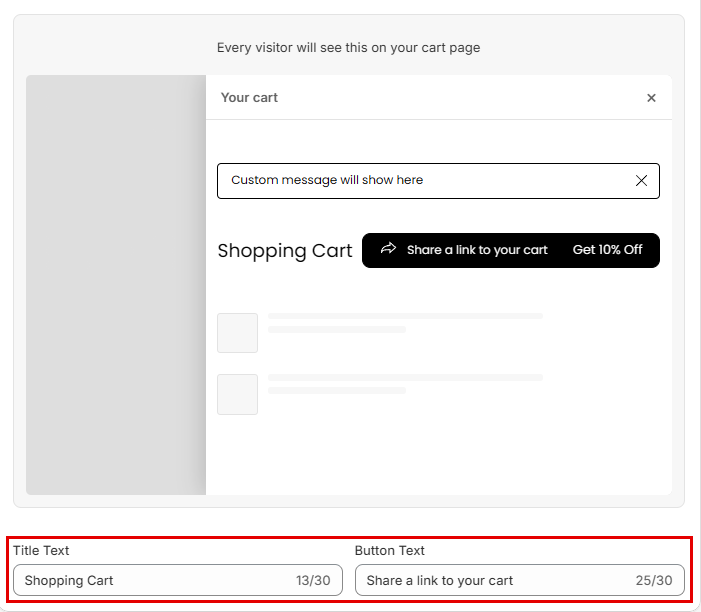
Step 4: Click Save in the save bar at the top of the page. Your changes are not live on your store until you save. To undo unsaved changes, click Discard.
Note: Click the Share Button in the preview to switch to the Share Pop-Up view.
How to Style the Share Button#
Each part of the Share Button's look has its own card on the Dashboard:
- Basic Colors: set the button color and button text color in one place.
- Typography: change the font family and the weight and size of the button and title text.
- Appearance: pick the button icon, place the button above or below the cart, and change its height, corner radius and alignment.
- Advanced Colors: fine-tune the colors of the title, button, button text and icon.
- Custom CSS: add your own CSS for anything the settings don't cover.
To control who sees the button and where it appears, see Visibility and Manual Embedding.
How to Show a Discount on the Share Button#
If you offer incentives, you can show the discount on the Share Button, for example "Get 10% Off". You set this up in the Discount Announcement card. See Discount Announcement.
Note: Incentives are part of the Pro plan.
To learn more about our app, reach out to us via live chat or email support@bevycommerce.com.