Discount Details
The Discount Details card adds a discount banner inside the Share Pop-Up. The banner shows what the shopper saves by sharing ("You Save"), what their friend saves ("Your Friend Saves"), and the checkout conditions for each discount.
This page shows you how to turn on the banner, change its colors and edit its tile headings.
Note: Incentives are part of the Pro plan.
Before You Start#
- Turn on at least one discount on the Incentives page. The banner shows a tile for each discount that is on. See Referrer Incentives and Recipient Incentives.
- On the Pro plan, the Incentive Design row appears on the Dashboard once at least one discount is on. If your store isn't on Pro, the row is shown with a PRO badge and can't be opened.
How to Show Discount Details in the Share Pop-Up#
Step 1: In your Shopify admin, under Apps, click Bevy Share Cart - Social Link. The app opens on its Dashboard.
Step 2: In the settings list, click Incentive Design.
Step 3: Click the Discount Details card to expand it.
Step 4: Make sure Show Incentive Banner Inside Share Pop Up is selected. Share Cart selects it for you when you turn on a discount on the Incentives page. Clear it to hide the banner. The color settings appear while it is selected. To see the banner, select Share Pop-Up from the view dropdown in the Design Preview.
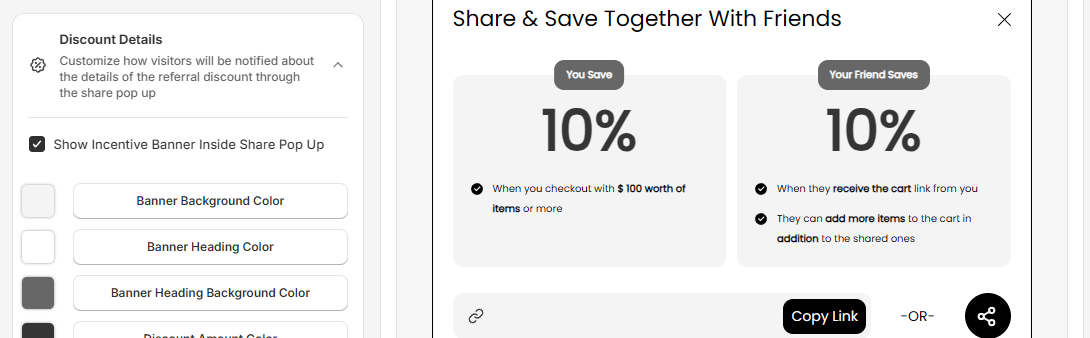
Step 5: Change the colors you need. See the table below.
Step 6: Click Save in the save bar at the top of the page. Your changes are not live on your store until you save. To undo unsaved changes, click Discard.
Discount Details Colors#
| Setting | What it changes |
|---|---|
| Banner Background Color | The background of the discount tiles |
| Banner Heading Color | The text of the tile headings, such as "You Save" |
| Banner Heading Background Color | The background behind the tile headings |
| Discount Amount Color | The discount amount, such as "10%" |
| Icon Color | The check icons next to the checkout conditions |
| Condition Text Color | The checkout condition text |
How to Edit the Tile Headings#
Step 1: In the Design Preview, select Share Pop-Up from the view dropdown.
Step 2: Edit the fields below the preview:
| Field | What it changes | Limit | Default |
|---|---|---|---|
| Referrer Tile Heading | The heading of the referrer's tile | 30 characters | You Save |
| Recipient Tile Heading | The heading of the recipient's tile | 30 characters | Your Friend Saves |
Step 3: Click Save in the save bar.
Both fields appear only while Show Incentive Banner Inside Share Pop Up is selected. The Referrer Tile Heading field appears only when the referrer discount is on. The Recipient Tile Heading field appears only when the recipient discount is on and you don't limit incentives to logged-in customers.
If Give incentives to logged-in customers only is on, the preview doesn't show the banner, and on your store only logged-in shoppers see it. To change the pop-up title, see Share Pop-Up.
To see how the banner looks on a store, see Referrer Incentive Banner.
If you have any queries, reach out to us via live chat or email support@bevycommerce.com. We're always ready to assist!