Share Pop-Up
The Share Pop-Up opens when shoppers click the Share Button. From it, they can copy a link to their cart or share the cart on social media and by email.
This page shows you how to change the Share Pop-Up text and where to find every setting that styles it.
How to Change the Share Pop-Up Text#
You edit the Share Pop-Up text in the Design Preview on the Share Cart Dashboard.
Step 1: In your Shopify admin, under Apps, click Bevy Share Cart - Social Link. The app opens on its Dashboard.
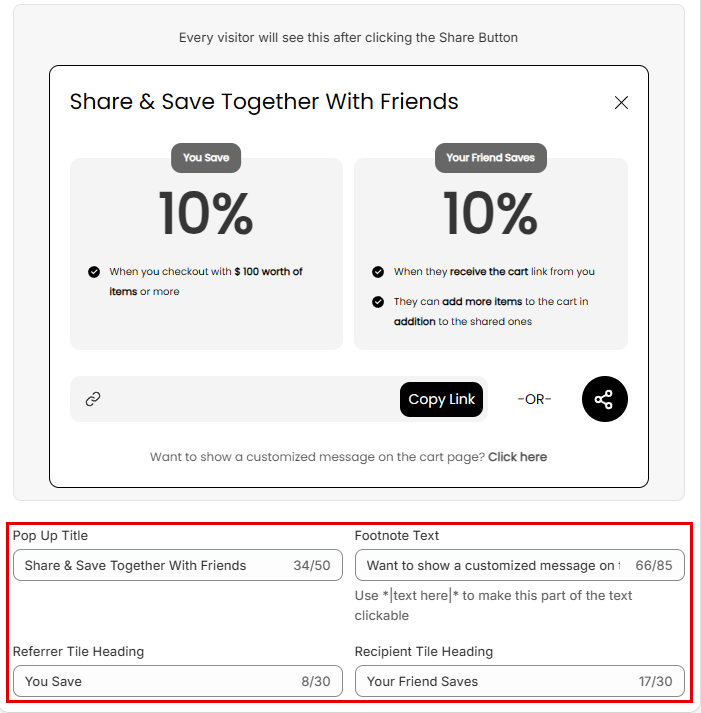
Step 2: In the Design Preview card, select Share Pop-Up from the view dropdown. The caption reads "Every visitor will see this after clicking the Share Button".
Step 3: Edit the fields below the preview:
| Field | What it changes | Limit |
|---|---|---|
| Pop Up Title | The title at the top of the pop-up | 50 characters |
| Footnote Text | The note at the bottom of the pop-up | 85 characters |
| Referrer Tile Heading | The heading of the referrer's discount tile (default "You Save") | 30 characters |
| Recipient Tile Heading | The heading of the recipient's discount tile (default "Your Friend Saves") | 30 characters |
Step 4: Click Save in the save bar at the top of the page. Your changes are not live on your store until you save. To undo unsaved changes, click Discard.
Which Pop Up Title Am I Editing?#
Share Cart keeps a separate title for each incentive setup and shows the one that matches your current settings on the Incentives page. The Pop Up Title field always edits the title that is in use right now.
| Your incentive setup | Default title |
|---|---|
| No discounts on | Share your cart |
| Referrer discount only | Save as You Share! |
| Recipient discount only | Share With Friends and Let Them Save! |
| Referrer and recipient discounts | Share & Save Together With Friends |
| Give incentives to logged-in customers only is checked | Login to see details on available discounts (shown to visitors who aren't logged in) |
While Give incentives to logged-in customers only is checked, Pop Up Title edits this logged-out title. Logged-in customers still see the title for your discount setup. To edit the title logged-in customers see, uncheck the option temporarily, edit the title, then check it again.
Footnote Text and Share Message#
By default, the footnote reads "*Please note that personalization and monograms will not be included in this link".
When Share Message is on, the Footnote Text field edits a different footnote. Its default is Want to show a customized message on the cart page? *|Click here|*. As the hint under the field says, use *|text here|* to make that part of the text clickable. Shoppers click it to add their own message.
Tile Headings#
The Referrer Tile Heading and Recipient Tile Heading fields only appear when the discount details banner is on in the Discount Details card. Each one appears only when its discount is on. The recipient tile is hidden when you give incentives to logged-in customers only. See Discount Details.
How to Style the Share Pop-Up#
Each part of the Share Pop-Up's look has its own card on the Dashboard:
- Basic Colors: set the background, text, button and button text colors in one place.
- Typography: change the font family, the weight and size of the title, footnote and separator, and the copy confirmation, copy button and separator text.
- Appearance: change the corner radius of the pop-up.
- Advanced Colors: fine-tune the colors of the copy button, social toggle, modal, input bar, footnote and social icons.
- Custom CSS: add your own CSS for anything the settings don't cover.
- Social Sharing: turn social sharing on or off and edit the content shared on each platform.
How to Show Discount Details in the Share Pop-Up#
If you offer incentives, the Share Pop-Up can show what the referrer and the recipient each save, and the checkout conditions. You set this up in the Discount Details card. See Discount Details.
Note: Incentives are part of the Pro plan.
To learn more about our app, reach out to us via live chat or email support@bevycommerce.com.