Share Message
The Share Message card lets shoppers add a personal message to the cart they share. When the recipient opens the shared link, they see the message above or below the cart.

This page shows you how to turn on Share Message, style the message box, set the footnote that invites shoppers to write a message, and what shoppers see.
How to Turn On Share Message#
Step 1: In your Shopify admin, under Apps, click Bevy Share Cart - Social Link. The app opens on its Dashboard.
Step 2: In the settings list, click Display Settings.
Step 3: Click the Share Message card to expand it.
Step 4: Select the Share Message checkbox. It is off by default. The style settings appear below it.
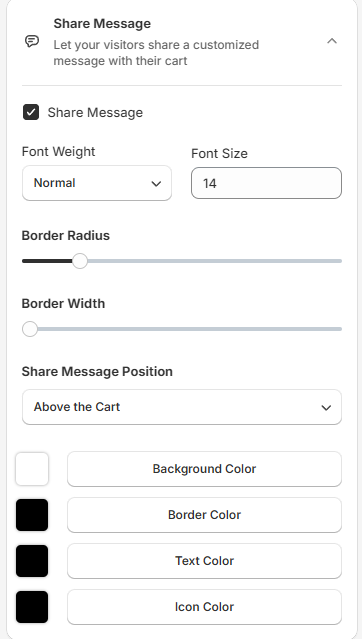
Step 5: Change the settings you need. In the Design Preview, the Share Button view shows a sample message box that reads "Custom message will show here".
Step 6: Click Save in the save bar at the top of the page. Your changes are not live on your store until you save. To undo unsaved changes, click Discard.
Message Box Settings#
These settings style the message box that recipients see on the shared cart.
| Setting | What it changes | Options | Default |
|---|---|---|---|
| Font Weight | The weight of the message text | Normal, Bold | Normal |
| Font Size | The size of the message text | Minimum 10 | 14 |
| Border Radius | How rounded the corners of the message box are | Slider, 1 to 25 | 5 |
| Border Width | How thick the border of the message box is | Slider, 1 to 8 | 1 |
| Share Message Position | Whether the message box sits above or below the cart | Above the Cart, Below the Cart | Above the Cart |
| Background Color | The background of the message box | Color picker | White |
| Border Color | The border of the message box | Color picker | Black |
| Text Color | The message text | Color picker | Black |
| Icon Color | The close icon of the message box | Color picker | Black |
How to Set the Footnote That Invites Shoppers to Write a Message#
Shoppers add their message from the Share Pop-Up by clicking a link in its footnote. You set this footnote in the Design Preview, not in the Share Message card.
Step 1: In the Design Preview, select Share Pop-Up from the view dropdown.
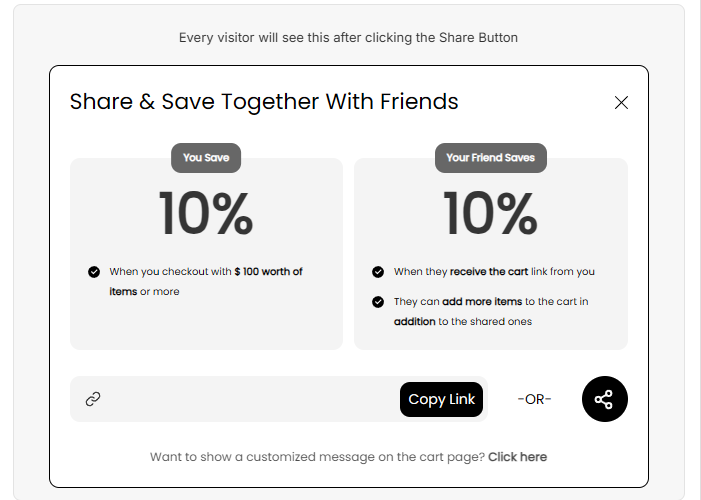
Step 2: Edit the Footnote Text field below the preview (up to 85 characters). With Share Message on, its default is Want to show a customized message on the cart page? *|Click here|*.
Step 3: Put the words shoppers should click between *| and |*. As the hint under the field says, use *|text here|* to make that part of the text clickable.
Step 4: Click Save in the save bar.
Note: In the preview, click the clickable footnote text to open the message input and see how it looks.
Other Settings That Appear When Share Message Is On#
Turning on Share Message adds settings to other Design cards, so you can style the footnote link and the message input in the Share Pop-Up:
| Card | Settings added |
|---|---|
| Typography | Inline Link Font Weight, and under Share Message Text Customization: Font Weight, Font Size, Share Message Label |
| Appearance | Custom Message Input Border Radius, Custom Message Input Border Width |
| Advanced Colors | Inline Link Color, Input Background Color, Emoji Icon Color, Input Text Color, Input Border Color, Input Label Color |
| Custom CSS | Selectors for the message box and the message input |
What Shoppers See#
Step 1: The shopper clicks the Share Button on their cart. The Share Pop-Up shows your footnote with the clickable text, here "Click here". The image below is the Design Preview of the Share Pop-Up in the app.
Step 2: The shopper clicks the link. A message input opens where they can type a message and add emojis. The label above the input is the Share Message Label from Typography. The default is "Customized Message:".
Step 3: The shopper shares the link. When the recipient opens it, they see the message on the cart, as in the first image on this page.
If you have any questions, contact support via live chat or email support@bevycommerce.com. We're here to help!