Referrer Incentives
A referrer discount rewards your customers for sharing their carts. In the app, "Referrers are your own customers, rewarded for sharing their cart." Offering them a discount encourages more cart shares, which brings new shoppers to your store. This article shows what referrers see on your store, how to set up a referrer discount, what each setting does, and how to fix common issues.
Note: Incentives are part of the Pro plan. See Why Use Incentives? for details.
What Your Customers See#
When a referrer discount is on, the Share Button on the cart shows the offer, for example "Get 10% Off". When the customer clicks the Share Button, the Share Pop-Up shows what they save and what their friend saves, with the conditions for each.
Here is how it looks in the app's Design Preview of the Share Pop-Up. In this example, the referrer and the recipient each get 10% off, and the referrer must check out with $100 worth of items:
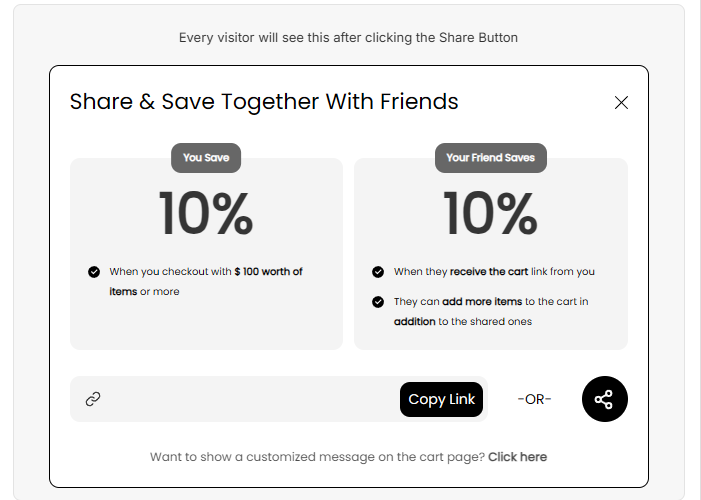
When the referrer earns their discount, the referrer discount pop-up can let them know.
You can change how all of this looks in Incentive Design on the Dashboard. See Discount Announcement, Discount Details and Referrer Discount Pop-Up.
Before You Start#
- Check your plan. Your store needs the Pro plan. On other plans, the settings are greyed out with a PRO badge.
- Decide who can receive incentives. In the Customer eligibility section at the top of the Incentives page, check Give incentives to logged-in customers only if only logged-in customers should get discounts. This applies to both the referrer and the recipient discount.

- If you want to use your own codes, create them first in your Shopify admin under Discounts, and give each code a usage limit (for example, 1 use).
How to Set Up a Referrer Discount (Automatic)#
With Automatic discounts, the app creates a discount code for each referrer who qualifies and applies it to their cart for them.
Step 1: In your Shopify admin, under Apps, click Bevy Share Cart - Social Link, then click Incentives.
Step 2: In the Referrer discount section, check Offer a discount to referrers.
Step 3: Under Discount method, choose Automatic discounts.
Step 4: Choose a Discount Type: Percentage or Flat.
Step 5: Enter the Discount Amount. A percentage can't be more than 100 (higher values are set to 100). A flat amount is in your store's currency.
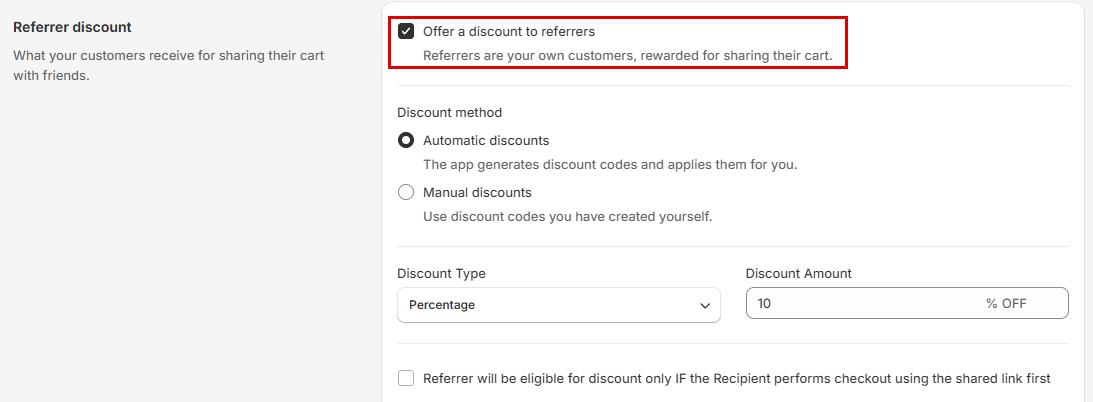
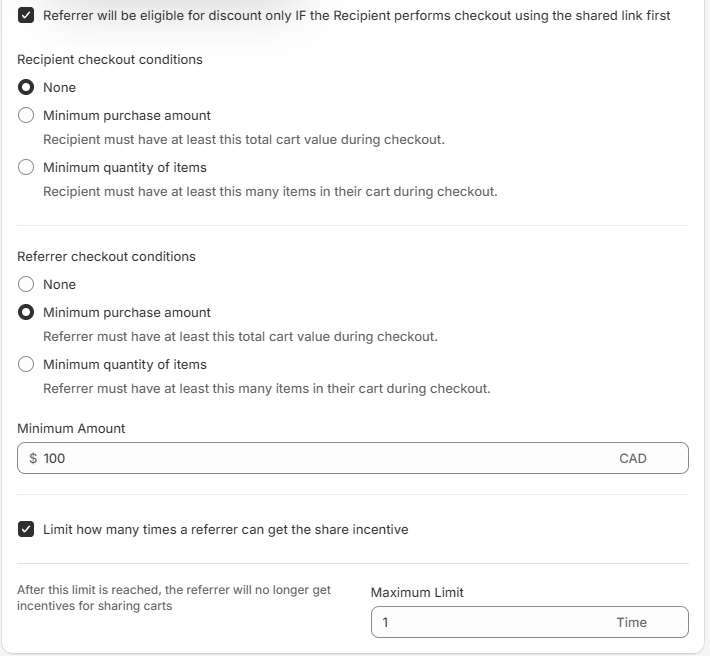
Step 6 (optional): Check Referrer will be eligible for discount only IF the Recipient performs checkout using the shared link first if the referrer should only be rewarded after a friend buys. Then choose the Recipient checkout conditions:
- None: The recipient only needs to place an order from the shared link.
- Minimum purchase amount: "Recipient must have at least this total cart value during checkout." Enter the value in Minimum Amount.
- Minimum quantity of items: "Recipient must have at least this many items in their cart during checkout." Enter the number in Minimum Items.
Step 7: Under Referrer checkout conditions, choose one option:
- None: No minimum for the referrer's own cart.
- Minimum purchase amount: "Referrer must have at least this total cart value during checkout." Enter the value in Minimum Amount.
- Minimum quantity of items: "Referrer must have at least this many items in their cart during checkout." Enter the number in Minimum Items.
Step 8 (optional): Check Limit how many times a referrer can get the share incentive and enter a Maximum Limit. After this limit is reached, the referrer no longer gets incentives for sharing carts.
Step 9: Click Save in the save bar at the top of the page. A Saved Successfully message confirms the save. Your changes are not live until you save. Click Discard if you want to undo your unsaved changes.
When you turn on the referrer discount, Share Cart also switches on Show Referrer Incentive Pop-Up Announcement (the referrer discount pop-up) and shows the offer on the Share Button and in the Share Pop-Up. Turning the discount off switches these off again, but the offer on the Share Button and in the Share Pop-Up stays on while the recipient discount is on. To change how these look, open Incentive Design on the Dashboard.
How to Set Up a Referrer Discount (Manual)#
With Manual discounts, the app hands out discount codes you have created yourself in Shopify. The discount value and any minimum purchase come from each Shopify code, so this mode has no Discount Type, Discount Amount, recipient checkout requirement or checkout conditions.
Step 1: In the Referrer discount section, check Offer a discount to referrers.
Step 2: Under Discount method, choose Manual discounts.
Step 3: Add your codes to Available Discount Codes, separated by commas (for example, 20OFF01, 30OFF04, FREESHIP05). You can also click Import CSV to add codes from a file.
Step 4 (optional): Check Limit how many times a referrer can get the share incentive and enter a Maximum Limit.
Step 5: Click Save in the save bar at the top of the page.
Note: Set a usage limit on each manual code in Shopify (for example, 1 use). The app keeps offering a code until Shopify reports it as used up or expired, so a code without a usage limit can be handed to many referrers.
Settings Reference#
| Setting | What it does | Options or range | Default |
|---|---|---|---|
| Offer a discount to referrers | Turns the referrer discount on or off. | Checked or unchecked | Unchecked |
| Discount method | Chooses who creates the codes. | Automatic discounts, Manual discounts | Automatic discounts |
| Discount Type | Sets how the discount is calculated (Automatic only). | Percentage, Flat | Percentage |
| Discount Amount | Sets the size of the discount (Automatic only). Changing the Discount Type resets it to 1. | 1 or more; Percentage up to 100 | 10 |
| Referrer will be eligible for discount only IF the Recipient performs checkout using the shared link first | Rewards the referrer only after a recipient places an order from the shared link (Automatic only). | Checked or unchecked | Unchecked |
| Recipient checkout conditions | Sets a minimum that the recipient's order must meet (Automatic only, shown when the box above is checked). Changing the condition resets its value to 1. | None, Minimum purchase amount (Minimum Amount), Minimum quantity of items (Minimum Items) | None |
| Referrer checkout conditions | Sets a minimum the referrer's own cart must meet (Automatic only). Changing the condition resets its value to 1. | None, Minimum purchase amount (Minimum Amount), Minimum quantity of items (Minimum Items) | None |
| Limit how many times a referrer can get the share incentive | Caps how many orders one referrer can place using a Share Cart referrer discount, across all their shared carts. | Checked or unchecked; Maximum Limit of 1 or more | Unchecked; limit 1 |
| Available Discount Codes | Your own codes waiting to be handed out (Manual only). | Comma separated codes, or Import CSV | Empty |
| Used/Expired Discount Codes | Codes that are used up, expired or no longer exist in Shopify (Manual only). Read only. | Export CSV | Empty |
Importing and Exporting Codes#
- Import CSV reads the first column of your file. The first row is treated as a header and is not imported, so start your codes on the second row. Imported codes are added to the codes already in the list. You see "Importing CSV!" while the file is read and "CSV Imported Successfully!" when it is done.
- Export CSV downloads the Used/Expired Discount Codes list as a file named "Used Or Expired Discount Codes.csv". You see "Exported CSV Successfully!" when the file is ready.
How Referrers Get Their Discount#
- When it's applied: The discount is applied to the cart the referrer shared. If Referrer will be eligible for discount only IF the Recipient performs checkout using the shared link first is unchecked, Share Cart applies it as soon as they share the cart. If it is checked, Share Cart applies it the next time they visit your store with that cart after a qualifying recipient order.
- Recipient checkout requirement: If Referrer will be eligible for discount only IF the Recipient performs checkout using the shared link first is unchecked, the referrer only needs to have shared their cart. If it is checked, a recipient must also have placed an order from the shared link that meets your Recipient checkout conditions.
- Referrer checkout conditions: These are checked against the referrer's own cart. With Automatic discounts, Shopify also checks the minimum at checkout.
- Automatic discounts: Each code is for a single use and appears in your Shopify admin under Discounts.
- Manual discounts: The app goes through your Available Discount Codes in order and gives the referrer the first code that exists in Shopify, hasn't reached its usage limit and hasn't expired. Codes that fail these checks move to Used/Expired Discount Codes automatically. Share Cart re-checks both lists each time you open the Incentives page. It removes duplicate codes and moves codes that are valid again back to Available Discount Codes.
- Limits: The Maximum Limit counts how many orders the referrer has placed using a Share Cart referrer discount, across all their shared carts.
- Logged-in customers only: If Give incentives to logged-in customers only is checked, referrers must be logged in to your store to get the discount.
Troubleshooting#
The settings are greyed out#
Your store isn't on the Pro plan. Click See plans at the top of the Incentives page to upgrade.
I see "Invalid Inputs" when I save#
A number field is empty or below 1. The field with the problem shows Invalid Input. Fix the value and click Save again.
A referrer didn't get a discount#
Check that:
- They are using the same cart they shared, not a new or changed cart.
- Their cart meets your Referrer checkout conditions.
- If the recipient checkout box is checked, a recipient has placed an order from the shared link that meets your Recipient checkout conditions.
- They are logged in, if Give incentives to logged-in customers only is checked.
- They haven't reached the Maximum Limit.
- With Manual discounts, there are still valid codes in Available Discount Codes.
My manual codes moved to Used/Expired Discount Codes#
The app moves a code there when it no longer exists in Shopify, has reached its usage limit, or has expired. Add new codes to Available Discount Codes to keep offering discounts. Share Cart re-checks both lists each time you open the Incentives page. It removes duplicate codes and moves codes that are valid again back to Available Discount Codes.
If you have any queries, reach out to us via live chat or email support@bevycommerce.com. We're always ready to assist!