Create Order Statuses
OrderPilot's workflow system lets you build an order pipeline that matches exactly how your business operates. Instead of working around a fixed set of statuses, you define your own stages, set their visibility, and arrange them in the right sequence for your team.
Why Custom Order Statuses Matter?#
Most furniture and made-to-order retailers have operational processes that look nothing like those of generic e-commerce. An order doesn't just go from “Placed” to “Shipped”. It might move through stages like “Awaiting Supplier Confirmation” and “Quality Check”. Each of those is a meaningful internal milestone. The order status or workflow system in OrderPilot puts you in control of that pipeline. You decide the stages, their order, and who sees them.
Note: Most stores configure their workflow once during initial setup and only revisit it when their process changes. Taking a few minutes to map out your stages before building them in the app will save you time later.
Understanding Status Properties#
When you create a status, you configure five properties that control how it behaves across the app. Understanding these before you start building your workflow makes the whole setup process much faster.
| Property | What it does | When to use it |
|---|---|---|
| Visible to Customers | Makes the status visible outside internal workflows such as the order tracking page. | For milestones the customer should know about, like “In Production” or “Ready for Delivery”. |
| Send Email Notification (Upcoming) | OrderPilot automatically emails the customer when the order reaches this status. | For status changes that require customer action or awareness. |
| Active Status | The status is live and available to assign to orders. | Turn off to retire a status without deleting it. |
| Eligible for Purchase Orders | Orders at this status can have a purchase order raised against them. | Only enable for statuses where production should begin. |
| Disable Edit | Prevents any edits to orders at this status. | For statuses like “Invoiced” or “Dispatched”, where changes would cause problems. |
How to Create an Order Status?#
Each status takes about a minute to create. Work through your workflow stages one at a time.
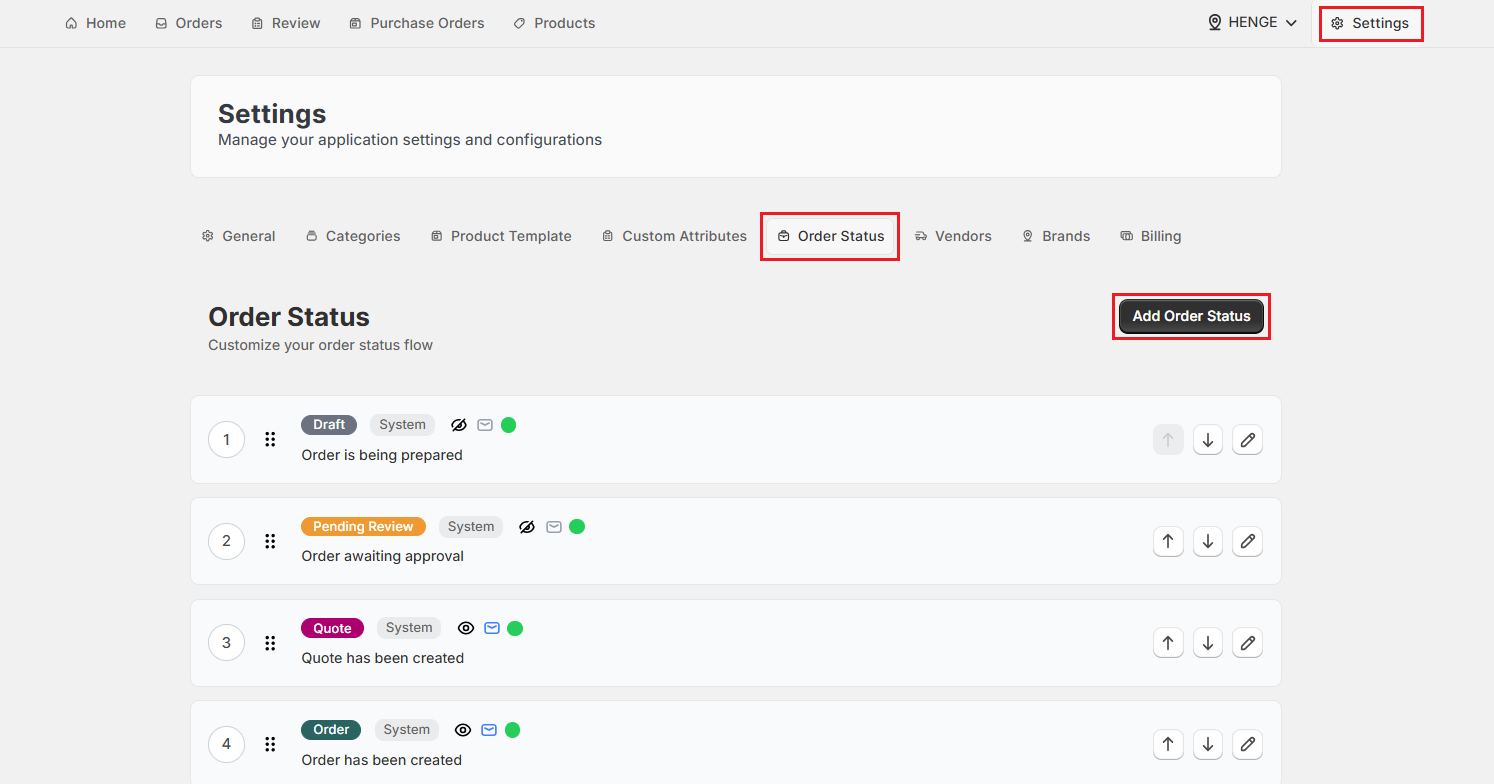
Step 1: Go to “Settings” in OrderPilot.
Step 2: Click the “Order Status” tab. This is where all your pre-built system statuses are listed and where you manage the full workflow.
Step 3: Click “Add Order Status” to open the status creation form.
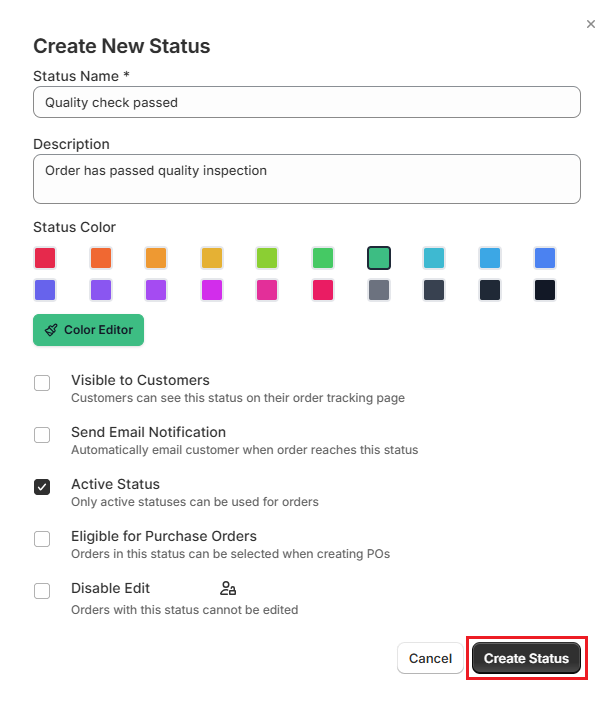
Step 4: Enter a Status Name that clearly describes the stage.
Note: Short and specific names work best. “In Production” is better than “Production Stage” and much better than “Stage 3”.
Step 5: Add a Description of what this stage means in your operation. This is internal only and helps your team understand when to move an order to this status.
Step 6: Pick a Status Color to make it easy to identify at a glance in the orders list. Use distinct colors for each status rather than shades of the same color.
Step 7: Configure the following checkboxes for the status properties as required (see the properties table above):
- Visible to Customers
- Active Status
- Eligible for Purchase Orders
- Disable Edit
Think through each one carefully before selecting.
Step 8: Click “Create Status”. The status is saved and appears in your workflow list. Repeat this process for each stage in your order pipeline.
How to Reorder Statuses?#
The order of your statuses determines the logical flow your team works through.
Using Drag & Drop#
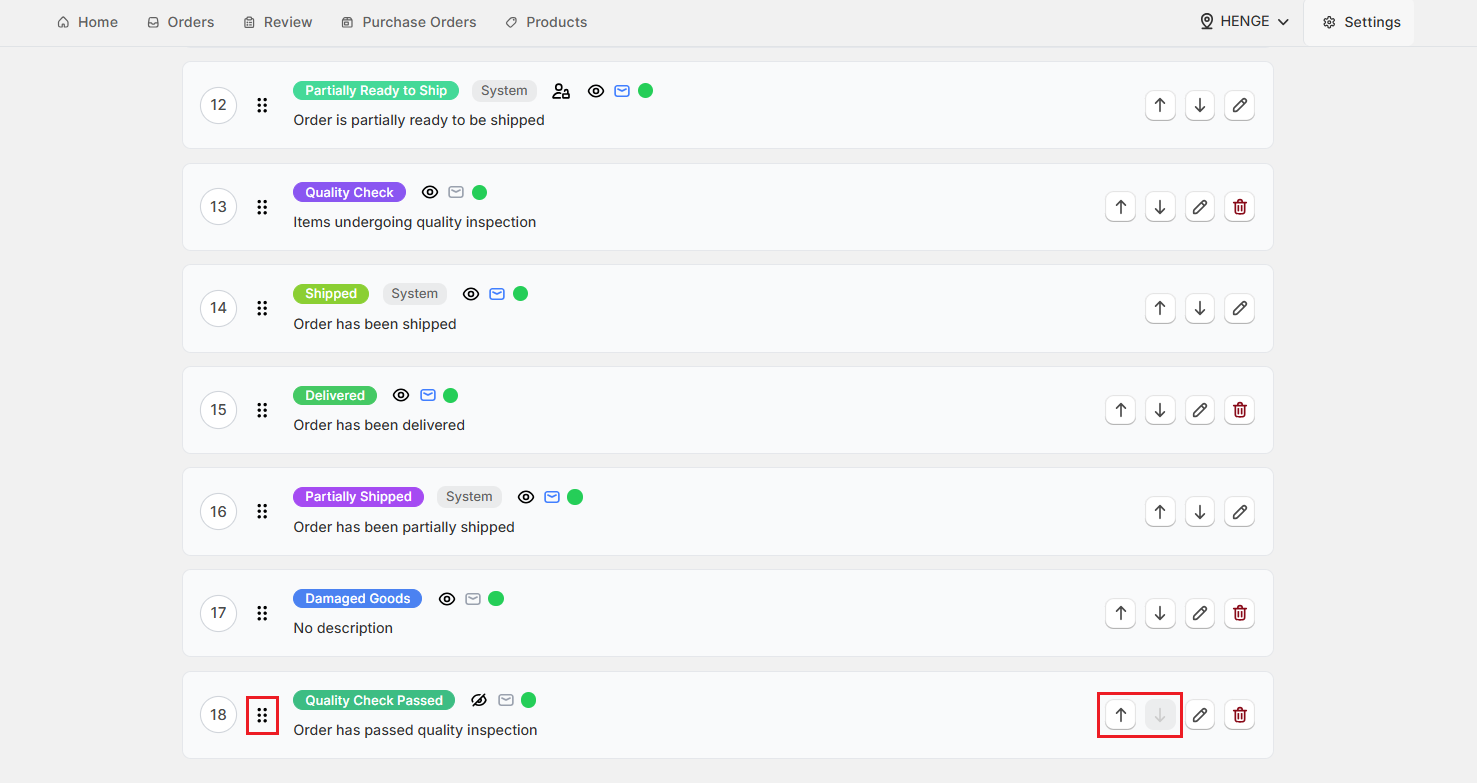
Click and hold the drag handle (the six-dot icon) on the left side of any status row. Drag it to the position you want in the list and release. The order updates immediately.
Using the Arrow Buttons#
Alternatively, use the up and down arrow icons on the right side of each status row.
- Click the up arrow to move a status one position earlier in the workflow.
- Click the down arrow to move it one position later.
Automatic Status Updates When a PO is Created#
When your team raises a purchase order for an approved order, OrderPilot can automatically move the order to a specific status. This saves your production team from manually updating every order after creating a PO.
For this to work, at least one status in your workflow needs to have Eligible for Purchase Orders checked. When a PO is created, the order automatically moves to the first eligible status. Plan your workflow so that this status represents the right point in your pipeline, typically “Approved”.
Editing & Deleting Statuses#
Editing a Status#
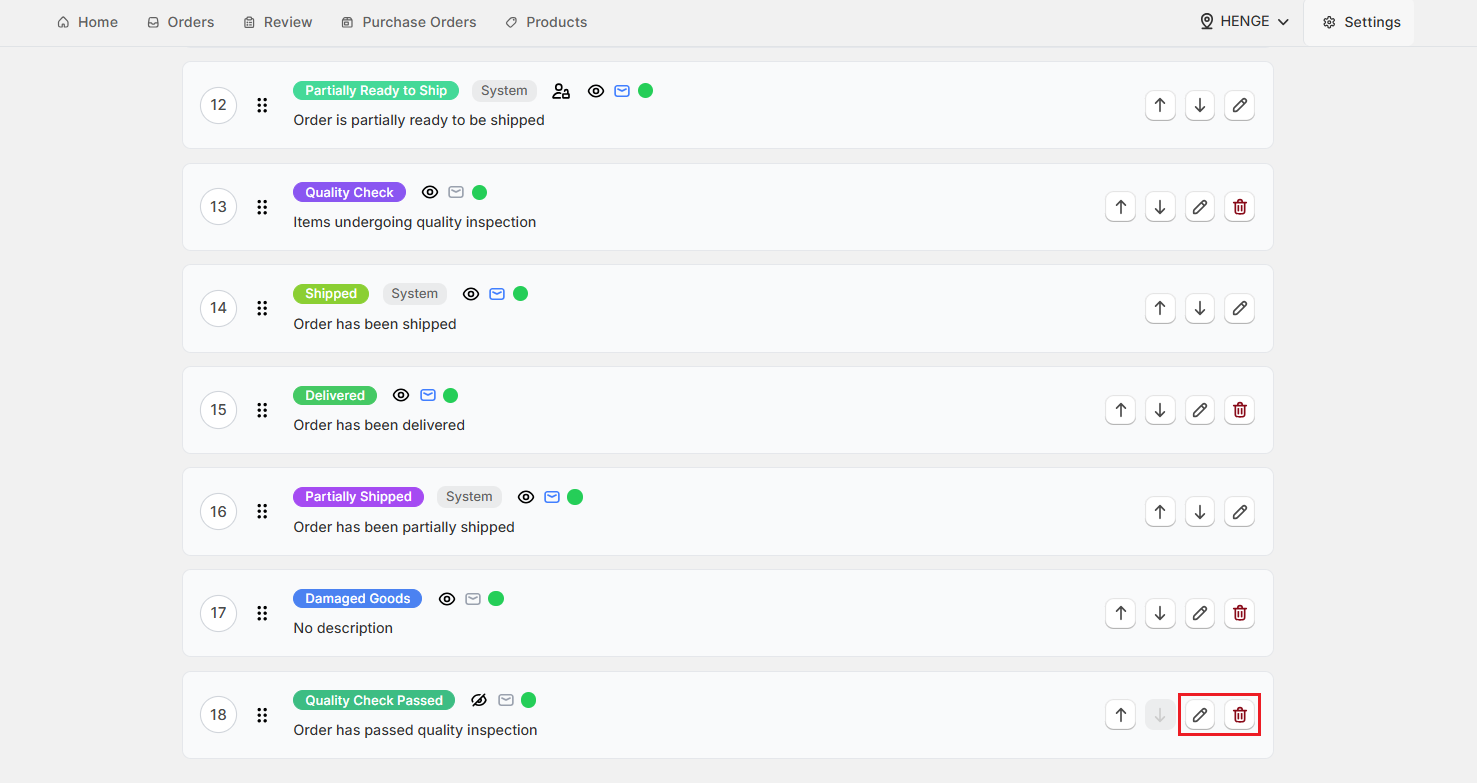
Click the pencil icon next to any status to open the edit panel. You can update:
- Status Name (Except pre-configured system statuses)
- Description
- Status Color
- Status Properties (Checkboxes)
Changes take effect immediately for all orders currently at that status.
Deleting a status#
Click the trash can icon to permanently delete a status. Before deleting, make sure no active orders are using that status. Deleting a status that's assigned to orders can leave those orders showing an unknown or missing status.
Best Practices#
Map Your Workflow Before Building It#
List every stage your orders go through, from order intake to final delivery. Include the internal ones customers never see. Building statuses in the app goes much faster when you already know what you need and in what order.
Use “Disable Edit” for Locked Stages#
Once an order is approved or confirmed with a supplier, changes to price or specifications can create discrepancies with your supplier and your accounts. Lock these stages down by enabling “Disable Edit”, so no one can inadvertently change an order that has reached production.
Choose Names That Work Across Teams#
Sales reps see status names when they check an order. Production managers see them in the review queue. Choose names that mean something to both groups, not just to whoever set up the workflow.
Test Your Workflow Before Going Live#
Create a test order and move it through all stages to ensure:
- Status transitions behave correctly
- Permissions and restrictions are applied properly
Color-code Statuses for Visual Clarity#
Use the status color picker to assign distinct colors to each stage. This makes the orders list much easier to scan at a glance, especially when a production manager is checking queue volume across multiple stages.
Monitor Order Progress in Activity Feed#
Every time an order changes status, the update is automatically logged in the Recent Activity feed on the dashboard. This allows your team to monitor order progress in real time without opening individual order records, making it easier to stay on top of workflow changes at a glance.
Need Help?#
Not sure how to set up your workflow stages or decide which statuses should be eligible for purchase orders? Reach out to us at support@bevycommerce.com, and we'll help you structure your workflow correctly.