Create Vendors
Vendors, also called suppliers, are the businesses or individuals who build or supply the custom products your store sells. In OrderPilot, vendors are more than just a contact list. They connect directly to your purchase orders, your product templates, and your fulfillment workflow. Every purchase order you generate needs a vendor attached to it, so setting up your vendor list early makes the rest of your operation run smoothly.
This article explains how to add a vendor, how product restrictions work, and what to do after adding a vendor.
Before You Start#
Consider the following questions before getting started:
Do you know which products each vendor supplies?#
OrderPilot lets you restrict vendors to specific product categories or product templates. Before adding a vendor, think about which products they supply. If a vendor covers your entire catalog, you can allow all products. If they specialize in one area, for example, only upholstered goods, you can limit their assignment accordingly.
Do you have your categories and product templates set up?#
If you plan to assign a vendor to specific categories or templates, those need to exist first. You don't need to have them set up to create the vendor, but you'll need them to complete the product restrictions step. See the guides on Create Categories and Create Product Templates if you haven't done those yet.
Do you have the vendor's contact details ready?#
You'll need the vendor's name, email address, phone number, primary contact person, and physical address. Having these on hand before you start means you won't need to leave the form halfway through.
How to Create a Vendor?#
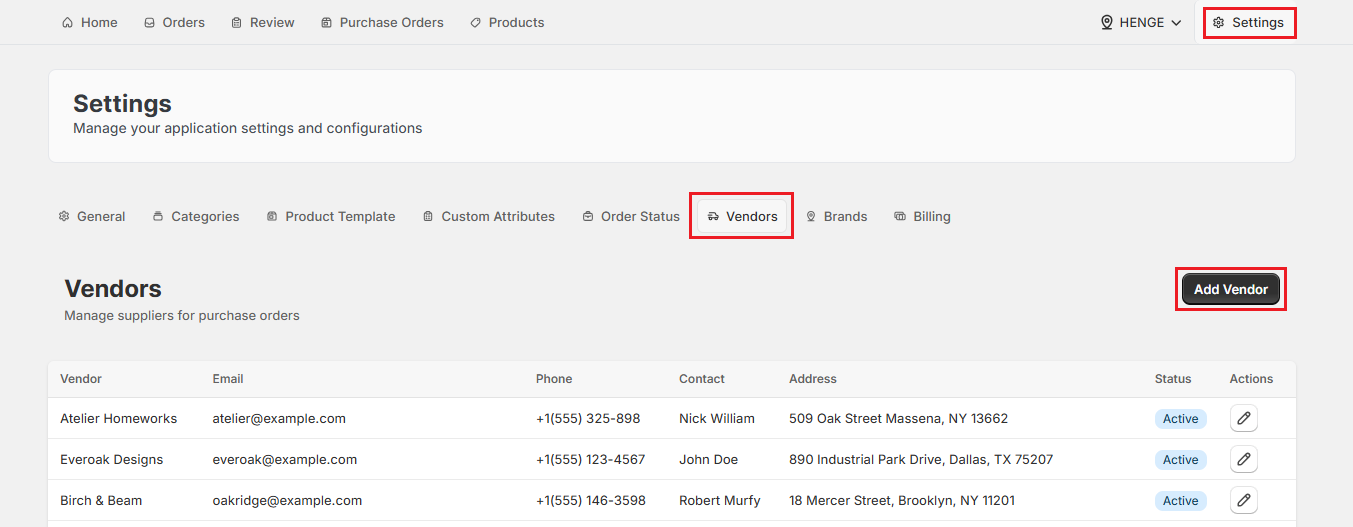
Step 1: From the OrderPilot dashboard, go to “Settings”.
Step 2: Select “Vendors” from the settings menu.
Step 3: Click “Add Vendor” to open the vendor creation form.
Step 4: Enter the vendor's contact information, including:
- Vendor Name: The name of the business or supplier. This is what will appear on purchase orders, so use the official business name.
- Email Address: The email address where purchase orders will be sent.
- Phone Number: The vendor's main contact number.
- Contact Person (Primary): The name of the main point of contact at the vendor. This helps your team know who to reach out to if there's a question about an order.
Pro Tip: Use the vendor's order desk or procurement email for the Email Address field, not a general “info@address”. Purchase orders need to reach the right person quickly, and a general inbox can slow that down.
Step 5: Enter the vendor's Address. This is their physical business address. It appears on purchase order PDFs and may be required for your internal records or shipping documentation.
Step 6: Add any Notes about this vendor (optional). Use this field to store information your team might need when working with this vendor, such as lead time expectations, ordering minimums, or anything else worth remembering.
Pro Tip: The Notes field is internal only and will not appear on purchase orders sent to the vendor. It's a good place to record informal details like “Always confirm by phone before placing orders over $5,000” or “Lead time increases by 2 weeks in December”.
Step 7: Set Products Allowed for This Vendor. This controls which products this vendor is available to supply when a purchase order is created.
| Option | What it means | When to use it |
|---|---|---|
| Allow all products | This vendor appears as an option on purchase orders for any product in your catalog. | Vendors who supply your full range, or general-purpose suppliers you use across product types. |
| Allow specific categories | This vendor is available only for products in the categories you select. A search field appears. Search and select the relevant categories. | Vendors who specialize in a particular product type, such as lighting only or upholstered goods only. |
| Allow specific product templates | This vendor is available only for the product templates you select. A search field appears. Search and select the relevant templates. | Vendors tied to a small number of specific products, such as a single custom material or a niche product line. |
Note: Restricting a vendor to specific categories or templates keeps your Purchase Order (PO) workflow clean. When a team member creates a PO, they'll only see vendors relevant to the products on that order, reducing the chance of sending a PO to the wrong supplier.
Step 8: Select the Active Vendor checkbox to make this vendor available for selection in purchase orders. If you leave this unchecked, the vendor will be saved but won’t appear as an option until you activate it.
Note: You can create a vendor and leave them inactive if you're not ready to use them yet. This is useful when you're setting up a new supplier relationship and want to add their details in advance before they're officially onboarded.
Step 9: Click “Save Vendor”. The vendor is saved immediately and will appear in your Vendors list in Settings.
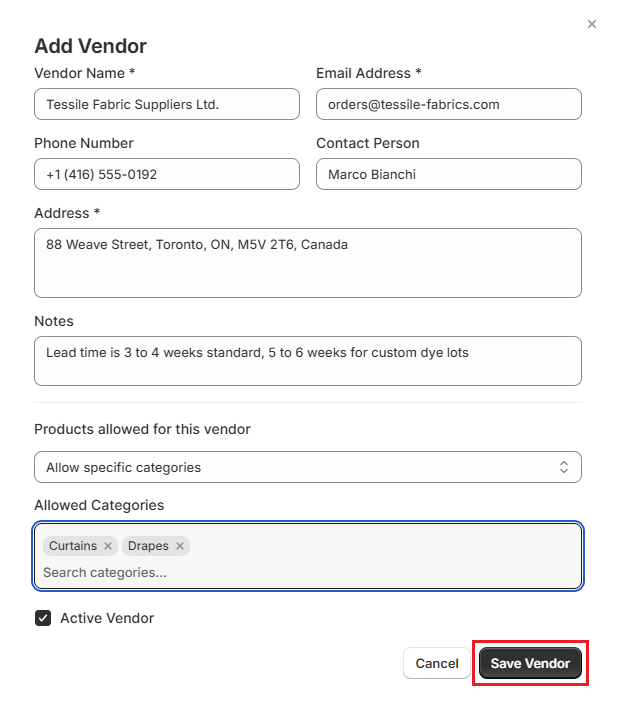
Example: Adding a Vendor for a Window Treatment Store#
Let's say you run a store specializing in custom window treatments, such as blinds, curtains, and shutters. You work with two main suppliers: one for fabric-based products and one for hard treatments, including shutters and blinds. Here's how you would add the fabric supplier:
| Field | Value |
|---|---|
| Vendor Name | Tessile Fabric Suppliers Ltd. |
| Email Address | orders@tessile-fabrics.com |
| Phone Number | +1 (416) 555-0192 |
| Contact Person (Primary) | Marco Bianchi |
| Address | 88 Weave Street, Toronto, ON, M5V 2T6, Canada |
| Notes | Lead time is 3 to 4 weeks standard, 5 to 6 weeks for custom dye lots |
| Products Allowed | Allow specific categories. Selected: Curtains, Drapes |
| Active Vendor | Checked |
With this setup, whenever a team member creates a purchase order for a curtain or drape order, “Tessile Fabric Suppliers” will appear as an available vendor. The shutter and blind supplier won't appear for those orders, and “Tessile Fabric Suppliers” won’t appear for shutter or blind orders.
Next Steps After Creating a Vendor#
Once your vendor is saved, take a few follow-up actions to put them to work:
- Assign the vendor to product templates so the vendor appears as an option when creating purchase orders.
- Create a purchase order by navigating to the Purchase Orders tab, selecting approved orders, and choosing your vendor. For a detailed guide, see the Create Purchase Orders article.
- Export the purchase order as a PDF to email the vendor.
Important Notes & Tips#
Restrict Products Thoughtfully#
Limiting vendors to specific categories or templates reduces errors, but overly tight restrictions can slow down purchase order creation if a vendor's scope changes.
Update Contact Info Promptly#
If a vendor changes their primary contact or email, update the record right away so future purchase orders reach the right person. Use the pencil icon next to a vendor to update information.
Active Status Matters#
Only vendors marked as Active will appear when creating Purchase Orders (PO). If a vendor is missing from your PO options, check that their active status is turned on.
Need Help?#
Having trouble setting vendor restrictions or not seeing a vendor when creating a purchase order? Reach out to us at support@bevycommerce.com, and we'll help you review your vendor setup.