Review Quotes/Orders
Before a custom quote or order is ready for purchase order generation and moves to production, it typically passes through a review step. This article explains how reviewers work through the queue, what actions are available, and what happens to the order after each decision.
Before You Start#
The review step exists to catch errors, confirm feasibility, and verify pricing before production begins. For it to work smoothly, a few things should be in place:
- At least one order or quote has been created with the Requires Review flag turned on. Orders flagged for review appear as pending under the Review tab.
- Your review settings are configured under Settings in the General tab. The Requires Review flag can be set to apply by default for all new orders, or on a per-order basis.
Note: Review is optional. A merchant or admin can configure whether all new orders are flagged by default, allow sales reps to toggle it on a per-order basis, or set an auto-approval limit so that low-value orders skip the queue entirely.
Who Should Review Orders?#
Production managers most commonly manage the review queue, but any team member with admin access can review and act on orders. Here's how different roles should interact with the review process:
| Role | What they do in the review process | Should approve or reject? |
|---|---|---|
| Production Manager | Primary reviewer. Checks order specs, feasibility, and pricing before approving or sending back for changes. | Yes |
| Admin / Merchant | Has full access to the review queue and can act on any order across all locations. | Yes |
| Sales Rep | Responds to change requests. Updates the order based on reviewer feedback and resubmits it for review. | No (responds to requests only) |
| Store Manager | Can review orders and act as a secondary approver when the production manager is unavailable. | Yes |
Three Review Actions#
When reviewing an order or quote, you have three possible actions. Each one moves the order to a specific status and triggers a different path through the workflow.
Approve#
The quote or order has been confirmed as accurate and is ready to proceed. Status changes to “Approved”. The order moves out of the review queue and is ready for purchase order creation.
Request Changes#
Something needs to be corrected before proceeding. Status changes to “Changes Requested”. The sales rep must update the quote or order before it can be resubmitted for review.
Reject#
The quote or order will not move forward and is marked as “Rejected”. This is typically used for duplicate submissions, invalid requests, unavailable configurations, or orders that cannot be fulfilled. The reviewer must enter a reason before rejecting the order.
Note: If something looks wrong but could be fixed, use Request Changes rather than Reject. Rejection is harder to reverse and signals to the customer that the order is canceled. Changes Requested keeps the order active and the sales rep in the loop.
How to Review an Order or Quote?#
All review actions happen from the Review tab in OrderPilot. Here's how to work through the queue:
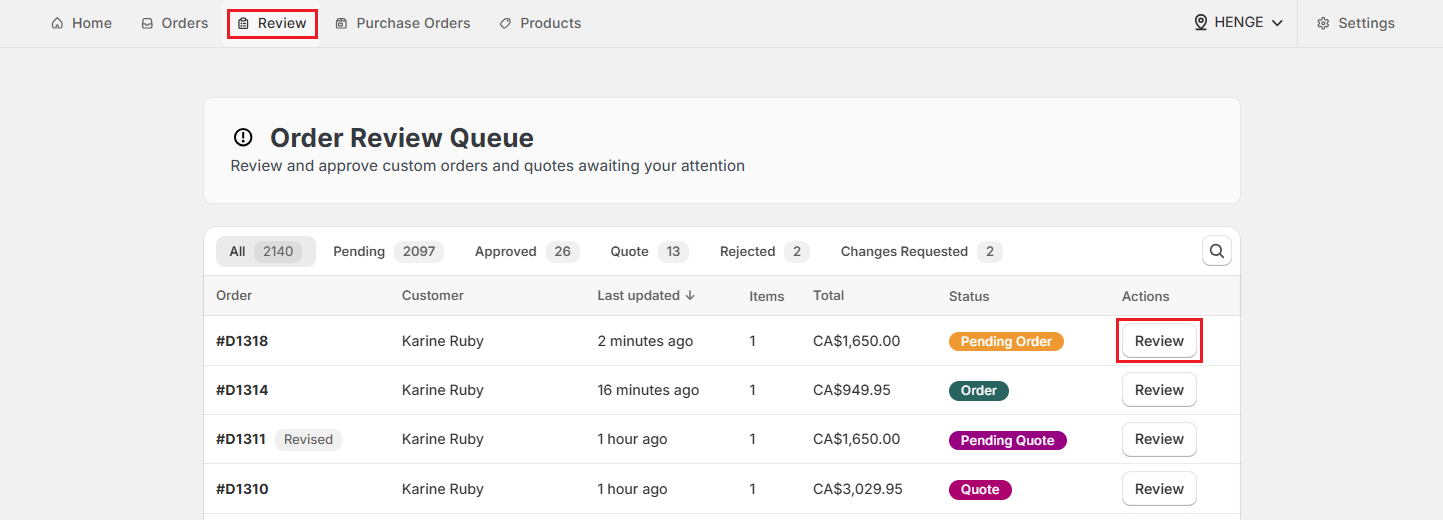
Step 1: Open the Review tab
From the OrderPilot dashboard, click “Review” to switch to the review queue.
Step 2: Find the quote or order
The review queue shows quotes and orders in date order by default, but you can filter by status. When you find the right record, click “Review” under the Actions column.
Step 3: Check the quote or order details
The quote or order details are displayed on a modal. Review everything: the product template, custom attribute values, pricing, add-on fees, and any notes the sales rep left. Take your time here. The goal is to confirm the order is accurate, the specs are achievable, and the pricing is correct before it goes to production.
Step 4: Add an internal comment (optional)
Click “Add Comment” to leave a note for your team before making a decision. Enter your note in the input field and click “Post Comment”.
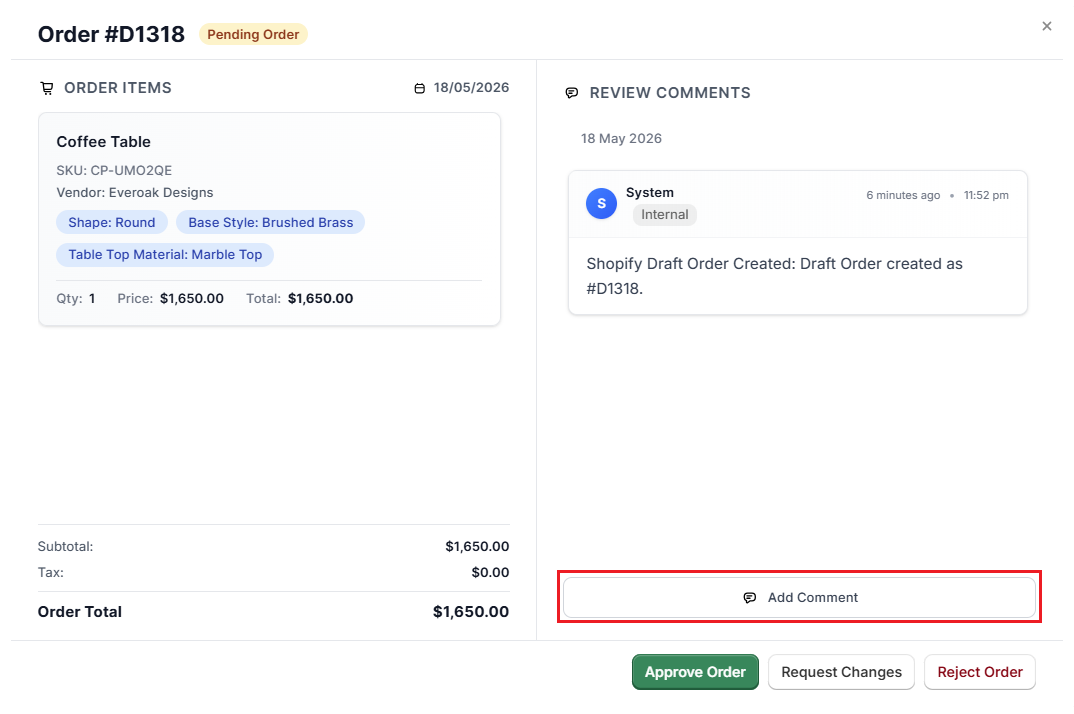
Note: Comments are internal only and not visible to the customer. Use this to document what you checked or flag anything for colleagues who might review later.
Step 5: Take a review action
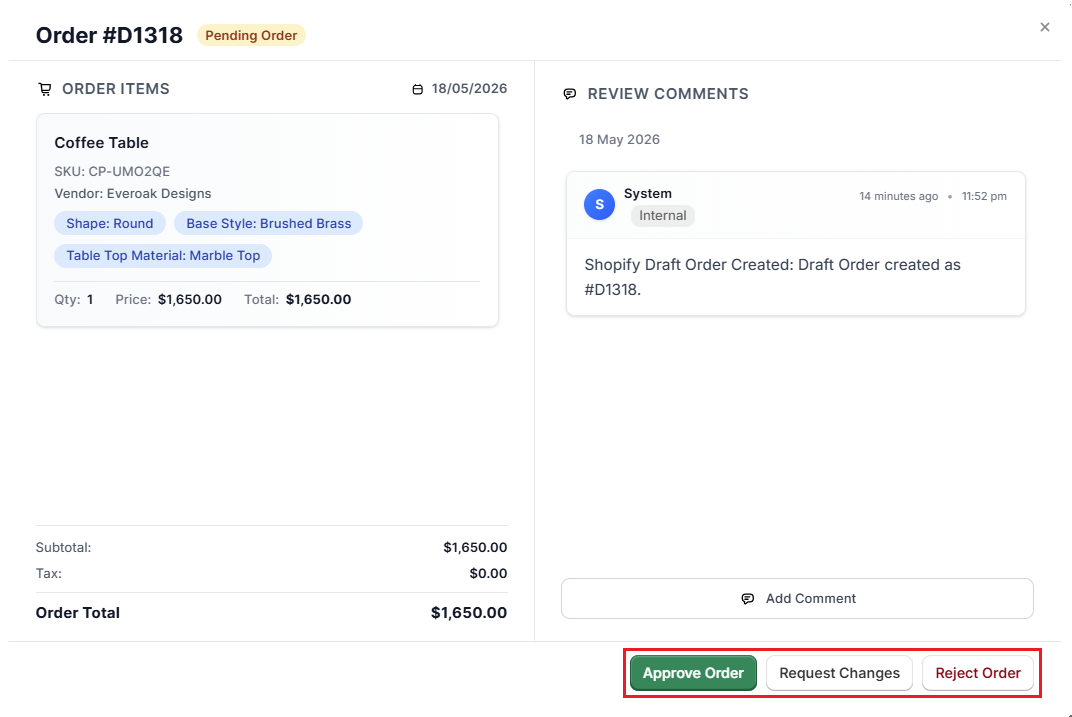
Choose one of the three actions based on your assessment of the order:
Option A: Approve the quote or order
If everything looks correct, click “Approve Quote” (for quotes) or “Approve Order” (for confirmed orders). The status changes to “Approved”, and the record moves out of the review queue. It's now ready for purchase order creation.
Option B: Request Changes
-
If the quote or order contains errors, missing information, or pricing that needs correction, click “Request Changes”. A text field appears where you can describe exactly what needs to be updated.
-
Enter a clear description of what needs to change. Be specific. Instead of “Fix the price”, write something like “Base price should be $1,800 for king size, not $1,500”. Click “Submit Request”. The status changes to “Changes Requested”.
Option C: Reject the quote or order
-
If the order cannot be fulfilled or was submitted by mistake, click “Reject Quote” or “Reject Order”. A text field appears asking for the reason.
-
Type the reason for rejection, for example, “Lead time for this specification is 26 weeks. Customer confirmed they need it in 8". Click “Submit Rejection”. The status changes to “Rejected”.
What to Do When Changes Are Requested?#
If a reviewer sends an order back with a “Changes Requested” status, the sales rep needs to update the order and resubmit it for approval. Here's how that process works:
Steps for the Sales Representative#
Step 1: Open the “Orders” tab in OrderPilot. Look for quotes or orders with a “Changes Requested” status. Click “View” to open the order detail page.
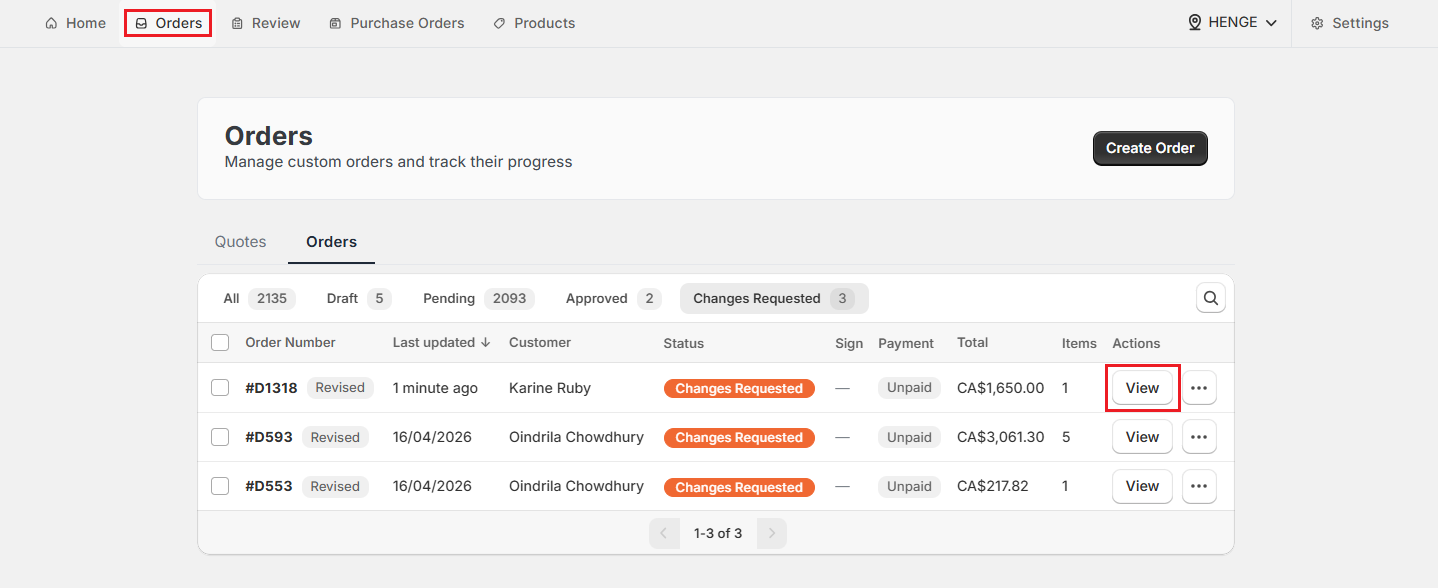
Step 2: The reviewer's change request is visible in the Activity section of the order. Read it carefully before making any changes. If anything is unclear, add a comment to ask for clarification before updating the order.
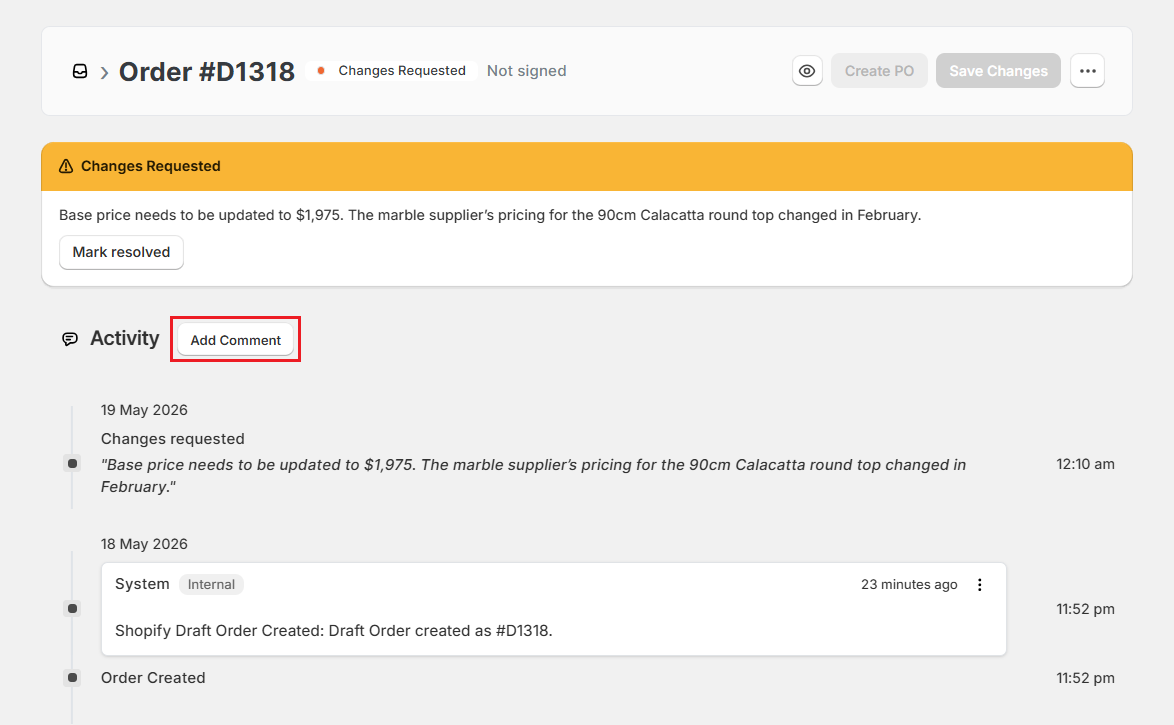
Step 3: Scroll down and edit the order manually based on the reviewer's feedback. This might mean adjusting a price, updating a custom attribute value, or adding a missing specification. Once the edits are made, click “Save Changes”.
Step 4: Once saved, click “Mark Resolved”. This signals to the reviewer that the requested updates have been made. You can also click “Add comment” to leave a note for the reviewer explaining what was changed and why.
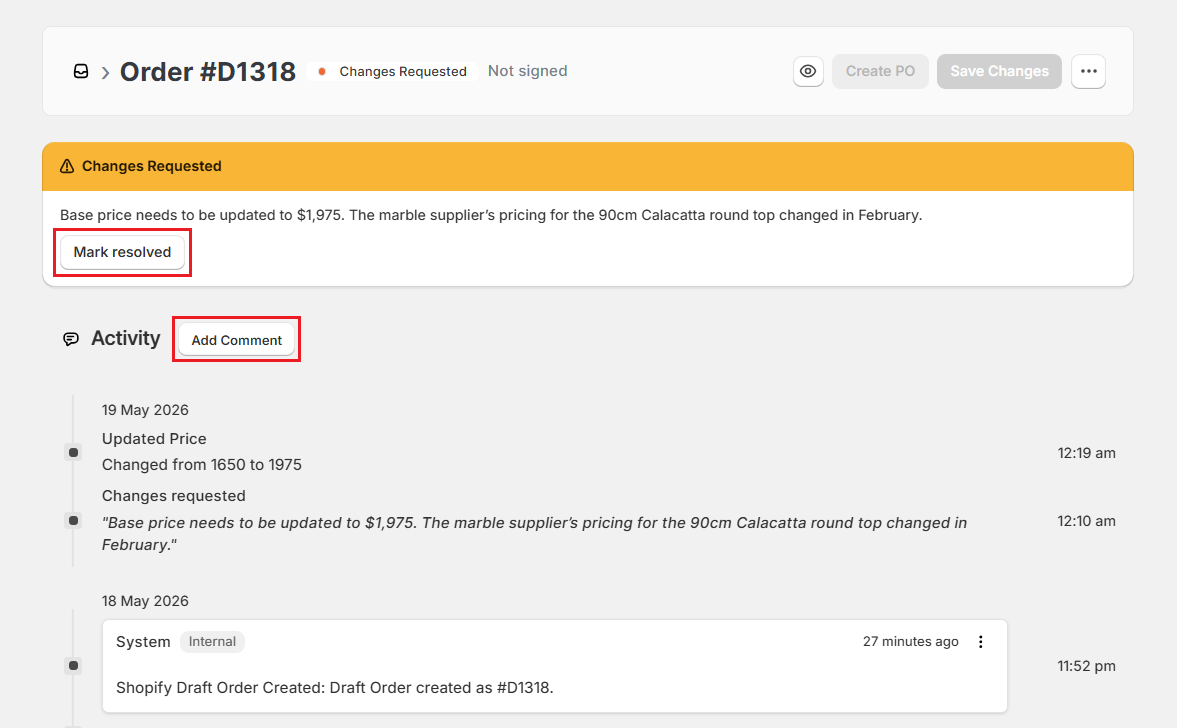
Step 5: The quote or order status changes back to “Pending” automatically. The reviewer will see it in the review queue again and can approve it, request further changes, or reject it.
Pro Tip: When you click Mark Resolved, add a comment summarizing what changed. For example: “Updated base price from $1,500 to $1,800 as requested.” This saves the reviewer time and reduces the chance of a second round of changes.
Quick Recap: What Happens After Reviewing?#
Here's what happens to an order after each review outcome and what your team does next in each case:
After Approval#
The order moves to “Approved” status and is ready for purchase order creation. Your procurement team can now open the Purchase Order Workbench and raise a purchase order for the vendor.
After Changes Requested#
The status updates to “Changes Requested”, and the order stays in a holding state until the rep makes the requested edits and marks the order as resolved. It then returns to the review queue for the reviewer to check again.
After Rejection#
The status changes to “Rejected”, and the order doesn't proceed further in the workflow. If the customer still wants to place an order, the rep needs to create a new record from scratch. The reason for rejection is stored on the order for reference.
Example: Reviewing a Custom Coffee Table Order#
A sales rep has submitted a custom order for a round marble coffee table with a brushed brass base. The rep set the base price at $1,650. The production manager knows the marble supplier's current pricing puts the correct base at $1,975 for this configuration. They open the review queue, check the specs, and request a change before approving.
-
The production manager opens OrderPilot and selects the “Review” tab. They see four orders in the queue.
-
They find the coffee table order in the list with a “Pending” status. They click “Review” under Actions.
-
They check the order: Round marble top, brushed brass legs, 90cm diameter, customer is picking up in-store. All specs look right. They notice the base price is $1,650, but the current price for this marble variant is $1,975.
-
They click “Request Changes”. In the text field, they write: “Base price needs to be updated to $1,975. The marble supplier's pricing for the 90cm Calacatta round top changed in February.” They click “Submit Request”.
-
The order status changes to “Changes Requested”. The sales rep updates the price to “$1,975”. They click “Save Changes”, add a comment (“Price corrected to $1,975 as requested”), and click “Mark Resolved”.
-
The order returns to “Pending” status. The production manager opens it again, checks the corrected price, and clicks “Approve Order”.
-
Status changes to “Approved”. The order is now ready for a purchase order to be raised with the marble and metalwork suppliers.
Best Practices#
Work Through the Queue in Date Order#
Review quotes or orders in the sequence they were submitted. Customers who placed orders earlier are waiting longer. A consistent first-in, first-out approach keeps expectations fair and avoids some orders sitting unreviewed for days while newer ones jump the queue.
Use Comments Before You Act#
If you're unsure about something, add an internal comment before making a decision. This creates a paper trail that other reviewers can see and keeps the reasoning visible if the order is questioned later.
Prefer Request Changes Over Reject#
Rejection ends an order's life in the system. If the problem is something the sales rep can correct in five minutes, use Request Changes instead. Save rejection for orders that genuinely can't be fulfilled or were submitted by mistake.
Keep the Pending Count Low#
The pending review count on the dashboard is a visible signal of how backed up the review queue is. A rising count slows the entire workflow because orders can't be converted to purchase orders while they’re pending. If the count is consistently high, consider whether the Auto-Approval Limit in Settings could reduce the queue volume for lower-risk orders.
Need Help?#
Having trouble approving orders, requesting changes, or understanding why an order was sent back to review? Reach out to us at support@bevycommerce.com, and we'll help you sort out the review process.