Create Quotes/Orders
Whether you're locking in a confirmed sale or giving a customer something to review first, OrderPilot handles both from the same screen. This article explains when to use a quote versus an order, and walks you through every step of the creation process.
Before You Start#
The quote and order creation process works best when your product catalog and store settings are already configured. If you're setting up for the first time, make sure:
- At least one vendor has been added in Settings. Vendors are required for purchase orders later in the workflow.
- At least one category exists in Settings, such as Beds, Sofas, or Lighting.
- Custom attributes are created and assigned to the appropriate category. These are the fields your sales rep fills in for each order.
- At least one active product template is linked to a category and vendor.
- Your Shopify locations have been synced under Settings in Brands and Locations. A confirmed order or quote always requires a location.
- Order review preferences are configured in Settings so the app knows which orders require manual review before proceeding.
Setting Up for the First Time?#
Work in this order:
- Vendors
- Categories
- Custom Attributes
- Product Templates
Each step builds on the previous one. See the Settings guide for the full walkthrough.
Who Can Create a Quote or Order?#
Any team member with access to OrderPilot in Shopify Admin can create quotes and orders. No extra permissions are needed within OrderPilot itself, though Shopify staff account settings still apply.
No Shopify Admin Access?#
Sales reps on the floor who work from a shared device or POS terminal should use the POS Extension instead. It provides the same creation experience without requiring Admin credentials.
Quote vs. Order: What's the Difference#
Both quotes and orders are created from the same screen and follow the same steps. The only thing that separates them is a single toggle labeled “Mark as Quote” at the bottom of the form.
When “Mark as Quote” is checked, you're creating a quote. When it's unchecked, you're creating an order. You can switch between the two until you click the final confirmation button.
When to Use Each?#
The right choice usually comes down to how far along the customer is in their decision. Here are the most common scenarios to guide you.
Use a Quote When#
- The customer wants to review pricing before committing.
- You're doing an initial consultation and finalizing specs later.
- The customer must get approval from someone else (e.g., an interior designer or partner).
- You want to present multiple configurations at different price points.
Use an Order When#
- The customer has confirmed they want to proceed.
- Payment or deposit will be collected on-site.
- The spec is finalized, and nothing needs further approval from the customer.
- A returning customer is placing a repeat or similar order.
When in Doubt, Start With a Quote#
It's easy to convert a quote to a confirmed order once the customer approves. The other direction, pulling back a confirmed order, is more disruptive to the workflow. Starting as a quote costs nothing and gives everyone more flexibility.
How to Create a Quote or Order?#
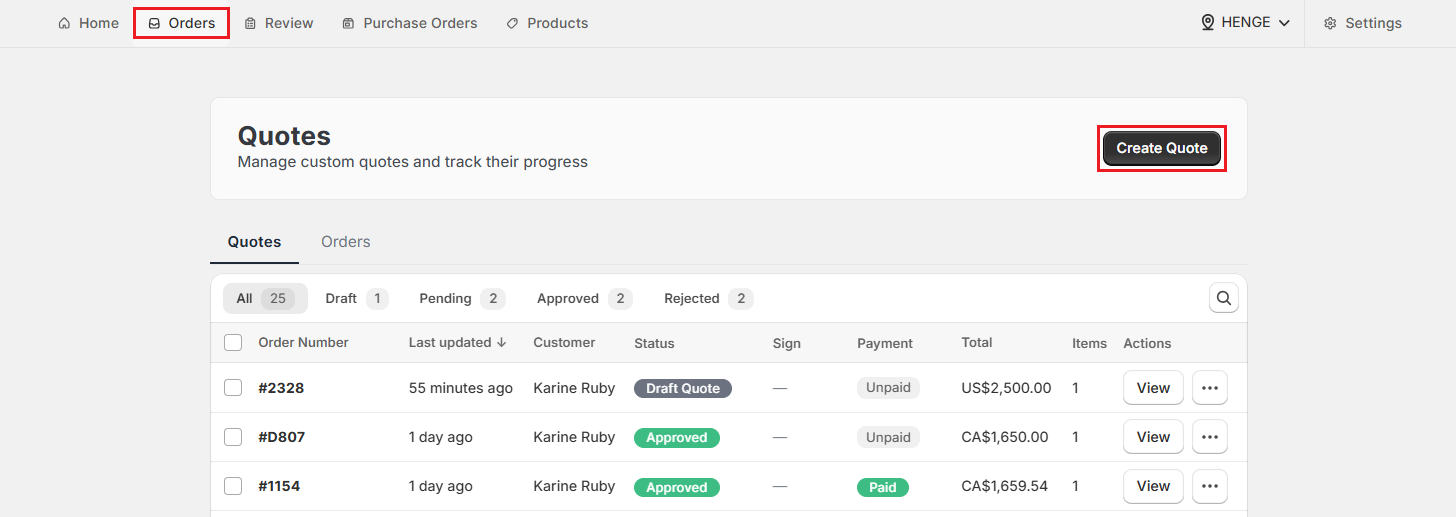
Step 1: Go to the “Orders” tab and click “Create Quote” to open the creation screen. The same form is used for both quotes and orders. You'll decide which one you're creating at the end.
Step 2: Select a brand and location from the modal (appears only if the location isn't selected already):
- If “Brand Grouping” is on, pick a brand first, then a location within it (If there are multiple locations).
- If “Brand Grouping” is off, choose a location directly.
Click “Confirm” to proceed.
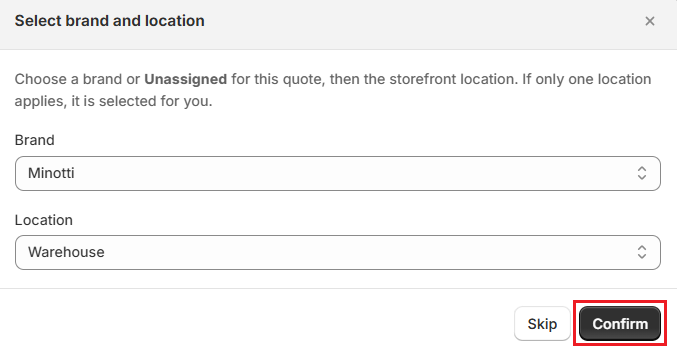
Note: You can click “Skip” to come back to this later, but a location must be selected before the quote or order can be confirmed.
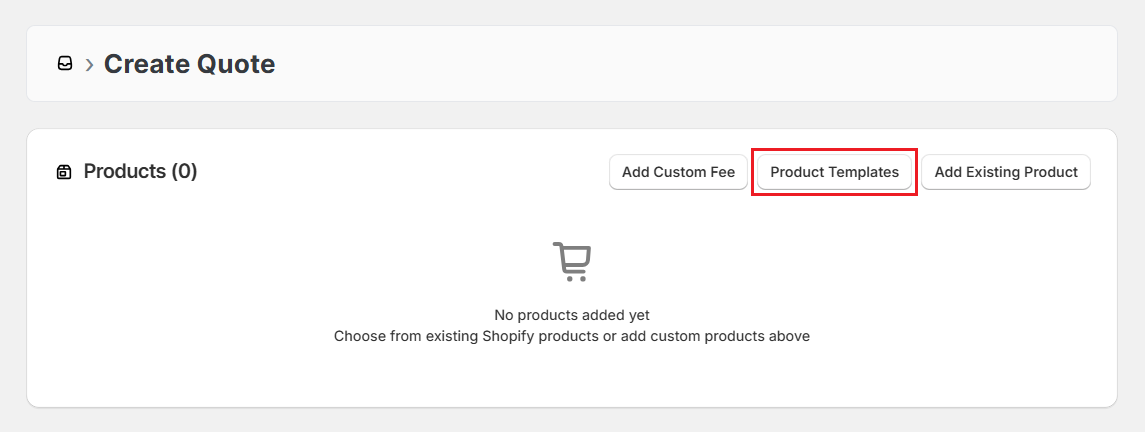
Step 3: In the Products section, click “Product Templates”.
A modal opens showing all active templates. Search and select the one that matches the customer's request, for example, “Bed Frame”, “Sofa”, or “Coffee Table”.
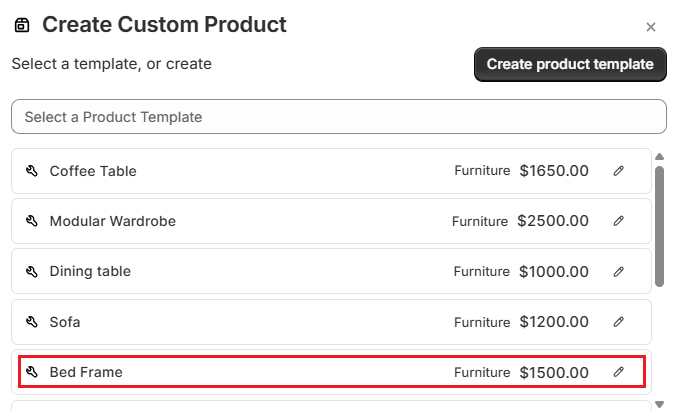
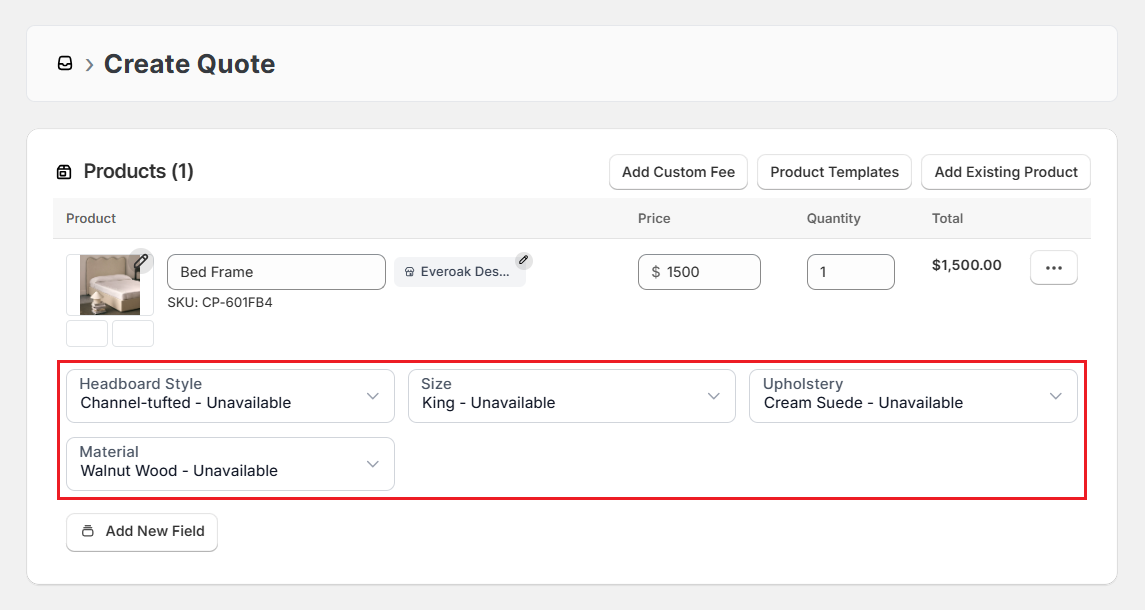
Step 4: The template automatically loads the relevant custom attribute fields. Fill in the customer's specification choices using the attribute fields that were loaded with the template. For example, for a bed frame: “Headboard Style”, “Size”, “Upholstery”, and “Material”.
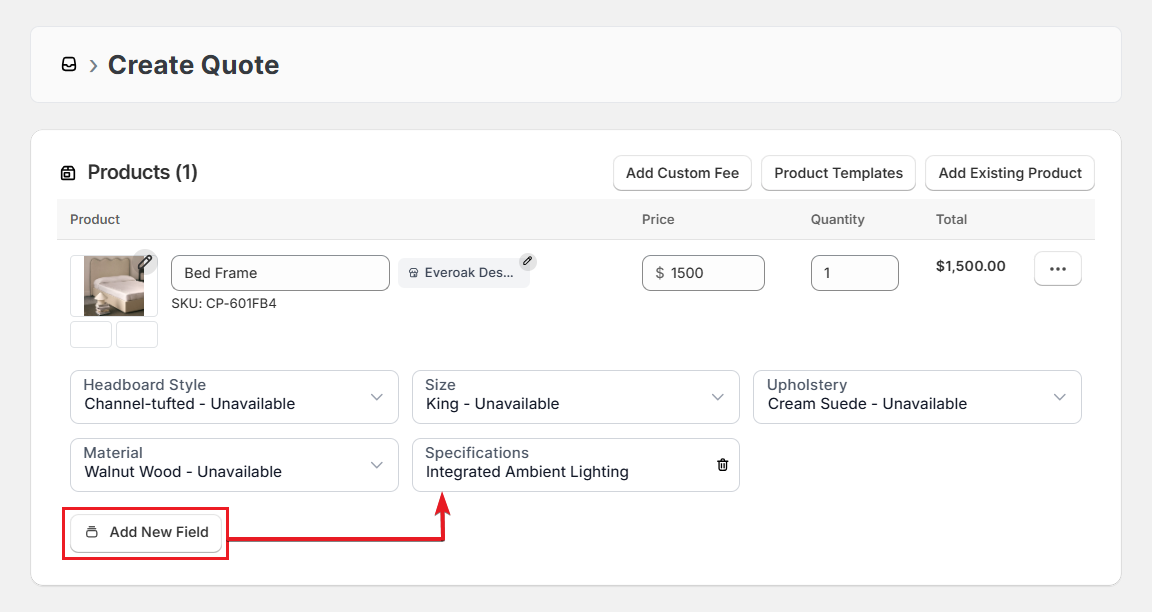
If the customer has a requirement that isn't covered by the standard fields, click “Add New Field” and select an input option. Enter the additional detail in the new field. This is useful for one-off specs like “Integrated Ambient Lighting” or custom finish requests.
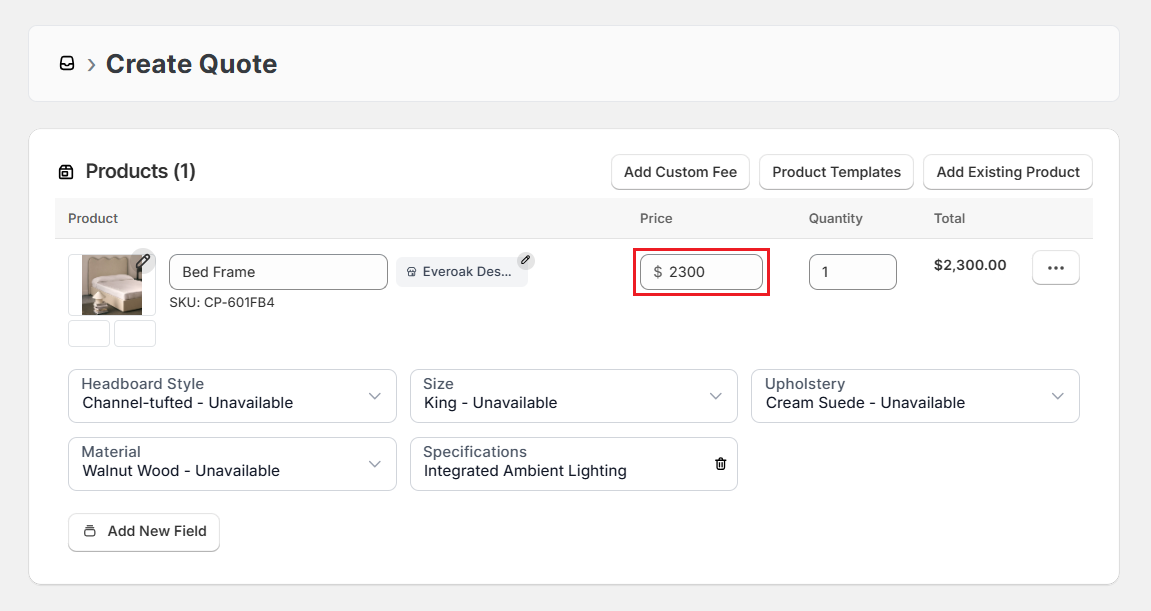
Step 5 (Optional): Update the Price field if the base price from the template needs to be adjusted for this specific configuration.
Note: Some attribute selections may automatically increase the price, depending on how your template is configured.
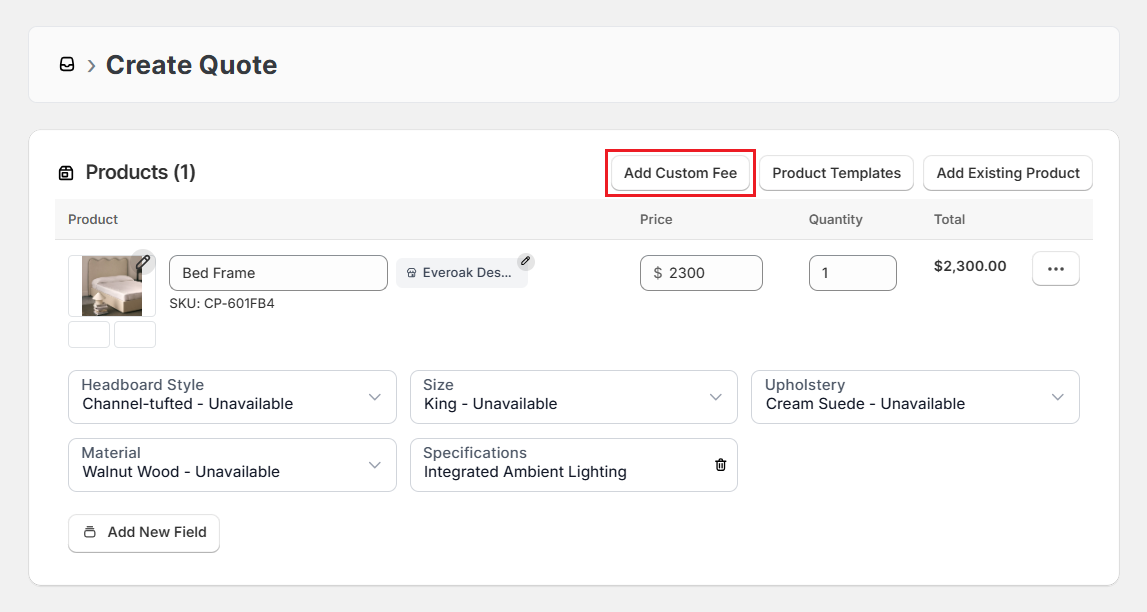
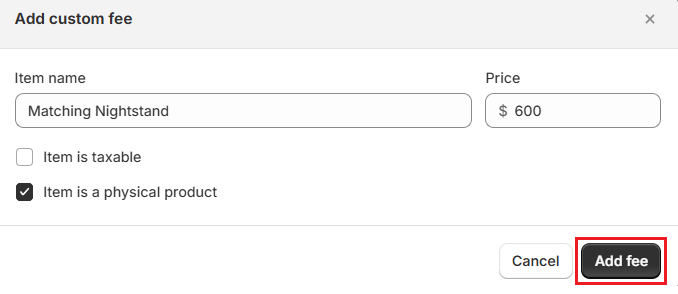
Step 6 (Optional): Click “Add Custom Fee” to add a separate line item for an add-on not included in the base product.
In the modal that appears:
- Enter the Item name, for example, “Matching Nightstand”.
- Enter the Price, for example, $600.
- Select the Item is taxable checkbox if tax applies.
- Select the Item is a physical product checkbox if it requires fulfillment.
- Click “Add fee” to confirm.
Step 7 (Optional): In the Quote Information section, click “Add New Field” to enter any details relevant to this record.

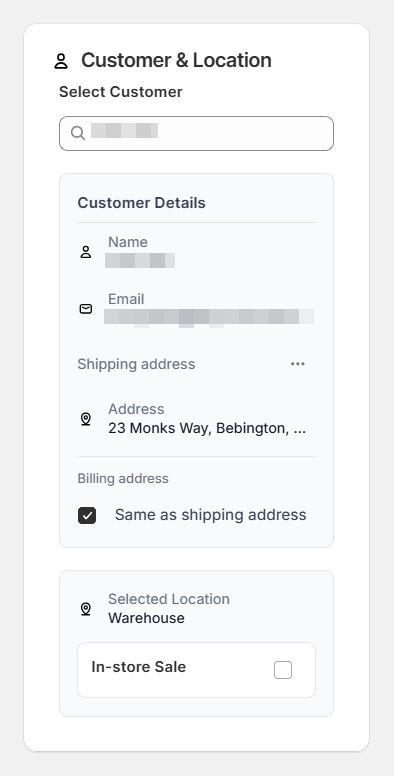
Step 8: In the Customer & Location section, search for the customer by name and select them. Their contact and address details appear for you to verify.
The location you selected at the start is also displayed here. Double-check both before moving on.
Optional: If local pickup is available and the customer is collecting in-store, select the “In-store Sale” checkbox.
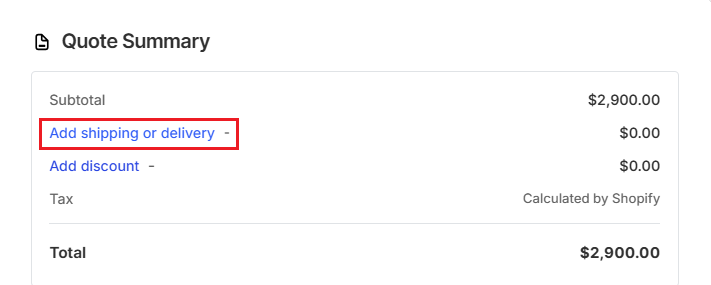
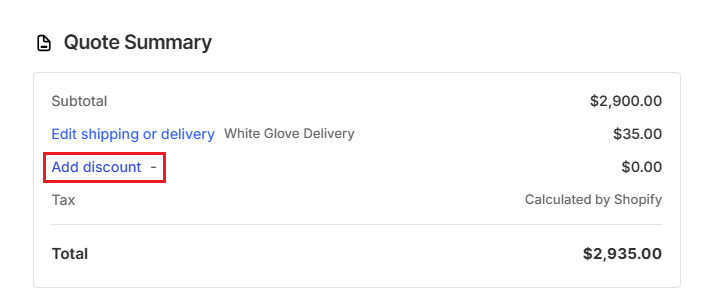
Step 9 (Optional): Click “Add shipping or delivery” to open the shipping modal.
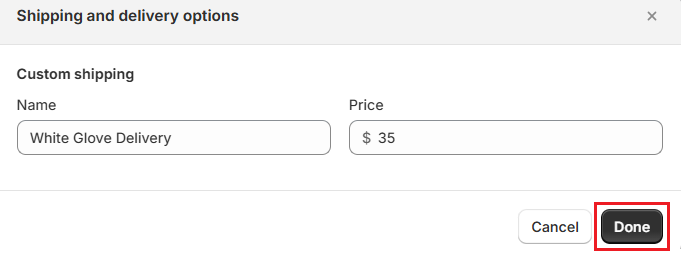
Enter a custom shipping Name, for example "White Glove Delivery", and a Price, for example "$35". Click “Done” to confirm. The shipping line appears in the Quote Summary.
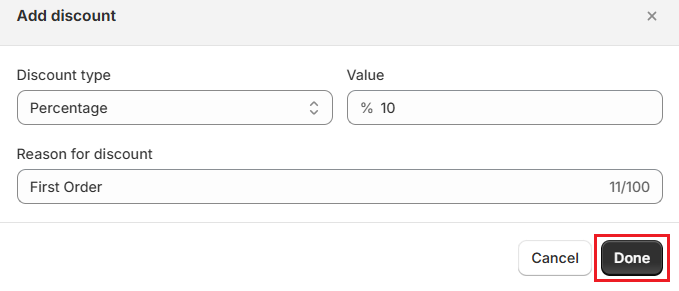
Step 10 (Optional): Click “Add discount” to reduce the order total.
In the modal:
- Select the Discount type: Amount (flat) or Percentage.
- Enter the Value, for example, "10" for a 10% discount.
- Enter a Reason for discount, for example, "First Order" or "Loyalty Discount".
Click “Done” to confirm.
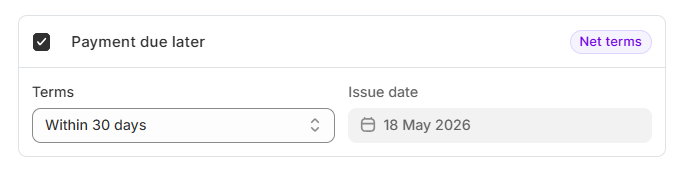
Step 11 (Optional): If the customer isn't paying now, click the “Payment due later” checkbox and select the appropriate payment terms. This flags the record as unpaid, so your team knows to follow up.
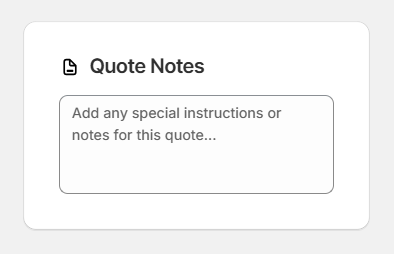
Step 12 (Optional): Add any free-text notes for your team in the Quote Notes field: delivery constraints, installation requirements, or anything the production team should know that doesn't fit the structured attribute fields.
Step 13 (Optional): If the Requires Review checkbox is visible and not already locked by your global settings, you can turn it on or off for this specific record. When checked, the order will go to the app's review queue before any further action.
Step 14: Check or uncheck the “Mark as Quote” option as required. It determines whether it's a quote or an order.
- Checked: The record is saved as a quote and goes to the app's Orders > Quotes tab.
- Unchecked: The record is saved as an order and goes to the app's Orders > Orders tab.
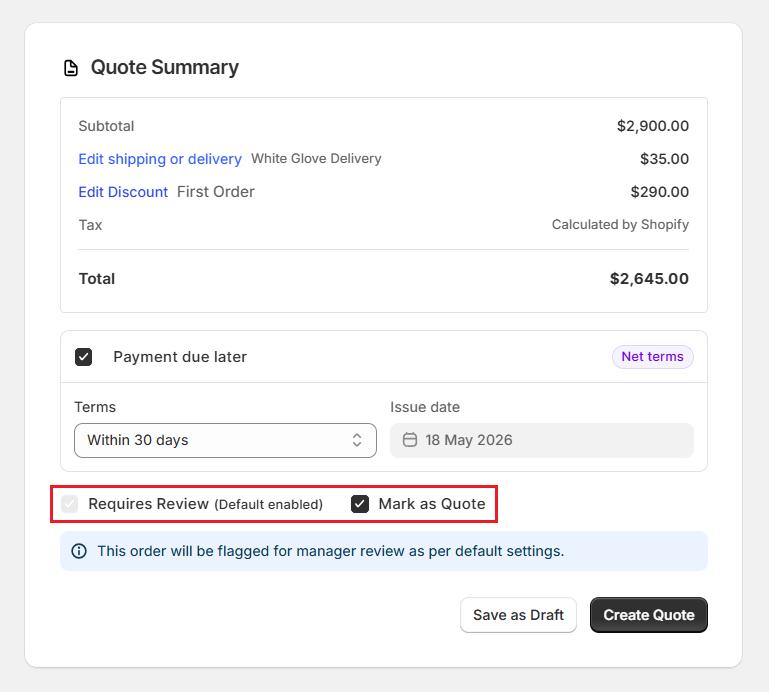
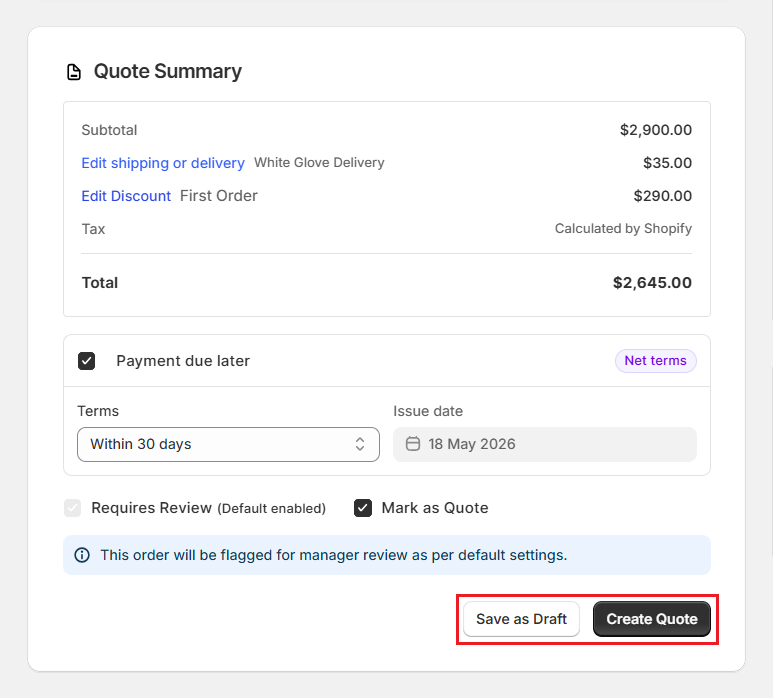
Step 15: Check the Quote Summary section. Verify the Subtotal, any Shipping, Discount, and the Total. Then click either “Create Quote” or “Create Order” depending on how the toggle above is set.
If you need to finish later, click "Save as Draft". It will be stored in the Quotes or Orders tab as a draft and can be completed and confirmed at any time.
Example: Creating a Bed Frame Quote#
A customer visits a showroom to inquire about a custom upholstered bed frame, but wants to take the quote home before committing.
The sales associate sits down with the customer, takes all the specifications, and builds a quote in OrderPilot. The customer wants a king-size bed frame with a channel-tufted headboard, cream suede upholstery, and a walnut wood base. They also want a matching nightstand and would like White Glove delivery. Since the customer is taking it away to review, the associate creates it as a quote.
-
The associate goes to the “Orders” tab and clicks “Create Quote”. The brand and location modal appears. They select the showroom location and click “Confirm”.
-
They click “Product Templates” and select “Bed Frame” from the list. Let's say four attribute fields (previously configured) load: "Headboard Style", "Upholstery", "Material", and "Size".
-
They fill in the customer's choices: “Headboard: Channel Tufted”, “Upholstery: Cream Suede”, “Material: Walnut Wood”, and “Size: King”. The running total adjusts as each attribute is selected.
-
The customer also wants integrated ambient lighting in the base. The associate clicks “Add New Field”, selects a text field named "Specifications" (previously configured), and enters “Integrated Ambient Lighting”. They also adjust the “Price” field to incorporate the cost of integrated lighting in the base price.
-
For the matching nightstand, they click “Add Custom Fee”, enter “Matching Nightstand” as the Item name, set the Price to "$600", select the “Item is a physical product” checkbox, and click “Add fee”.
-
They search and select the customer by name in the Customer & Location section and confirm the details.
-
They click “Add shipping or delivery” then:
- Name it “White Glove Delivery”.
- Set the Price to $35.
- Click “Done”.
-
The customer is a repeat buyer. The associate clicks “Add discount”, selects “Percentage”, enters “10” (for the percentage amount), types “Loyalty Discount” as the Reason, and clicks “Done”.
-
They review the Quote Summary. The total looks correct. “Mark as Quote” is checked by default, so they click “Create Quote”.
What Happens Afterward?#
OrderPilot automatically creates a Shopify product that includes all custom specifications stored as line item properties. The quote or order enters the review queue if your settings require it, and the dashboard analytics update immediately.
Recommended Next Steps#
- The production manager reviews and approves/rejects/requests changes to the quote.
- If approved, the sales associate sends the quote sign link to the customer.
- When the customer signs and approves it, a purchase order is created for the supplier requesting the made-to-order items.
Best Practices#
Confirm All Specs Before Opening the Form#
Filling everything in at once is faster and more accurate than returning to a draft to add missing details. Before you open the creation screen, confirm the customer's product choices, any add-ons, delivery requirements, and whether they want a quote or are ready to order.
Default to Quotes for New Customers#
New customers often want to take a quote home. Starting as a quote gives them that flexibility without adding friction. Converting to a confirmed order later is simple and takes almost nothing.
Use Custom Fees for Add-ons#
When a customer adds something to a standard template, add it as a custom fee. This keeps a clean record of the base product cost and what was added on top, which matters for purchase orders and supplier pricing later.
Use Notes for Specs the Attributes Don't Cover#
Customer requests like delivery access constraints, floor protection requirements, or installer preferences don't fit into a dropdown. Put them in the notes field so the production team sees them in the review queue.
You Must Enter a Reason for Discounts#
The Reason field is required and also genuinely useful. Reasons such as “First Order” or “Loyalty Discount” help your team understand pricing decisions when reviewing orders weeks later and create an audit trail in case of disputes.
Review the Summary Before Clicking Create#
The Quote or Order Summary at the bottom reflects the full record. Spend a few seconds checking it before submitting. Catching a wrong attribute choice or a missing delivery fee here is far simpler than correcting it after the fact.
Select the Location Early, Not at the End#
The location modal appears at the start for a reason. Confirm it then, so the record is tied to the right store from the beginning. Skipping this step and leaving it until the end increases the chance of assigning the wrong location.
Need Help?#
Having trouble creating a quote or order, loading the right template, or seeing the correct fields and pricing? Contact us at support@bevycommerce.com, and we'll help you review your setup.