Products & Shopify Sync
The Products page in the top navigation lists your product templates. OrderPilot keeps your Shopify catalog in sync automatically: when you activate a template, OrderPilot creates (or links) a matching Shopify product. When you deactivate or delete it, that product is archived in Shopify.
This article covers what catalog sync is, how sync status badges work, stock tracking on options, how sales are recorded, how app-managed products are filtered from pickers, spec metaobjects, and how to remove OrderPilot data before uninstalling.
Catalog Sync Overview#
OrderPilot's catalog-sync-job worker runs in the background and keeps your Shopify catalog up to date. You do not need to trigger it manually — it reacts to template changes and runs on a schedule to catch anything it may have missed.
What syncs:
| What | How many Shopify products |
|---|---|
| One active product template | One Shopify product |
| One tracked Dropdown or NUMBER option | One Shopify product per tracked option |
| Spec data | Stored in four merchant-owned Shopify metaobject types (see Spec Metaobjects below) |
What does not sync:
- Draft templates — nothing is sent to Shopify until you activate a template.
- Saving a quote or order — no Shopify product is ever created at sale time.
When a template is deactivated or deleted its Shopify product is archived, not deleted. Past orders and purchase orders still reference it, so it is never removed.
Sync Status Badges#
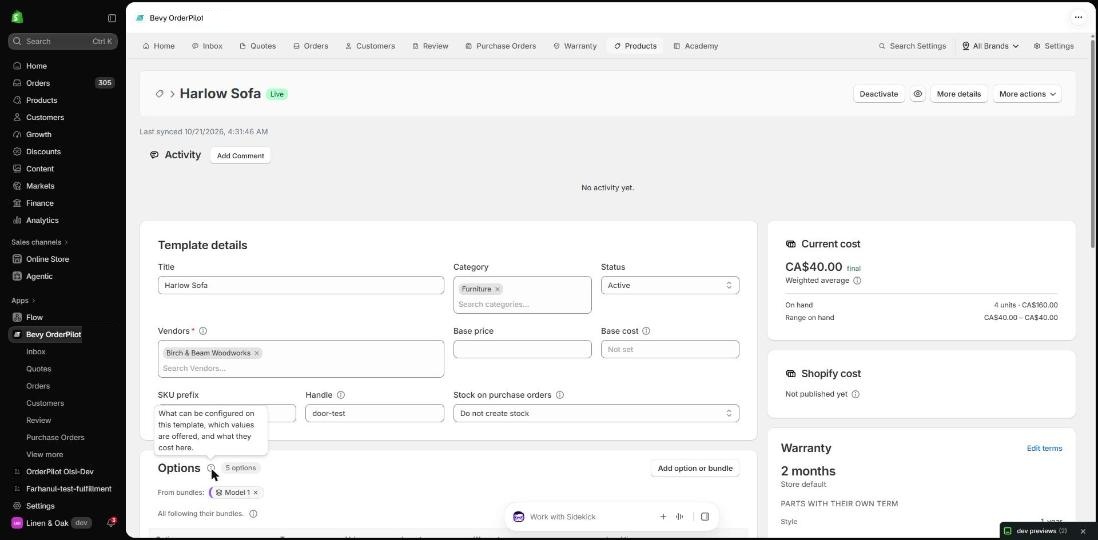
The Products page and the template editor both show a badge for each template:
| Badge | What it means |
|---|---|
| Draft | The template is a draft. Nothing is sent to Shopify. |
| Syncing | The sync worker is running. This usually completes in under a minute and the page updates automatically. |
| Live | The template's Shopify product is active and up to date. |
| Sync failed | Something went wrong. The error is shown on the template; a Retry button is available. |
When a template is Live, the template editor shows when it was last synced, and a button next to the title opens the product in your Shopify admin.
How to Fix a Failed Sync#
Step 1: On the Products page, find the template with the Sync failed badge. Hover over the badge to see the reason, or click the row to open the template.
Step 2: In the template editor, read the error shown in the sync banner.
Step 3: Fix the cause. For example, correct the field the message names, or restore anything that was removed in Shopify.
Step 4: Click Retry (or Sync to Shopify) at the top of the editor. The badge changes to Syncing, then Live.
Stock Tracking on Options#
Dropdown Options#
For each value in a Dropdown option you can create or link a Shopify product to track inventory for that value. Once linked, the product is read-only — the sync worker manages its Shopify state. You cannot edit it directly in Shopify; make changes in the option editor in OrderPilot.
NUMBER Options#
A tracked NUMBER option uses a single tracked-unit variant. When an order line is placed, the worker sells (option value × line quantity) units from that variant's stock.
How Sales Are Recorded (Template Line Cutover)#
When a customer purchases a template line:
- The sale goes against the template's own Shopify product.
- Each tracked option on that line is added as its own Shopify line item, next to the template product.
No new per-line Shopify product is created at sale time. This means your Shopify order history stays clean and your catalog doesn't grow every time an order is placed.
Note: Template lines show "Made to order" rather than a stock count. A lead time is shown when the chosen options add one.
App-Managed Product Filtering#
OrderPilot marks the Shopify products it creates so they are excluded from product pickers where they would cause confusion:
- Template products and option products are hidden from the Add product dialog (Shopify products tab) on quotes and orders in the web app. This prevents them from being added as a plain Shopify product line alongside the template line that already covers them.
- Legacy per-line products (created by earlier versions of the app) are also excluded from these pickers.
- Purchase order pickers (Add Shopify Product) still show option products, because buying stock for a tracked option is a valid PO workflow.
Spec Metaobjects#
Product spec data is stored in merchant-owned Shopify metaobject types — they live in your Shopify store and you retain them if you ever move away from OrderPilot (after running the data removal step below).
OrderPilot uses a dual-write approach: spec data is written to both spec metaobjects and a spec metafield on the Shopify product. This keeps the data accessible from Shopify's metafield APIs as well as the richer metaobject structure.
Designer & Finish (TEXT_IMAGE) Metaobject#
The Designer and Finish option types share a label + image metaobject structure. This lets you attach an image to each option value. The thumbnail appears in:
- Order and quote forms (web app)
- Purchase orders
- Shopify POS
Removing OrderPilot Data from Shopify#
Before you uninstall the app, remove the Shopify data OrderPilot created:
Step 1: Go to Settings → Shop.
Step 2: Click Remove OrderPilot data from Shopify.
This removes:
- Catalog metaobjects (spec data, Designer & Finish entries)
- Archived products created by OrderPilot
Important: Run this step before uninstalling the app. Once the app is uninstalled, the removal tool is no longer available and the metaobjects and archived products will remain in your Shopify store.
Important Notes & Tips#
Don't Edit OrderPilot's Products Directly in Shopify#
Make changes to a template in OrderPilot, not on its Shopify product. The sync worker overwrites the Shopify product every time the template is saved, so manual edits in Shopify will be lost.
Archiving Is Not Deleting#
When a template is deactivated or deleted, its Shopify product is archived, not permanently deleted. Past orders, purchase orders, and stock records keep pointing to it.
Need Help?#
Seeing a Sync failed badge you can't clear, or not sure why a product appeared in Shopify? Reach out to us at support@bevycommerce.com and we'll help you sort it out.