Installing OrderPilot
Installing OrderPilot is quick and straightforward. No coding or technical setup is required. Within a few minutes, your store will be ready to take its first custom order.
Before You Install#
Here’s what you should know before you begin:
- You need to be logged in to your Shopify admin as the store owner or a staff member with permission to install apps.
- The app works with all Shopify plans. Partial deposit collection at POS requires Shopify Plus.
- You get a 14-day free trial on the Professional plan. No payment is required during the trial.
- If you plan to use the POS extension at a physical location, make sure Shopify POS is already configured for that location before installing.
How to Install OrderPilot?#
1. Log in to your Shopify Admin.
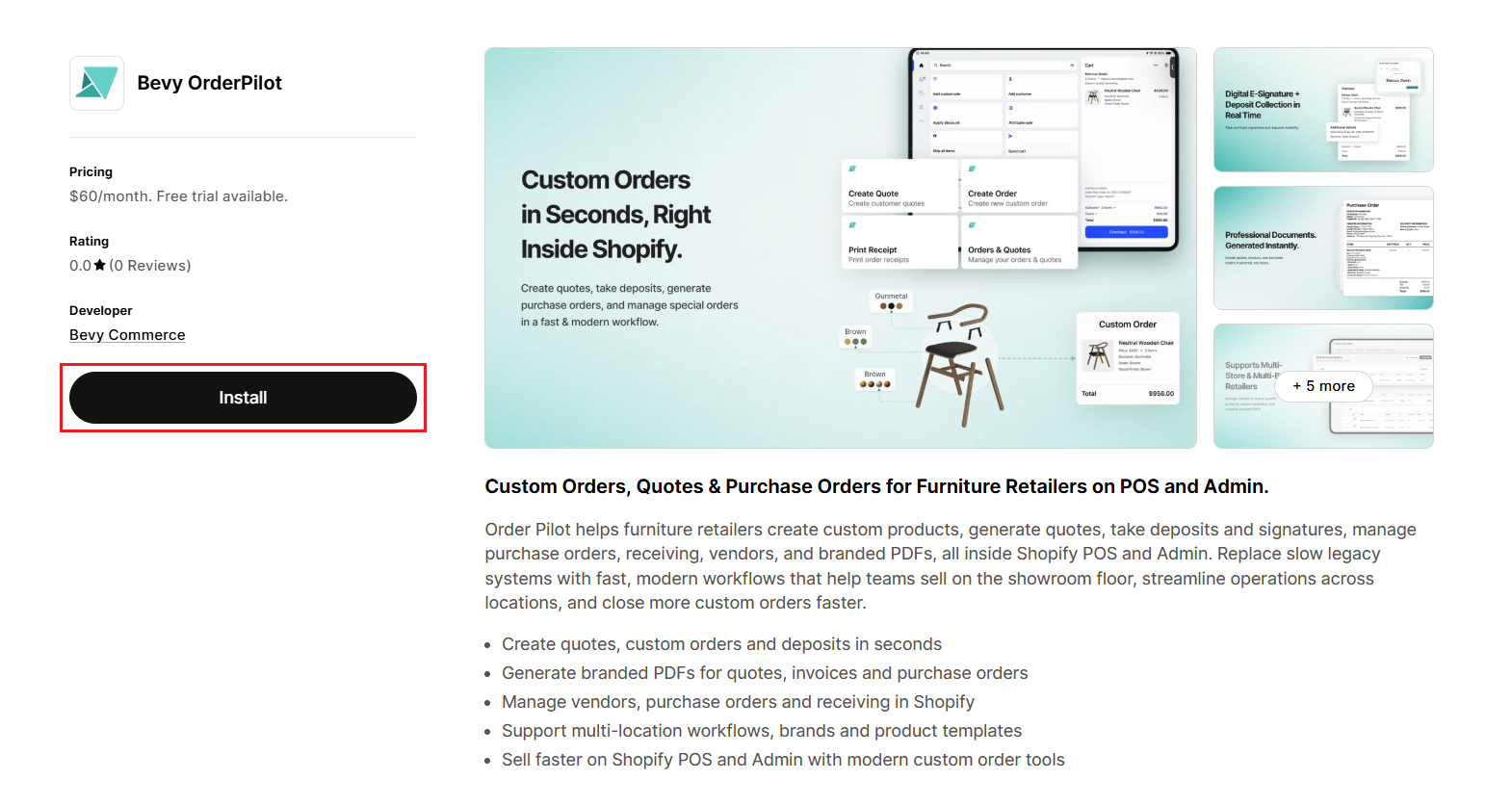
2. Visit the OrderPilot page on the Shopify App Store.
3. Click “Install” to add the app to your store.
4. Shopify will show a list of permissions the app needs. Review them and click “Install”.
5. Click “Start 14-day free trial” to activate your trial.
On this screen, you can also review your monthly pricing after the trial ends, calculated automatically based on the number of active locations in your Shopify store.
What Happens After Installation?#
Once installation is complete, the app configures a few things automatically so you’re not starting from a blank slate.
Your 14-day Free Trial Begins#
The trial starts on the day you approve the billing screen. Every feature in the Professional plan is available from the first minute, including the PO workbench and the managerial review pipeline.
A Default Product Attribute is Created#
One open-ended custom attribute is pre-loaded into the app. Sales reps can immediately start capturing custom product notes without waiting for additional setup from the admin.
The App Appears in Your Shopify Admin#
OrderPilot shows up under Apps in your Shopify Admin. Click it any time to access the dashboard, settings, orders, and the purchase order workbench.
First Steps After Installation#
Here’s what we recommend doing before you take your first live order:
1. Explore the Dashboard#
Get familiar with the layout. Your orders, review queue, and PO workbench are all accessible from the main navigation. For a full dashboard walkthrough, see the Dashboard Overview article.
2. Set Up Custom Attributes#
Add the product attributes your team needs to capture, such as material, size, color, or finish. Assign them to specific product templates or make them available across your whole catalog. For details, check the Create Custom Attributes guide.
3. Configure Workflow Statuses#
Create order status and workflows to match your production process. Set visibility controls and decide which statuses trigger a customer notification. For more information, see the Create Order Statuses guide.
4. Add Your Suppliers#
Add the vendors you order from so they’re ready to assign when you create purchase orders. For more information, see the article Create Vendors.
5. Place a Test Order#
Create a test order from the Admin or the POS Extension. Walk your team through the full flow before handling a real customer order. Read the Create Quotes/Orders guide to get an idea of the order creation process.
Need Help?#
If you run into any issues during installation or have questions about getting started, we’re here to help. Reach out to us at support@bevycommerce.com for personalized assistance.