Create Custom Attributes
Custom attributes are the fields that appear on an order form when a sales rep builds a custom order. They capture the product specifications that Shopify's standard fields can't capture; things like dimensions, material choice, finish, color, or any details specific to how your products are made or configured.
Without custom attributes, a sales rep taking an order for a custom dining table has nowhere to record that the customer wants a 72-inch walnut top with tapered oak legs and a matte finish. Custom attributes give your team a structured, repeatable way to collect exactly the right information on every order.
This article walks you through creating a custom attribute from start to finish, including how to choose the right field type, how to scope attributes to the right products or categories, and what to watch out for once attributes are in use.
Before You Start#
Ask yourself the following questions:
What information do your sales reps need to capture?#
Start by listing the details that belong on a custom order for each product type you sell. Think about what a sales rep would need to write down if they were taking the order on paper - dimensions, material choices, color options, special instructions, and so on. Each of those becomes a custom attribute.
What type of input works best for each piece of information?#
OrderPilot supports four field types:
- Single-line text
- Multi-line text
- Number
- Dropdown
Before creating an attribute, consider how a sales rep will fill it in. Free-text fields are flexible but harder to analyze later. Dropdowns enforce consistency and speed up data entry, especially for repeated choices like fabric names or finish options.
Should the attribute be required?#
Decide whether a field must be filled in before the order can be saved. Required fields prevent incomplete orders from being submitted, which matters more for some attributes than others. For example, “Dimension” is often critical, while “Add-ons” might be optional.
Which products or categories should this attribute appear on?#
Custom attributes can be scoped to all products, all orders, specific products, or specific product categories. Correctly scoping attributes keeps order forms clean and relevant. A sales rep ordering a pendant light shouldn't see fields designed for a custom sofa.
Do you have your categories set up?#
If you plan to assign attributes to specific categories, those categories need to exist first. Check the guide on Create Categories if you haven't done that yet.
Who Should Create a Custom Attribute?#
Custom attribute creation is a settings-level action. Only merchants and admins should create, edit, or delete attributes.
Sales reps fill in attributes on the order form during quote or order creation. They should not add or change existing attributes. If a sales rep tells you a field is missing from an order form, an admin will need to create the attribute and assign it to the right product template or category.
How to Create a Custom Attribute?#
Step 1: From the OrderPilot dashboard, go to “Settings”.
Step 2: Select “Custom Attributes” from the settings menu.
Step 3: Click “Create Custom Attribute” to open the attribute creation form.
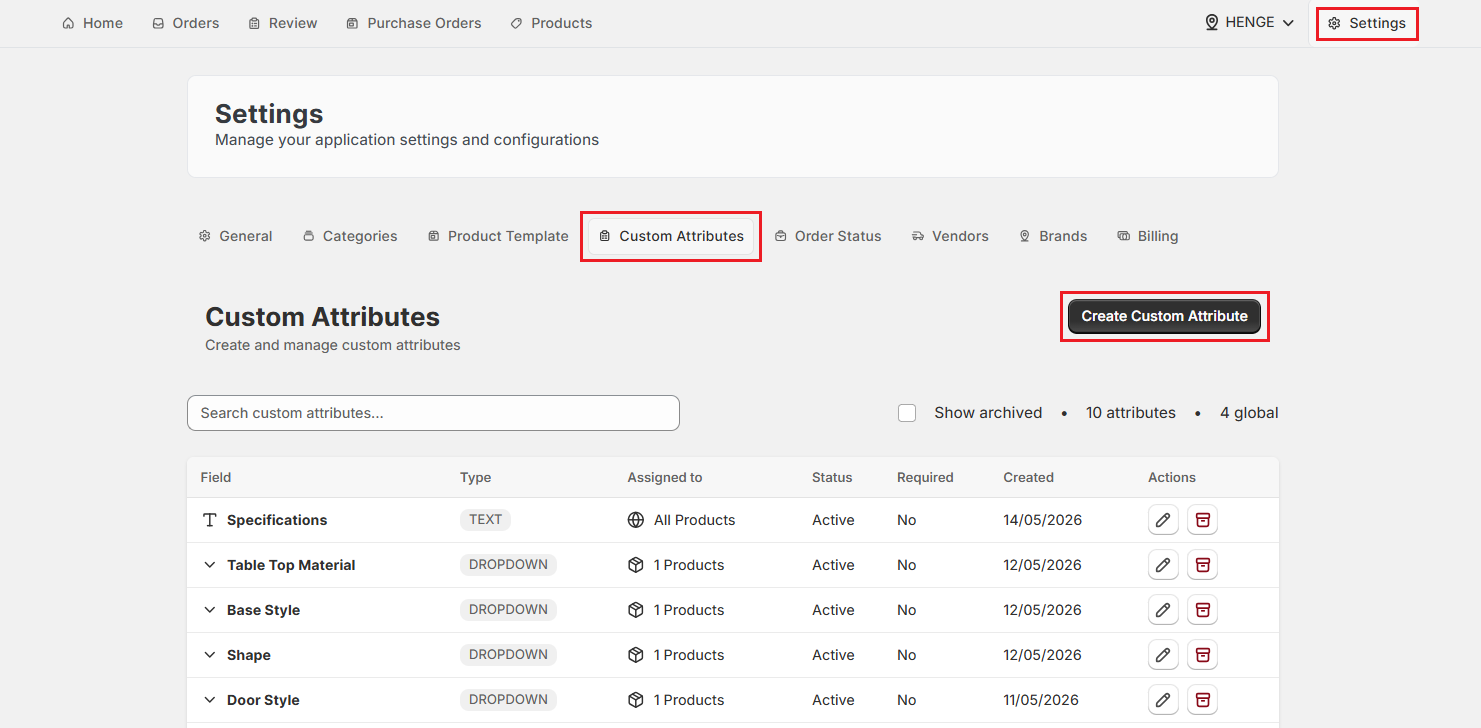
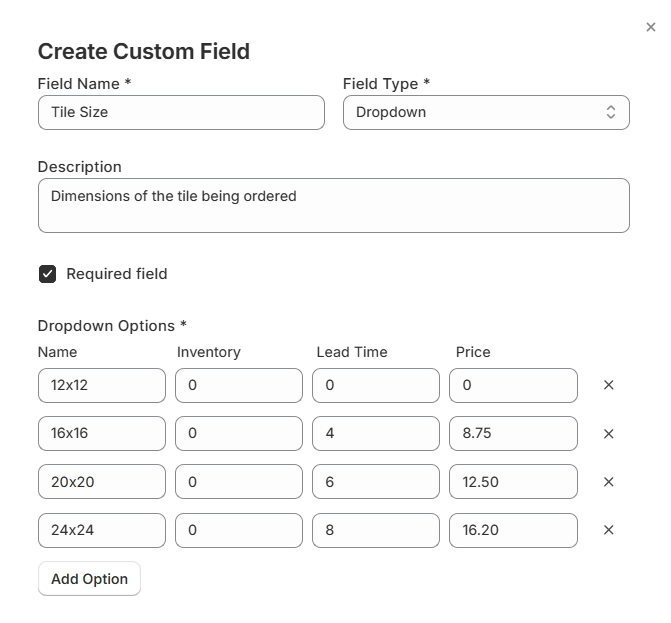
Step 4: Enter a Field Name. This is the label that appears on the order form next to the input field. Keep it short and specific so sales reps know exactly what to enter.
Pro Tip: Write field names from the sales rep's point of view. “Fabric Type” is clearer than “Material Input”, and “Seat Width (inches)” is clearer than “Width”. Descriptive names reduce errors and questions during order entry.
Step 5: Select a Field Type. Choose from Text (single-line), Text Area (multi-line), Number, or Dropdown. See the field type comparison table below if you're unsure which to pick.
Step 6: Add a Description (optional). Use it to describe what the field is for and how it should be used.
Step 7: Set up the field-specific options based on the type you selected.
-
If you selected Text (single-line), Text Area (multi-line), or Number:
- Placeholder (text): Enter a short example or prompt that appears inside the empty field before the rep starts typing. For example, entering “e.g. 72 x 36 x 30 inches” in a Dimensions field helps reps know the expected format.
-
If you selected Dropdown: You’ll build a list of options. For each option, you can set:
- Name: The label the sales rep sees in the dropdown (e.g., “Brushed Nickel”).
- Inventory: Whether this option has separate inventory tracking in Shopify.
- Lead Time: Any additional production or delivery time this option adds to the order.
- Price: An additional cost added to the product's base price by this option.
Click “Add Option” to add more entries to the list. Add as many options as your product range requires.
Step 8: Select the “Required field” checkbox if this field must be filled in before the order can be saved. Leave it unchecked if the field is optional.
Note: Think carefully before marking a field as required. Required fields prevent orders from being submitted unless they're filled in, which is good for critical specs but frustrating when a field genuinely doesn't apply to every order. If a spec is sometimes relevant and sometimes not, consider leaving it optional.
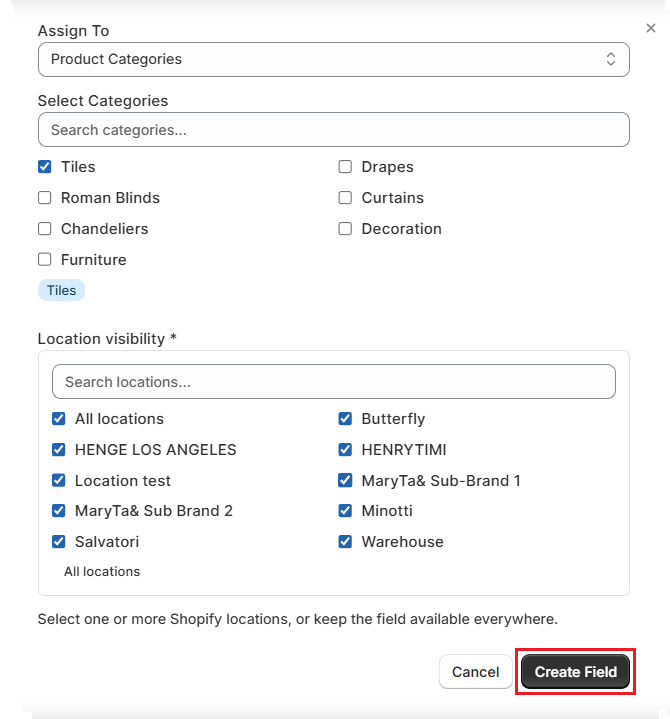
Step 9: Set the “Assign To” scope. This controls which products, categories, or orders will show this attribute on their order form.
| Scope Option | What it does | When to use it |
|---|---|---|
| All products (global) | The attribute appears on every product in every order. | Attributes that apply universally, such as a “Special Instructions” field. |
| All orders | The attribute appears on every order regardless of which product is selected. | Order-level fields like “Delivery Date Request”. |
| Specific products | The attribute appears only when a specific product is added to an order. A search field appears. Search and select the products. | Attributes tied to one or a handful of specific products. |
| Product categories | The attribute appears on any product that belongs to the selected categories. A search field appears. Search and select the categories. | Attributes that apply to a whole product type, such as “Frame Material” for all seating products. |
Step 10: Set “Location visibility” to control which store locations will see this attribute on their order forms.
- All locations: The attribute is visible across all locations in your Shopify account.
- Specific locations: Search for and select the locations, or select the checkboxes for the locations where this attribute should appear.
Step 11: Click “Create Field”. The attribute is saved immediately and will appear on the relevant order forms the next time a sales rep creates or edits an order.
Understanding Field Types#
Choosing the right Field Type is one of the most important decisions when creating an attribute. Here's how each option works and when to use it:
| Field Type | How it works | Best used for |
|---|---|---|
| Text (single-line) | A short, single-line input field. Sales reps type a value directly. | Unique specifications that vary from order to order, like customer initials for engraving, a custom paint code, or a fabric SKU provided by the customer. |
| Text Area (multi-line) | A larger text box that allows longer, multi-line input. | Detailed production notes, such as stitching preferences, placement diagrams, or special requests like “Match the wood stain to the customer’s previous dining table, order #123”. |
| Number | A numeric input field for entering numbers. Numbers can have their own inventory, lead time, and price value. | Quantities, measurements, or any value that will always be a number (e.g., seat height in inches, cushion thickness, or number of drawers). |
| Dropdown | A list of pre-defined options the sales rep selects from. Each option can have its own inventory, lead time, and price value. | Fixed choice sets like selecting “Velvet Navy Blue” as the fabric, “Matte Black” as the frame finish, “Queen” as the bed size, or “Gold Tapered Legs” as the leg style. |
Pro Tip: Use dropdowns wherever your options are fixed and repeatable. They reduce typos, speed up order entry, and make it much easier to filter and report on orders later. Free-text fields are best reserved for details that genuinely vary from order to order.
Example: Creating Attributes for a Custom Tile Order#
Let's say you run a flooring and tile company. When a sales rep takes a custom tile order, they need to capture the tile type, size, finish, quantity, and any special layout instructions. Here's how you would set up those attributes:
| Field Name | Field Type | Required Field | Assign To | Notes |
|---|---|---|---|---|
| Tile Type | Dropdown | Yes | Product categories: Tiles | Options: Porcelain, Ceramic, Natural (Lead Time: 7 days, Price: $16.50), Stone Glass (Lead Time: 10 days, Price: $18.20) |
| Tile Size | Dropdown | Yes | Product categories: Tiles | Options: 12x12, 16x16 (Lead Time: 4 days, Price: $8.75), 20x20 (Lead Time: 6 days, Price: $12.50), 24x24 (Lead Time: 8 days, Price: $16.20) |
| Finish | Dropdown | Yes | Product categories: Tiles | Options: Matte, Gloss, Satin, Textured |
| Layout Instructions | Text Area (multi-line) | No | Product categories: Tiles | Placeholder: “e.g., Diagonal pattern, grout color preference, border details” |
With these five attributes in place, every tile order your team takes will capture the same structured information. A sales rep on the floor can fill in a tile order in under two minutes, and the details go straight through to the review queue without requiring manual re-entry.
Because “Tile Type” and “Tile Size” use dropdowns with lead time and price values attached to each option, the order total and estimated lead time update automatically as the rep makes selections.
Pro Tip: When building dropdown options that affect pricing, use the Price field on each option to set the adjustment relative to the base price, not the absolute total. This keeps pricing logic clean when the same attribute is used across products at different base prices.
What Happens Next?#
Once you create an attribute, it is live immediately. Here's what changes right away:
- The attribute appears in the Custom Attributes list in Settings, where you can edit or archive it at any time.
- The attribute will appear on the order form for any product or category to which you assigned it the next time a sales rep opens the order form.
- If you marked the field as “Required”, sales reps will not be able to save an order without filling it in.
Important Notes#
Attribute Changes Affect All Orders Created Going Forward#
If you edit a custom attribute after it's been in use, such as changing its name, removing dropdown options, or changing its scope, those changes apply to new orders only. Existing orders retain the data captured when they were created.
Dropdown Price Modifiers Stack on Top of the Base Price#
When a sales rep selects a dropdown option with a price modifier attached, the amount is added to the product's base price. If multiple dropdown attributes each have price modifiers, they all add together. Test your pricing logic with a sample order before rolling out a new attribute to your full team.
Global Attributes Appear on Every Order Form#
If you assign an attribute to “All products” or “All orders”, it will show up on every order form across every product and category. Use the global scope sparingly, and only for fields that apply to every order, such as a customer notes field or a delivery preference.
What's Next?#
- See how attributes appear during order creation: Create a Custom Order
- Review how attributes appear on purchase orders: Create Purchase Orders
Need Help?#
Not sure how to choose the right field type, scope an attribute correctly, or why a field isn't showing on your order form? Contact us at support@bevycommerce.com, and we'll help you configure it properly.