Price Change Types
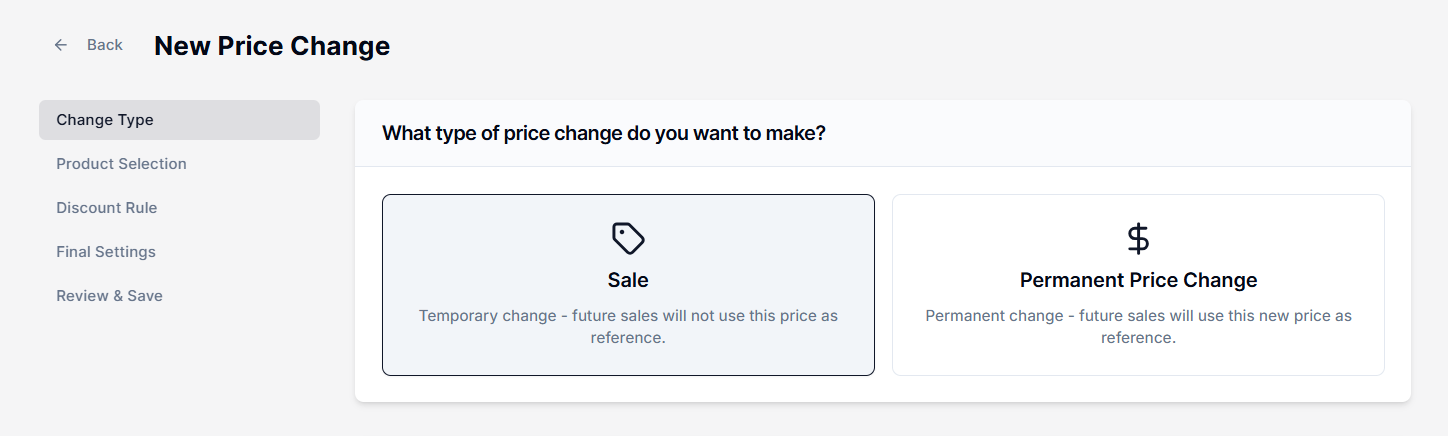
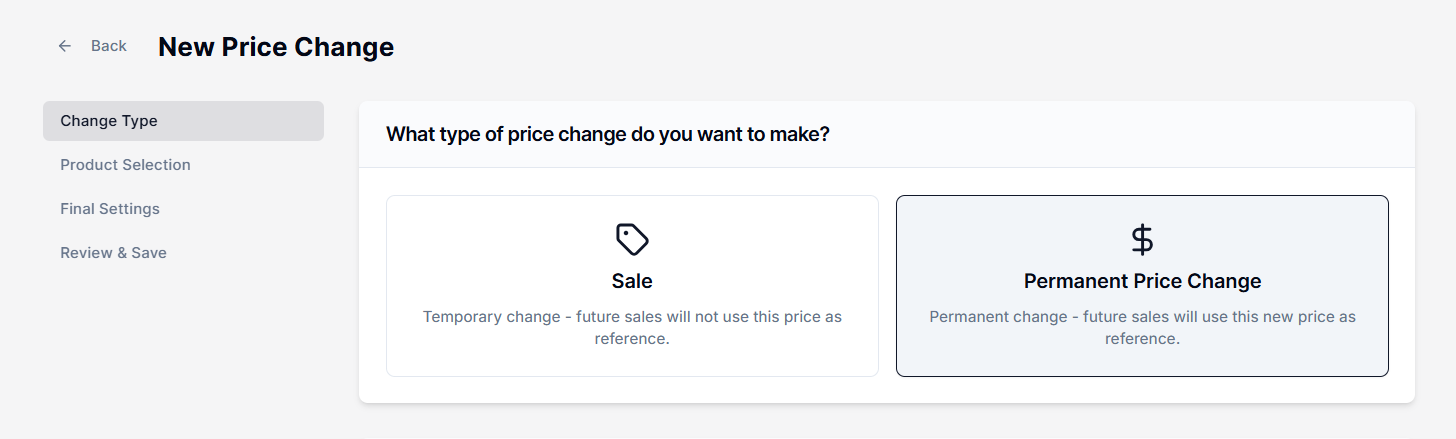
When creating a new rule in the app, the first step is selecting the Change Type. This setting determines whether the change is intended to be temporary or lasting.
Price Rules offers two distinct change types: Sale and Permanent Price Change.
1. Sale#
Select this option for time-bound promotions, such as flash sales, weekend specials, or holiday events like Black Friday.
How Does It Work?#
- Keeps Record: The app records the product’s current price before applying the discount.
- Non-Destructive: The discounted price is temporary and does not replace the original base price; other sales still reference the original price.
- Auto Restoration: When the sale ends (either by schedule or manual revert), the system restores the original price recorded in the logs at the start of the sale.
Example#
You sell a T-shirt for $50. You create a price rule to apply a "20% Off" sale for the weekend.
- Friday: Price updates to $40. The system records that the old price was $50.
- Monday: The system automatically reverts the price to $50.
2. Permanent Price Change#
Select this option for long-term pricing adjustments, such as inventory clearance, cost-of-goods updates, or strategic repricing.
Note: You can’t add Smart Rules for permanent price changes, as this action directly updates the product’s base price in your store.
How Does It Work?#
- Destructive Update: The app permanently updates the product’s base price.
- New Reference Point: Future sales will use this new price as the reference.
- No Auto-Revert: Because this is a permanent change, there is no automatic schedule to restore the previous price. To change it back, you must either manually revert the rule or create a new rule.
Example#
Your supplier increases the cost of the T-shirt. You need to raise the price from $50 to $55 indefinitely.
- Action: Create a Permanent Price Change rule with a fixed price of $55.
- Result: The product price is now $55. If you run a 20% off sale next month, the discount will be calculated based on $55, not $50.
To better understand how price change types impact product targeting options, we recommend reviewing the Product Selection Methods guide.
Overlapping Rules#
Sale vs. Sale#
If two Sale rules target the same product, you can determine which discount applies. To learn more about this, read the Resolve Price Conflicts article.
Permanent vs. Sale#
A Permanent Price Change effectively changes the baseline. If you run a permanent change during an active sale, you risk calculation conflicts.
Best Practice: Always finish or revert active temporary sales before applying a permanent price change to the same products.
Important Notes#
Permanent Changes Don’t Auto-revert#
Unlike the Sale type, Permanent Price Changes do not include an End Date or automatic restoration. If you need to reverse the change, you must either use the Revert option or create a new rule to adjust the price if there’s an error.
Historical Orders Aren’t Affected#
A Permanent Price Change updates the product’s current listing price in Shopify moving forward. Past order data remains unchanged. However, all future orders will reflect the updated price until it is modified again.
Sales Without an End Date Remain Active#
If you create a sale and do not set an End Date, the discounted price will remain in effect indefinitely. The rule must be manually stopped or reverted from the dashboard.
Need Help?#
If you’re unsure which price change type to use or want guidance on avoiding conflicts between temporary and permanent rules, our support team can assist.
Email support@bevycommerce.com, and we’ll help you apply your changes safely.