Dashboard Overview
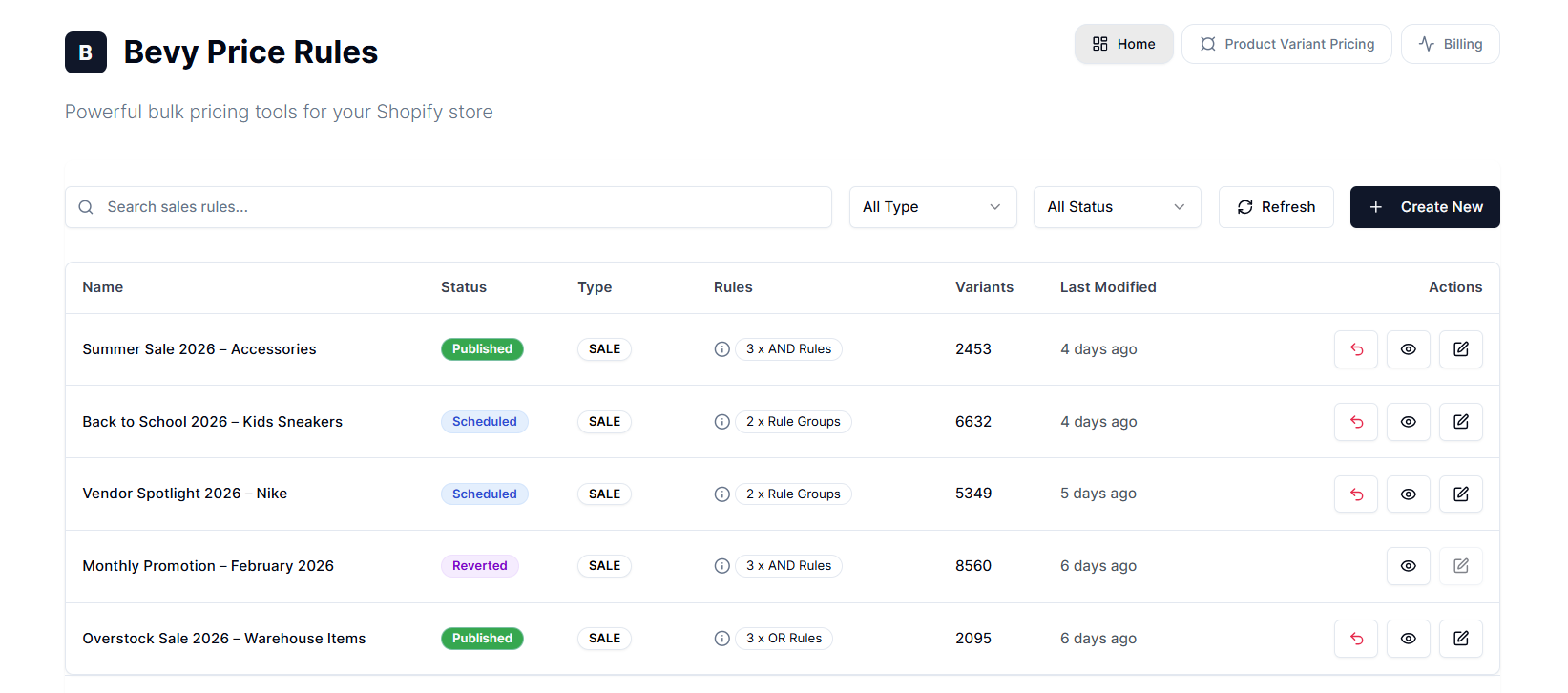
The Price Rules dashboard (Home) is your primary interface for managing sales campaigns. It provides a real-time view of all active, scheduled, and past pricing rules, giving you a single view of your store’s discount strategy.
Accessing the Dashboard#
After opening the Price Rules app, the dashboard is the first screen you see. It provides the following sections:
Search & Filters#
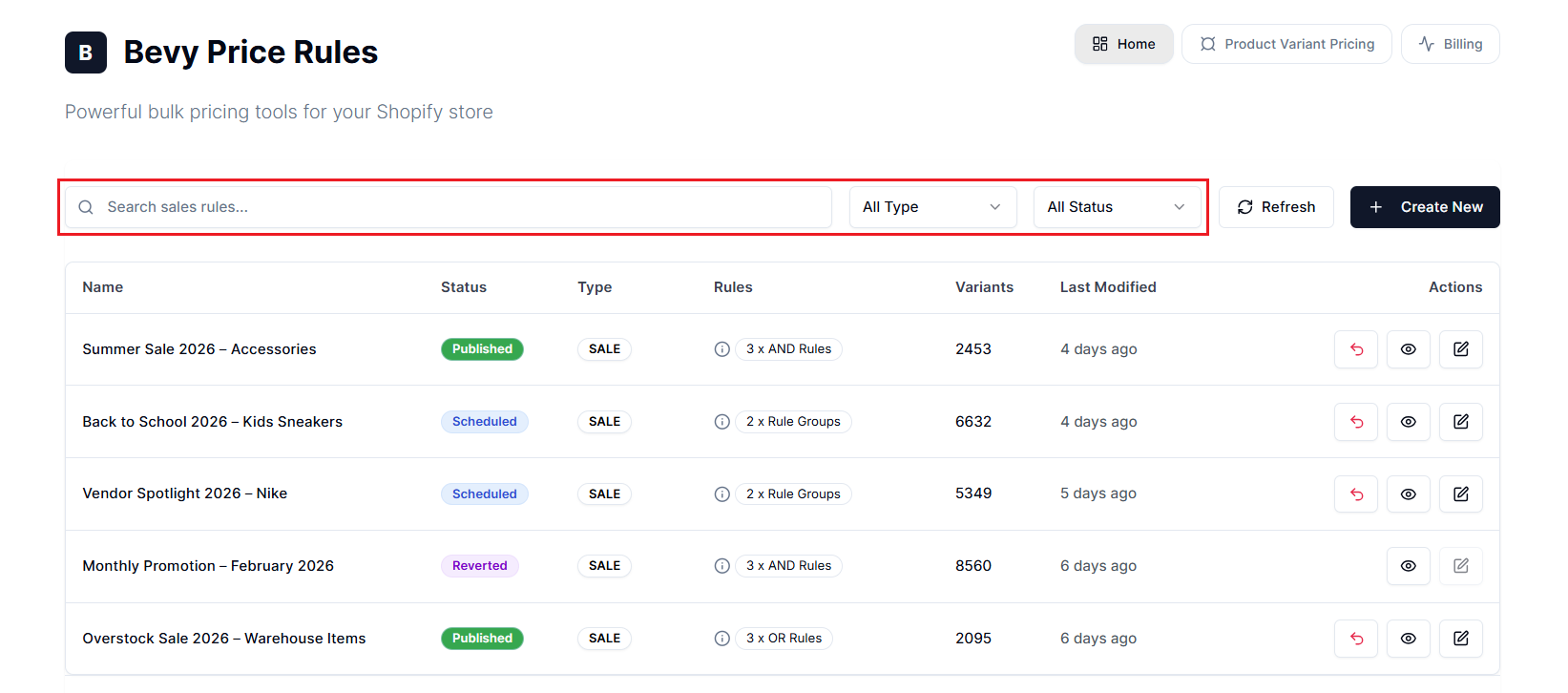
To manage a growing list of campaigns, use the search and filter tools located at the top of the dashboard:
Search Sales Rules#
Enter the name of a rule to find it instantly.
Pro Tip : Use clear naming conventions (e.g., “Black Friday 2025 - Accessories”) to make retrieval easier later.
Filter by Type#
- All: Displays all rules created using smart filters and CSV uploads.
- Sale: Displays rules created using smart filters (e.g., “Products with Tag ‘Summer’").
- CSV: Displays rules created through bulk file upload.
Filter by Status#
View rules by their current state (e.g., Published, Drafted, Reverted, Scheduled, and more).
Refresh Button#
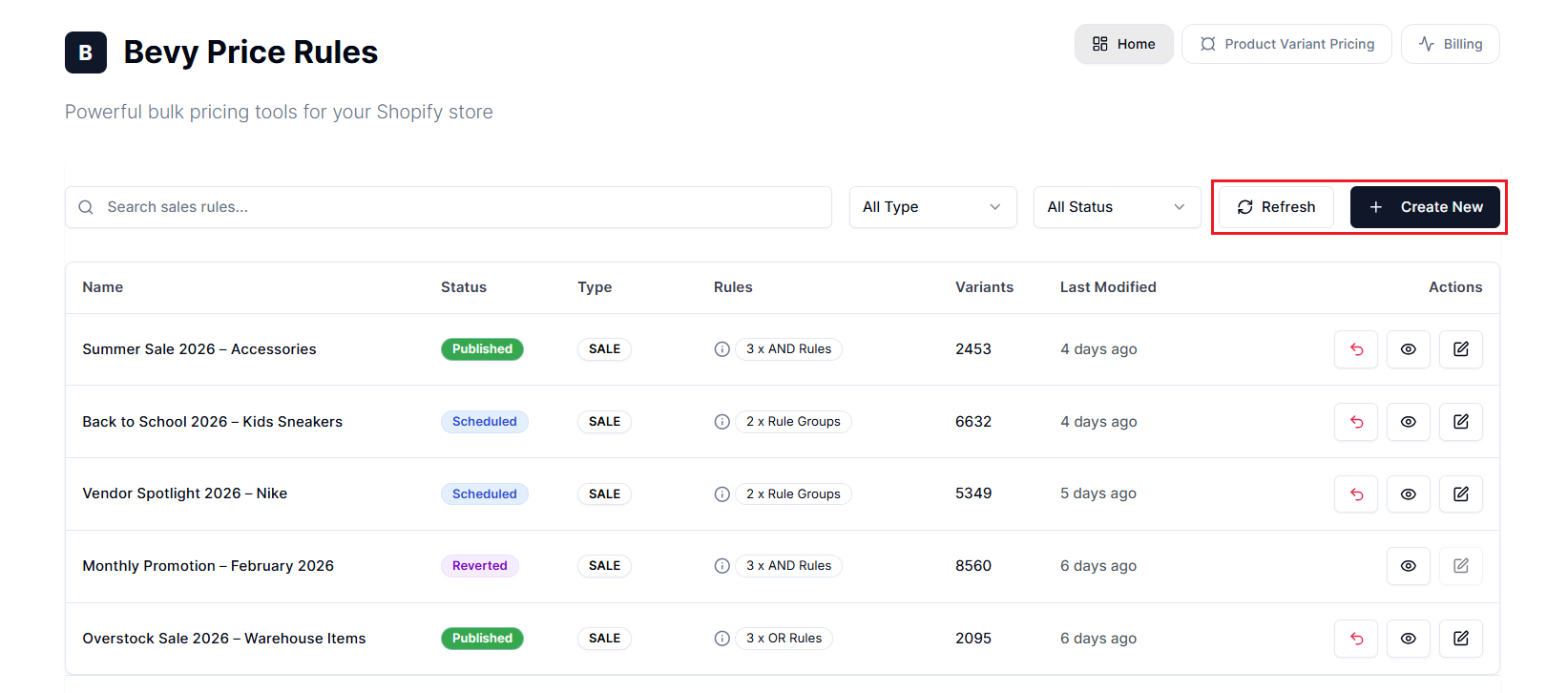
Reloads the dashboard data to show the real-time status of long-running jobs.
Create New Button#
Initiates the workflow to create a new rule. To learn more about the process, read the Create Price Rules article.
The Price Rules Table#
The table provides a detailed breakdown of your sales campaigns. Here's what each column represents:
- Name: The internal title of your sale.
- Status: The current state of the rule. For more information, check the Understanding Statuses section below.
- Type: Indicates whether the rule uses logic-based filtering (SALE) or a specific product list (CSV - SALE).
- Rules: A summary of the conditions applied. Hover over the information in the column to see details such as “Product Type is Jackets ‘OR’ accessory” without opening the full editor.
- Variants: The total count of product variants targeted by this rule.
Note: If this number is 0, check your filter logic or sync status to ensure products match your criteria.
- Last Modified: Shows when the app last updated the rule.
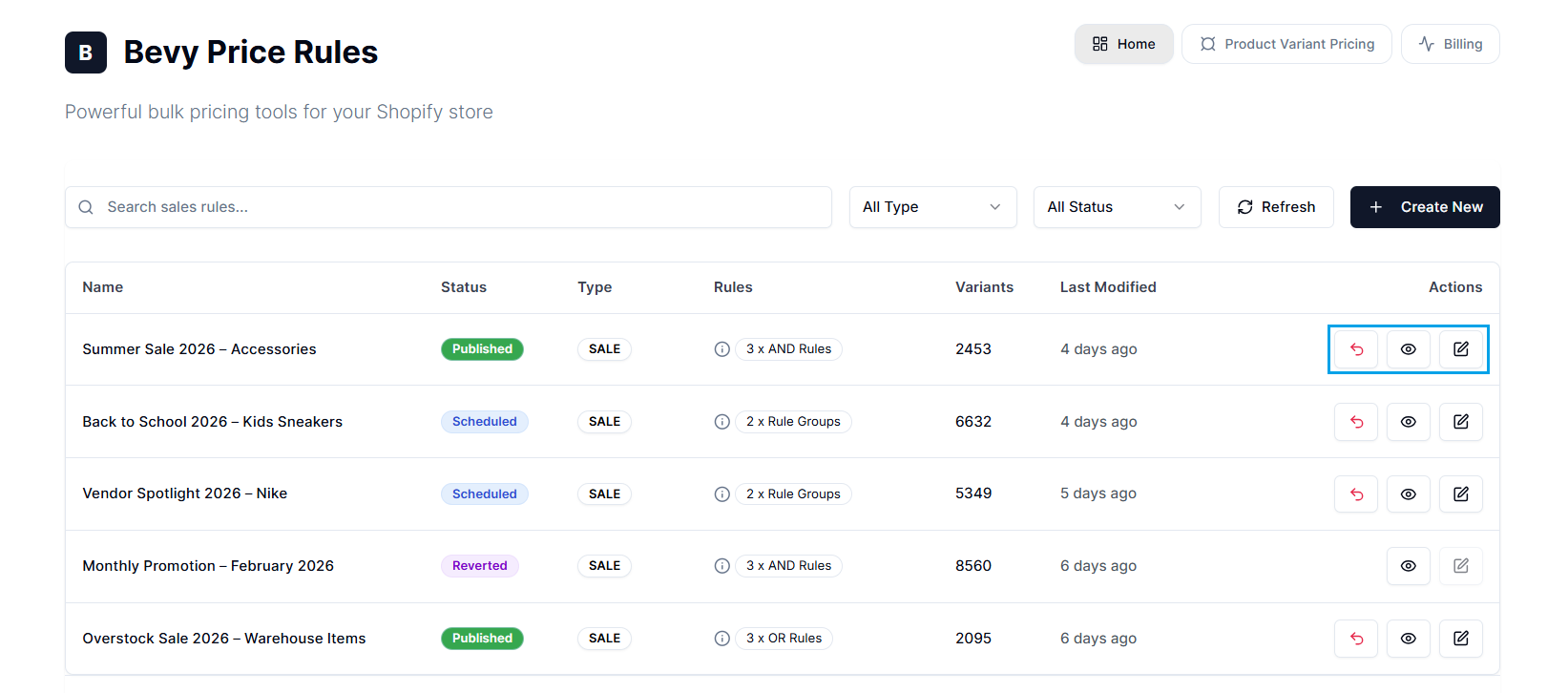
- Actions:
- Revert (Arrow Icon): Immediately stops an active sale and restores original prices.
- View (Eye Icon): Opens the detailed view of a price rule, including pricing logic, targeting conditions, activity log, and related details.
- Edit (Pencil Icon): Opens the rule editor to modify settings.
Note: Editing an active sale may trigger a price resync.
Understanding Statuses#
The status badge indicates the real-time state of your price rule within the app’s background processing queue. Because updating prices for thousands of products takes time, the app moves your rule through different stages.
Live & Operational#
These statuses mean the price rule is functioning as expected.
- Active: The broad category for any rule that is currently running or in the process of applying prices.
- Published: The sale is live. The background jobs have completed updating the Price and Compare-at-Price for all targeted products on your storefront.
- Scheduled: The rule is saved and locked in the queue. It is waiting for the specific Start Date & Time to trigger automatic activation.
- Drafted: The rule is saved in your list but not activated. No prices have changed, and no schedule has been set.
- Reverted: The sale has ended (either automatically through scheduling or manually). The app has successfully restored the Original Price and Compare-at-Price for all items from its internal audit log.
- Inactive: Rules that are no longer affecting your store, for example, Reverted.
Processing#
You will see these statuses while the app is running in the background.
Important: Do not delete or edit a rule while it's in these states.
- Publishing: The app is processing your product list and pushing price updates to Shopify. For large catalogs (10,000+ items), this status may persist for several minutes.
- Reverting: The app is looking up original prices and restoring them to Shopify.
- Drafting: The system is currently saving your rule configuration to the database.
- Scheduling: The system is registering your requested time slots with the internal job scheduler.
- Queued (Publish/Schedule/Revert): The rule is waiting in the queue to start processing.
Note: During high-traffic periods (such as Black Friday), rules may remain “Queued” for a few moments while the system manages API rate limits to prevent Shopify from blocking your store's updates.
Error#
These statuses indicate a workflow disruption that requires your attention.
- Publish - Failed: The sale couldn’t start. No prices were changed.
- Publish - Partially Failed: The sale is active, but a few products couldn’t be updated.
Common Cause: Specific variants might be locked by another app, contain invalid data (e.g., missing IDs), or have duplicate SKUs that cause conflicts. Check the Activity Logs to identify which specific items failed.
- Schedule - Failed: The app couldn’t save your scheduled time slot. Please try scheduling the sale again.
- Draft Failed: The app couldn’t save your rule as a draft. This usually happens due to a temporary connection issue. Please try saving your progress again.
- Revert - Failed: The system failed to restore prices.
Action: Contact support if this occurs. Don’t attempt to run a new sale on these products until they are resolved.
- Revert - Partially Failed: The sale ended, but some products couldn’t be restored to their original price.
Action: Check the logs. You may need to manually update the few remaining items in Shopify.
Important Notes#
Data Synchronization#
The dashboard’s data accuracy depends on the app’s sync status with Shopify. If you recently added new products to Shopify, they may not immediately appear in the Variants count for a rule.
The Revert Safeguard#
When you click the Revert option, the system retrieves the old price from the logs and restores it. This ensures that even if you manually changed a price in Shopify during a sale, the app attempts to restore the correct pre-sale state based on its internal audit trail.
Need Help?#
If you have questions about the dashboard, rule statuses, or anything else, our support team is happy to help.
Email support@bevycommerce.com, and we’ll get back to you as quickly as possible.