Discount Rules
Configuring Discount Rules is the core part of any sales campaign. It defines how the Price Rules app calculates new prices for your products. Unlike Shopify discount codes that apply at checkout, these rules modify the product data (Price and Compare-at-Price) in your store’s backend, ensuring the discount is visible immediately on collection and product pages.
Discount Target#
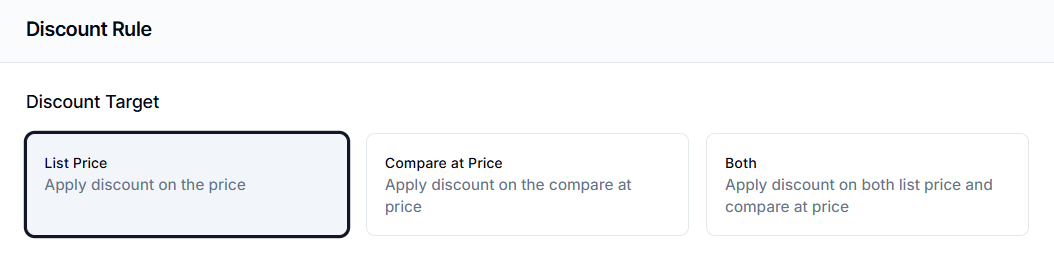
The Discount Target setting determines which Shopify pricing fields the app will update.
- List Price: Updates the selling price (the Price field). Use this for standard price reductions where you don't need to display a strikethrough or "was" price.
- Compare at Price: Updates the reference price (the Compare-at Price field). This controls the strikethrough "was" price shown on the storefront.
- Both: Updates both fields simultaneously. This is the standard configuration for sales events. It lowers the List Price to the discounted amount and sets the Compare-at Price to the pre-sale value, which creates the strikethrough effect (e.g.,
$50.00→ $40.00) on your storefront.
Calculation Methods#
Once you select a target, choose how the new price should be calculated.
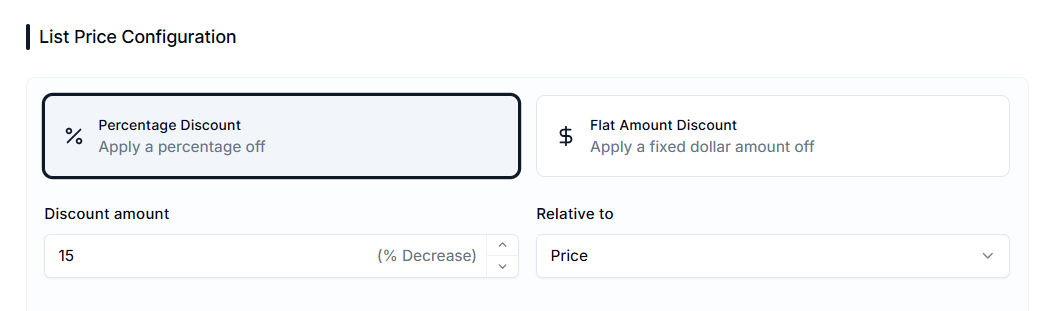
1. Percentage Discount (%)#
Reduces the product price by a specific percentage.
- Example: A $100 product with a 20% discount becomes $80.
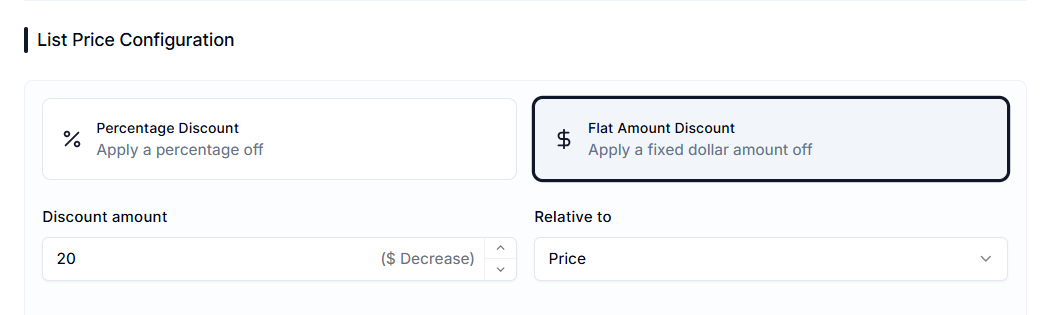
2. Flat Amount Discount ($)#
Reduces the product price by a fixed amount in USD (US dollars).
- Example: A $100 product with a $10 discount becomes $90.
Relative Pricing Logic#
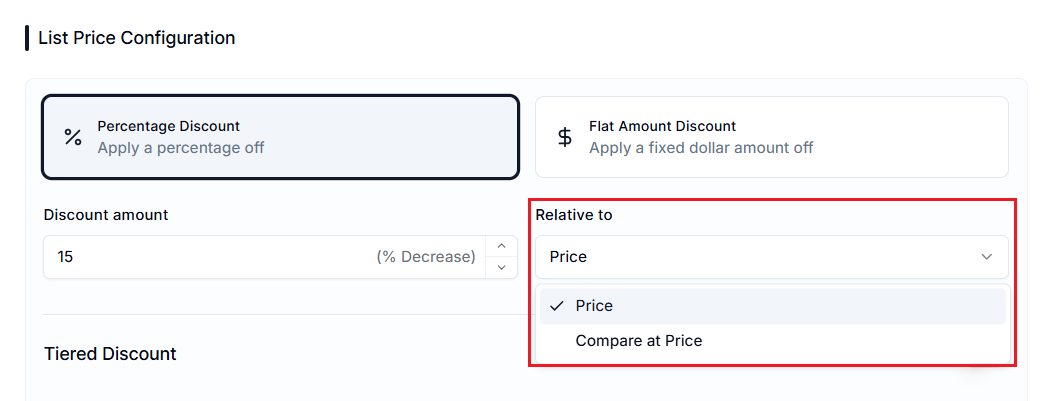
By default, discounts are calculated relative to the product's current price. However, using the Relative to dropdown, you can change the reference point for the calculation.
- Relative to Current Price: Calculates discount from the product's active selling price (Price field). This is the standard behavior.
- Relative to Compare-at Price: Calculates discount from the Compare-at Price field instead of the active selling price. This is useful when the Compare-at Price represents Manufacturer’s Suggested Retail Price (MSRP) or a higher reference value.
Tiered Discounts#
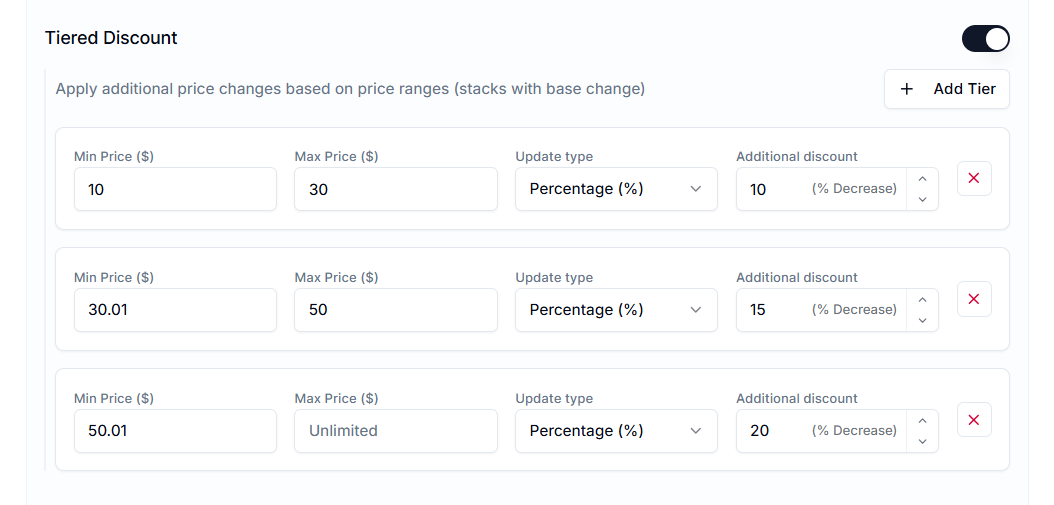
Tiered discounts let you create structured price-range logic, where different discount levels are applied to products within specific price brackets.
How Does Tiered Logic Work?#
You define specific price brackets using a Min Price and a Max Price. For example:
- Tier 1: Products priced $10-$30 receive 10% off.
- Tier 2: Products between $30.01-$50 get 15% off.
- Tier 3: Products over $50.01 get 20% off.
Note: Tiered discounts can be stacked on top of the base price adjustment. Always review the final calculated price to ensure it reflects your intended outcome.
Important Notes#
The "Compare-at" Requirement#
For products to display a "Sale" badge in most Shopify themes, the Compare-at-Price must be higher than the Price.
- Recommendation: Always select Both as your Discount Target for standard sales. If you only update the List Price without setting a Compare-at Price, the product will simply look cheaper, and customers won't see it as a deal or marked-down offer.
Tiered Range Overlap#
If a product qualifies for more than one Tiered Discount range, the system processes the tiers sequentially, based on their configuration. To prevent unintended results, your price ranges should be mutually exclusive.
Best Practice:#
Avoid overlapping brackets. For example:
- Tier 1: $10.00 – $20.00
- Tier 2: $20.01 – $40.00
Need Help?#
If you’re unsure which discount rules to use or how to set tiered brackets, our support team is here to assist.
Email support@bevycommerce.com and get personalized guidance to ensure your discounts are applied accurately.