Dashboard Overview
The Product Variant Price dashboard provides a granular, item-level view of your entire inventory's pricing status. Unlike the main “Sales Rules” dashboard, which focuses on managing campaigns, this view allows you to audit individual products, verify specific price changes, and troubleshoot pricing conflicts across your catalog.
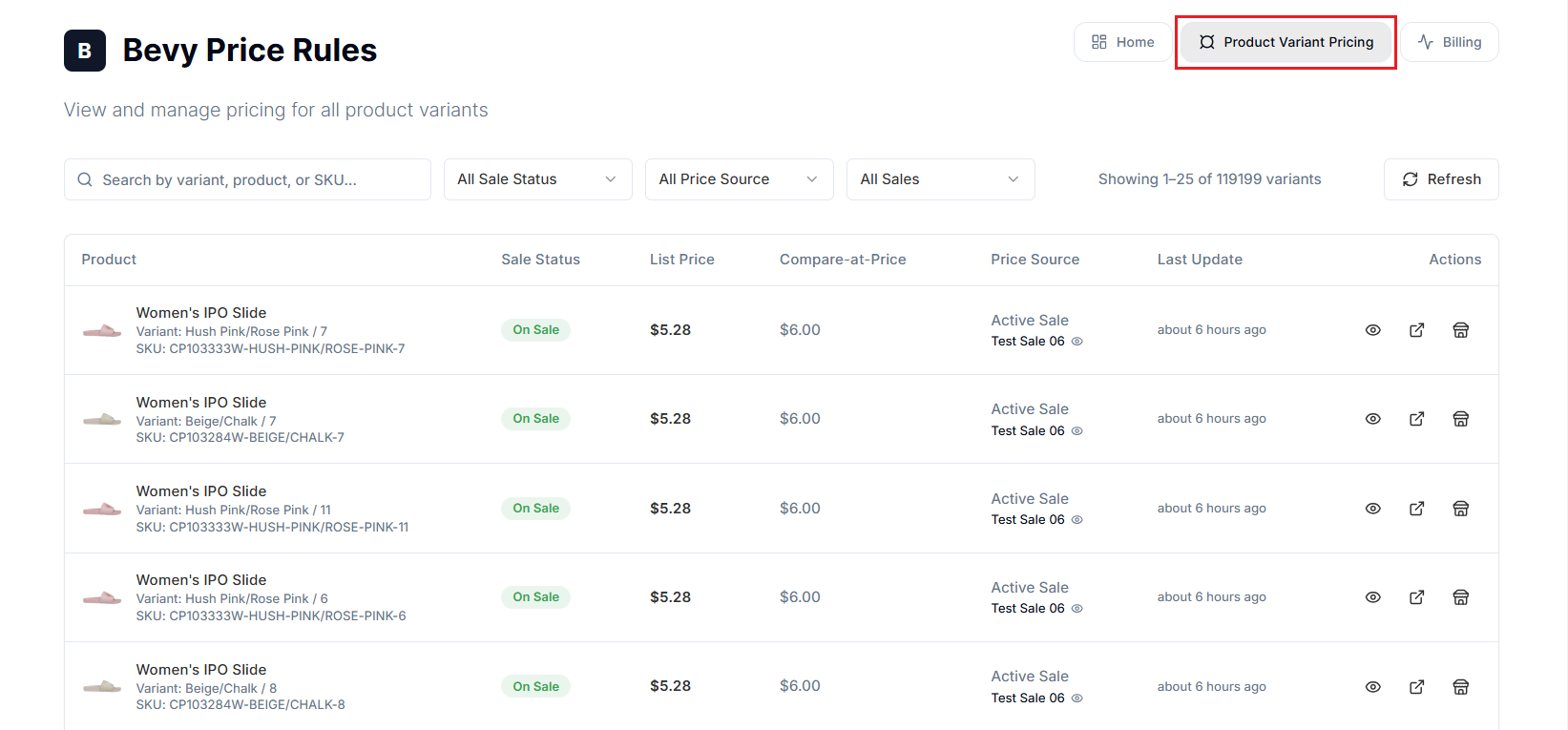
To access this view, select the Product Variant Pricing button located in the top navigation bar of the app.
Getting Started#
The dashboard is designed to handle high-volume catalogs (supporting stores with 100,000+ variants). It presents data in a comprehensive table format with powerful search and filtering capabilities.
1. Search and Filters#
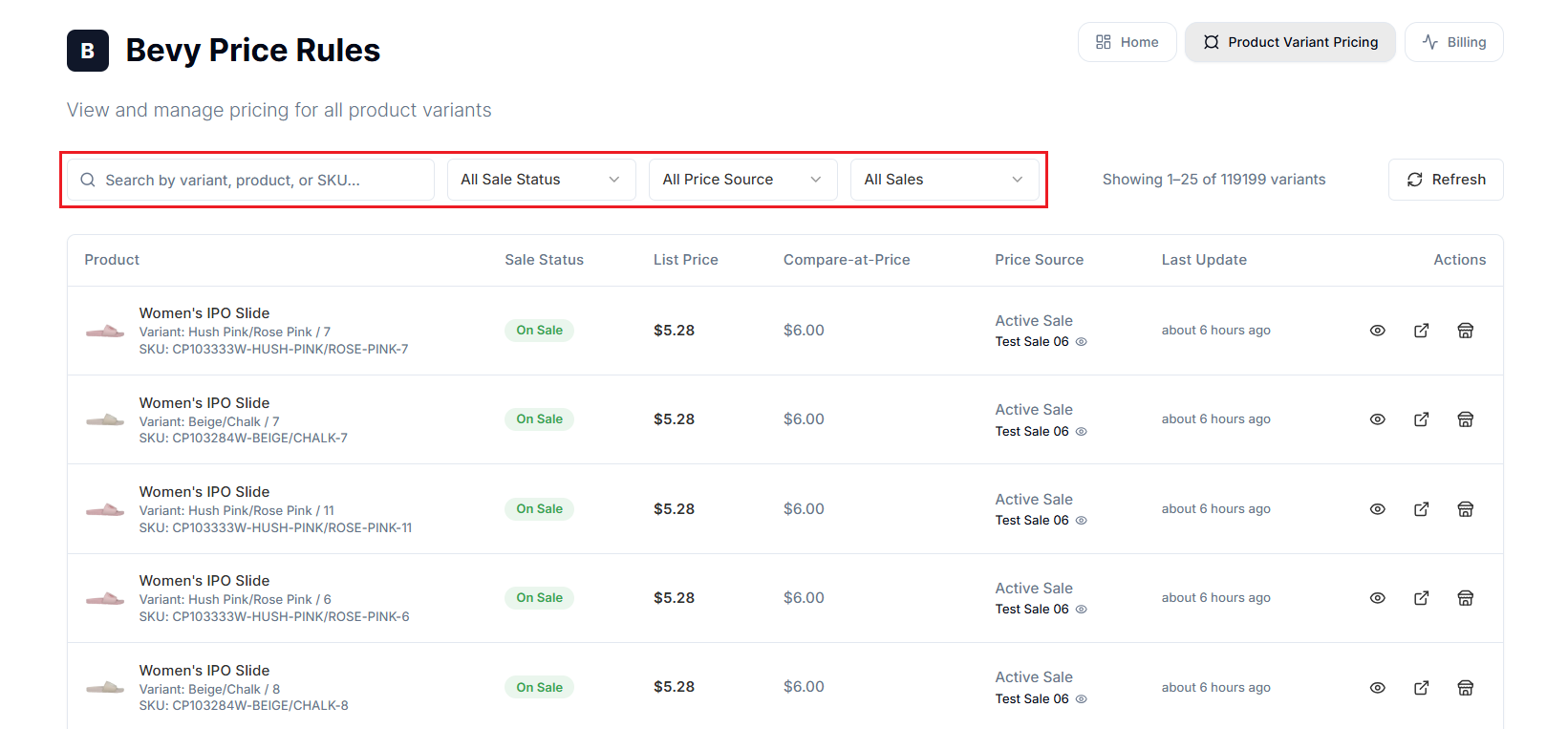
Located at the top of the dashboard, these tools allow you to isolate specific items within large datasets:
- Search Bar: Filter results by entering a Variant Title, Product Title, or SKU.
- Sale Status: Filter by the product’s current state (e.g., view only items currently tagged On Sale).
- Price Source: Filter items based on the origin of their current price (e.g., External, Rule-Based). This is critical for identifying prices that have been modified by third-party apps or manual Shopify edits.
- All Sales: Filter to show only products included in a specific active sales campaign.
2. The Variant Table#
The main table displays real-time pricing data for every variant in your store:
- Product: Displays the product thumbnail, product title, variant title (e.g., "Black/M"), and SKU.
- Sale Status: A visual badge indicating if the item is actively discounted (e.g., On Sale).
- List Price: The current selling price visible to customers.
- Compare-at-Price: The "original" price used to calculate the discount display (strikethrough price).
- Price Source: Indicates the system responsible for the current price. An External status suggests the price is currently managed outside of a specific Price Rule (e.g., via Shopify Admin or another app).
- Last Update: The relative timestamp of the last pricing change (e.g., "about 23 hours ago").
3. Actions#
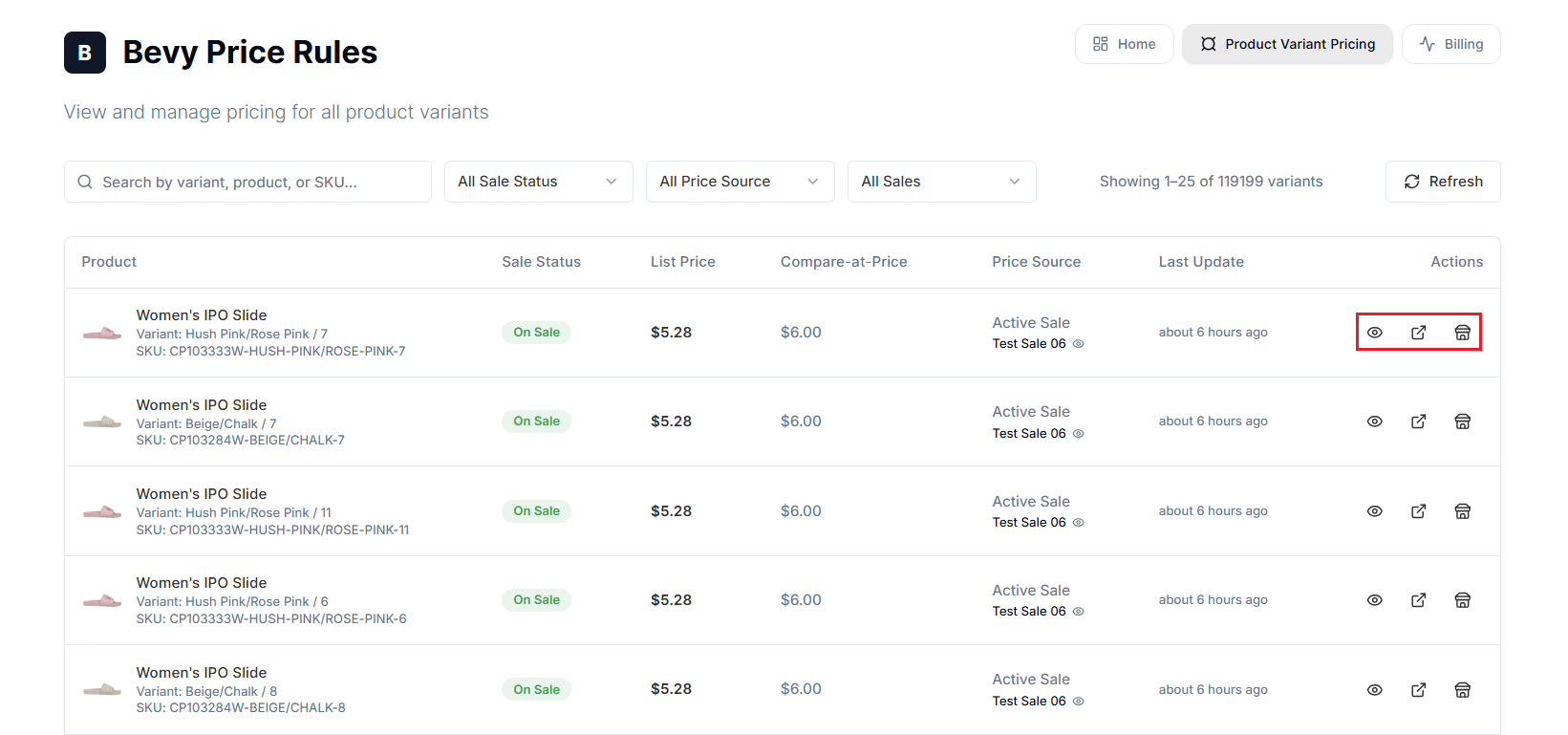
The Actions column provides direct controls for each variant:
- View Details (Eye Icon): Opens the detailed log for that specific variant. To know how to use the log, refer to the View Price History article.
- View on Shopify Admin (External Link Icon): Navigates directly to the product's editing page in your Shopify Admin.
- View on Store (Shop Icon): Redirects to the product variant on your storefront.
Important Notes#
Verifying "Smart Rule" Logic#
When using complex filters (e.g., "Tag is 'Summer' AND Price > $50"), it can be difficult to predict exactly which items are included.
- Workflow: Go to the Product Variant Dashboard, select the specific sale from the All Sales dropdown, and verify that only the intended SKUs are listed with the On Sale badge.
Auditing Price Sources#
If a product price looks incorrect, check the Price Source column.
- Scenario: You have an active sale, but the price is lower than expected.
- Check: If Price Source is set to External, another app or a manual edit may have overwritten your Price Rule. This dashboard helps you pinpoint the sources of conflict immediately.
SKU-Level Troubleshooting#
Customer support teams can use this dashboard to answer pricing queries.
- Scenario: A customer asks why the "Red/Small" shirt isn't discounted.
- Action: Search the SKU in the dashboard. If the Sale Status is empty, the product was likely excluded by your rule logic (e.g., inventory was too low, or it missed a tag).
Data Synchronization#
The dashboard displays data based on the app's internal index. While syncs are frequent, there may be a slight delay between a change in Shopify and its reflection here.
- Best Practice: Always select the Refresh button in the top right corner before performing an audit to ensure you are viewing the most current data.
The "External" Status#
The External status is a key indicator of data integrity. It implies that the current price point was detected during a sync but is not currently "locked" or actively managed by a Price Rule. This is normal for products not currently on sale, but if an item should be on sale and shows "External," it indicates a rule mismatch or sync error.
Need Help?#
If you have questions about the Product Variant Price dashboard or need help reviewing pricing data, email support@bevycommerce.com, and our team will be happy to assist.