Final Settings
The Final Settings define the execution parameters of your sale. This includes integrating with your marketing stack via automated tagging, defining the precise schedule for activation and reversion, and performing a final impact analysis before publishing.
Automated Tagging#
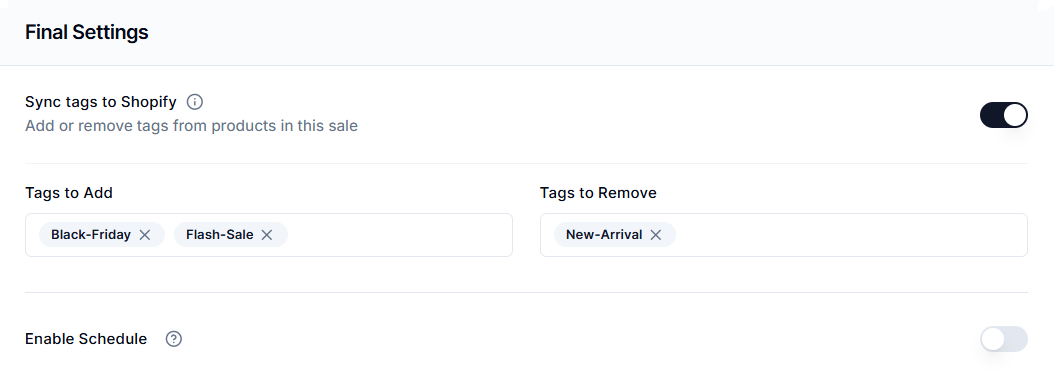
Price Rules bridges the gap between operations and marketing. By enabling Sync tags to Shopify, you can automatically label products while they are on sale and strip those labels when the sale ends. This feature is critical for triggering downstream marketing flows in tools like Klaviyo or displaying “On Sale” badges on your storefront.
How to Configure Tagging#
- Turn on the Sync tags to Shopify option.
- Tags to Add: Enter the specific tags you want applied to products when the sale activates (e.g., "Black-Friday", "Flash-Sale").
- Tags to Remove: Enter any tags you want stripped from the products when the sale activates (e.g., remove a "New-Arrival" tag when a product moves to the clearance section).
Note: When the sale ends (either via schedule or manual revert), the system automatically reverses these actions. It removes the tags listed in Tags to Add to ensure your product data remains clean.
Scheduling#
The scheduling engine automates the lifecycle of your price changes. Instead of manually activating rules at midnight, you can queue them in advance.
Enable Schedule#
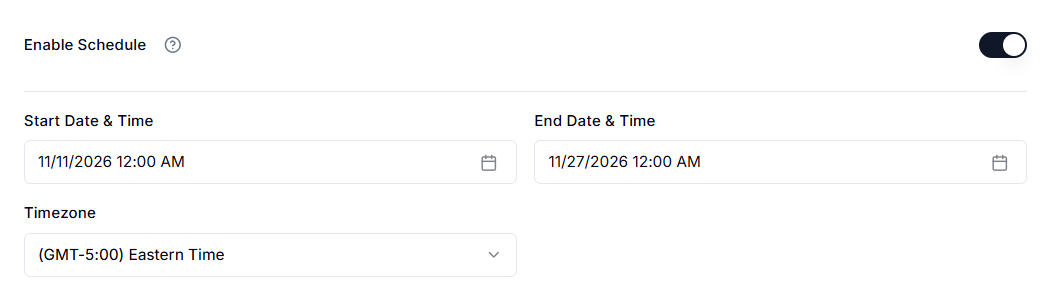
Turn on the Enable Schedule option to access the date and time pickers.
- Start Date & Time: The specific moment the app begins the background job to update prices and tags.
- End Date & Time: The moment the sale expires.
- Behavior: When this time is reached, the system automatically triggers a revert job. It restores the Price and Compare-at-Price to their original pre-sale values and removes the sale tags.
- Timezone: Select the timezone your sale should follow. For accurate scheduling, ensure it aligns with your Shopify store’s primary timezone. A mismatch can cause the sale to activate or end earlier or later than intended.
Final Review#
Before making your sale live, you must configure the Final Review section.
Sale Name#
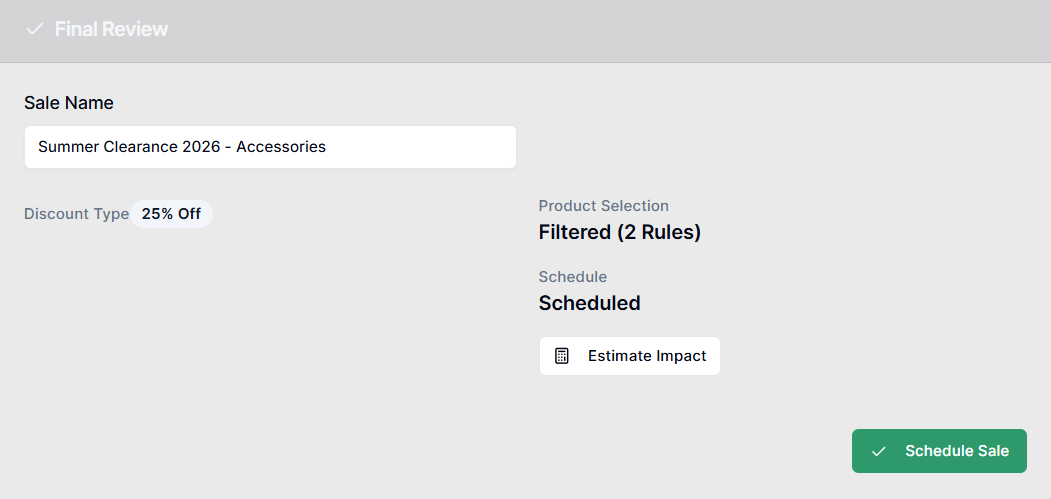
Enter a descriptive name for the rule (e.g., "Summer Clearance 2026 - Accessories"). It appears on your dashboard and in your activity logs.
Estimate Impact#
Select the Estimate Impact button to generate a simulation of your rule. The system will process your filters and discount logic to display the number of products matching your criteria.
Publish or Schedule Sale#
This action button adapts based on your scheduling setup:
- Publish Sale: Appears when no future start date is set. The sale goes live immediately upon confirmation.
- Schedule Sale: Appears when you’ve defined a start and end date/time. The system will automatically activate the sale at the scheduled start time and revert pricing at the scheduled end time.
Important Notes#
Leaving the End Date Blank#
If you do not set an End Date & Time, the sale will begin at the scheduled start time (or immediately if no start time is defined) and continue indefinitely. The rule will remain active until you manually select Revert from the dashboard.
Editing the Schedule After Activation#
You can modify the schedule even after a sale has started. If you extend the End Date, the system updates the scheduled background job and adjusts the automatic reversion time accordingly.
"Tags to Remove" Is Permanent#
The Tags to Remove field is destructive at activation. If you configure the app to remove a tag (e.g., “New-Arrival”) when the sale starts, it is permanently removed at that moment. It is not restored when the sale ends.
Estimate Impact Is a Simulation#
The Estimate Impact feature does not modify live product data. It runs a read-only simulation using your filters and discount logic to display how many products will be affected.
Need Help?#
Have questions about scheduling, tagging, or publishing your sale? We can assist with:
- Verifying timezone settings to prevent early or late activations
- Reviewing tag automation to avoid unintended permanent removals
- Validating your final setup before you publish a large sale
Email support@bevycommerce.com, and we’ll help you launch your sale exactly as planned.