Order Actions & Documents
Most of what you do with a quote or order after creating it starts from three places on its page: the buttons in the top right corner, the ••• options menu next to them, and the Activity card at the bottom. The header buttons always point to the next step. The options menu holds everything else: emails, links, documents, payments, and purchase orders. The Activity card is the record's history and internal conversation.
This article explains each header button and menu item, the PDF documents you can download, when a quote can be deleted, and how to use comments, tags, and version history in the Activity card.
The Header Buttons#
The buttons at the top of a quote or order change as it moves along. One is highlighted as the primary next step:
| Order of steps | Primary button | When it is the primary button |
|---|---|---|
| 1 | Request signature | The record has not been signed. |
| 2 | Request payment | The record is signed but not fully paid. |
| 3 | Create PO | The record is paid or partly paid, and has lines ready for a purchase order. |
| 4 | Fulfill in Shopify | The order is in Ready to Ship or Partially Ready to Ship and has been placed in Shopify. It opens the order in Shopify, where you fulfill it. |
Request signature and Request payment also stay available as secondary buttons until the record is signed and fully paid. All of these are greyed out while you have unsaved changes.
Other buttons you may see:
- View draft in Shopify (or the eye icon, View in Shopify): Opens the record in your Shopify admin.
- Save as draft and Create Quote (or Create Order): Shown only on a record saved as a draft and not yet sent to Shopify.
For signature and payment requests, see Request Signature & Payment. For purchase orders, see Purchase Orders From an Order.
The ••• Options Menu#
Click the ••• button in the top right corner of a quote or order. The same menu is on each row of the Quotes and Orders lists. Only the items that apply to the record appear. A greyed-out item shows why underneath it.
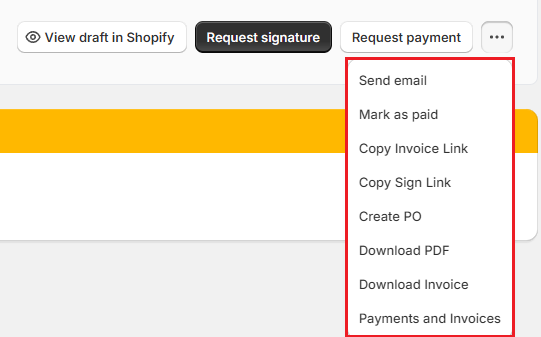
| Menu item | What it does |
|---|---|
| Send email | Opens the Send an Email window. Appears when Send customer emails is on in Email settings. Not available for a draft until it is created. |
| View all emails | Opens the email log for this record. See View all emails below. |
| Convert without signature | Converts a quote to an order without waiting for the customer's signature. Requires the Convert without signature staff permission. See Convert without signature below. |
| Mark as paid / Create order ( pay later ) / Collect payment | Records a payment you received, or creates a pay-later order. The name depends on the record. Shown on the record's own page. See Payments, Deposits & Refunds. |
| Copy Invoice Link | Copies the Shopify checkout link for the balance, and turns on customer payment for the record. |
| Copy Sign Link | Copies the link to the signing page. |
| Retry Shopify Sync | Sends the record to Shopify again. Appears when the last sync failed, the record never reached Shopify, or its Shopify draft was deleted. See Merchant Retry Shopify Sync below. |
| Create PO | Opens the purchase order workbench for this record. Hidden when Create PO is already a header button. |
| Download PDF | Downloads the quote or order as a PDF. |
| Download Invoice | Downloads the current invoice as a PDF. Resolves the current mutable snapshot; see Historical invoice snapshots. |
| Attach appendix pages | Lets you attach optional static pages (Memo, Credit Card Authorization, Rental Agreement) to the document. Feature-flagged; see Appendix pages. |
| Refund Payment | Opens the Refund (Cash) window. Appears once something has been paid that is not yet refunded. |
| Payments and Invoices | Opens the payment, refund, and invoice history, including earlier invoice versions. |
| Delete Quote | Permanently deletes a quote. See Deleting a Quote below. |
Why is Create PO greyed out?#
The reason appears under the menu item. The common ones:
| Reason | What to do |
|---|---|
| Purchase orders can't be created from the status status. | Move the record to a status marked Eligible for Purchase Orders in “Settings”, then “Order status”. By default, Quote, Order, and Partially Sent to Vendor are eligible. |
| All PO-able line items are already in a purchase order or excluded. | Every line is already covered. Nothing more to order. |
| Assign vendors to all PO-able line items before creating a PO. | Choose a vendor on each line and save. |
Note: "Vendor" follows your shop's terminology setting, so these messages may use a different word.
Documents#
| Document | Where | What it contains |
|---|---|---|
| Quote or order PDF | •••, then “Download PDF” | The full quote or order: lines with options, fees, discounts, totals, and a delivery method column. See Delivery method column on PDFs. |
| Current invoice | •••, then “Download Invoice” | The invoice as it stands now, with Paid, Refunded, and Balance Due. Resolves the current mutable snapshot; see Historical invoice snapshots. |
| Earlier invoices | •••, then “Payments and Invoices”, then the Invoices tab | Every saved invoice version. The latest is marked CURRENT and earlier ones ARCHIVED. Click “Open” or “Download”. PDFs are generated on first open. |
Pro Tip: You do not need to download a PDF to send a quote. Request signature and Send email send the customer a link to their quote, which always shows the latest saved version.
Delivery method column on PDFs (F13)#
Quote, order, and invoice PDFs include a delivery method column on every line:
- Delivering — the line ships to the customer's address.
- Store pickup — the line is collected in-store.
- 1 delivering · 1 store pickup — a mix summary when quantities are split.
The “Ship to” address block reads Delivering to [address] for a shipping delivery, or Pickup: Store pickup at [location] for an in-store collection. These labels come from the delivery method set on each line; they are always printed, not a display option.
Split-order documents (F13 Phase B)#
When an order is split into two Shopify orders — for example because it has mixed pickup and delivery lines, or lines shipping to different tax jurisdictions — OrderPilot presents it as one document throughout:
- The quote PDF, order PDF, invoice PDF, sign page, and storefront all show a single document with summed totals across both parts.
- One signature covers both parts. The customer signs once on the sign page.
- The sign page payment area shows one card per part, each listing its own items, the amount due now, and a Pay button. Once a part is paid its card is dimmed.
Staff never need to manage two separate documents; the split is an internal Shopify detail.
Historical invoice snapshots#
Each invoice version is frozen at a financial-state boundary — for example when a payment is recorded or a refund is issued. This means:
- ”Download Invoice” in the ••• menu always resolves the current mutable snapshot (the version that reflects the record right now).
- Previous versions are preserved. Open ••• → “Payments and Invoices” → Invoices tab to see them. The latest is marked CURRENT; earlier ones are ARCHIVED.
- PDFs are generated on first open (lazy generation). The first time you open or download a version, OrderPilot builds the PDF; subsequent opens serve the cached file.
Additional terms by product template and category#
Product templates and product categories can each carry a rich-text Additional terms block. When a quote or order contains products belonging to one of these templates or categories, those terms are printed under the heading ”Additional terms for selected products” on:
- The quote and order PDFs
- The invoice PDF
- The customer-facing sign page
The sign page also shows which products each set of terms applies to, so the customer knows exactly what they are agreeing to.
These terms are frozen at signing. Once the customer signs, the terms block is locked as part of the signed document, even if the template or category terms are later edited. This is the same snapshot rule that applies to all other document content.
Additional terms are configured in Settings → Product templates (or Settings → Categories, depending on your shop's setup).
Appendix pages (Memo, Credit Card Authorization, Rental Agreement)#
Optional static appendix pages can be attached to a quote or order document. The available pages depend on which are enabled for your shop (this is a feature-flagged capability):
- Memo
- Credit Card Authorization
- Rental Agreement
To attach appendix pages to a record, open the ••• menu and choose “Attach appendix pages”. Select which pages to include, then save. The selected pages are appended when the PDF is downloaded, when the sign link is opened, and on the customer-facing storefront view.
Convert without signature#
Managers and staff with the Convert without signature permission can convert a quote to an order without waiting for the customer to sign.
Step 1: Open the quote. Click the ••• menu.
Step 2: Choose "Convert without signature".
Step 3: Confirm the conversion in the dialog. The quote becomes an order immediately, without a sign-page visit or a signature on file.
Note: Use this only when you have received the customer's approval through another channel (phone, in-person, etc.) and want to move the order forward without the online signing step. The audit log records which staff member performed the conversion.
Merchant Retry Shopify Sync#
When OrderPilot cannot push a record to Shopify — because Shopify was temporarily unavailable, a network error occurred, or another transient issue arose — the record shows a Shopify Sync Failed banner or a red Deleted badge.
To retry manually:
Step 1: Open the ••• menu on the record (or on its row in the list).
Step 2: Choose "Retry Shopify Sync".
OrderPilot attempts the sync again immediately. If it succeeds, the banner clears and the record is back in sync with Shopify. If it fails again, the banner remains — contact support if repeated retries do not resolve it.
Tip: Try "Retry Shopify Sync" before contacting support for any sync error. It resolves most cases caused by temporary Shopify outages.
Deleting a Quote#
Delete Quote appears only for quotes, and only while nothing has been charged against them:
- A quote saved as a draft and not yet sent to Shopify, or
- A quote that is a draft order in Shopify, with no Shopify order, no payments, and no refunds.
Step 1: Click the ••• button and choose “Delete Quote”.
Step 2: Read the Delete quote window. A draft quote is deleted with all its lines. A quote in Shopify is deleted together with its Shopify draft order.
Step 3: Click “Delete quote”. This cannot be undone.
Note: Orders cannot be deleted from OrderPilot. If an order should not go ahead, move it to a status such as Rejected instead.
Activity: Comments and History#
The Activity card at the bottom of every quote and order shows what happened to the record: who created it, every save with its changes, status changes, emails, payments, review decisions, and comments. Click “See more” to show older entries.

How to add a comment?#
Step 1: In the Activity card, click “Add Comment”.
Step 2: Type your comment. To point to something on the record, type @ and pick from the list: a product line (for example Linden Sofa (Item 1)), the customer's name or email, or an order detail. Keep typing to filter the list.
Step 3: Click “Post”, or press Ctrl+Enter.

Comments are internal. Only you and other staff can see them, never the customer. You can add comments even when the record is locked for editing. To change or remove a comment, use the ••• button on the comment and choose “Edit” or “Delete”.
Pro Tip: Click a tagged line in a posted comment to highlight that line on the page. This is handy when a reviewer writes "@Linden Sofa (Item 1): check the fabric".
Version history#
Each save in the Activity card has a version number. Click an entry to see exactly what changed, then use “Restore this version” to put the record back the way it was. See Edit Quotes/Orders.
View all emails#
Every quote and order has a built-in email log. You can reach it two ways:
- Click “View all emails” at the top of the Activity card, or
- Open the ••• menu and choose “View all emails”.
The log shows every email sent for that record. For each email you can see:
| Column | What it shows |
|---|---|
| Recipient | The email address the message was sent to. |
| Subject | The email subject line. |
| Delivery status | Whether the email was delivered, bounced, or is still in transit. |
| Opened | Whether and when the recipient opened the email. |
| Sign page visits | Whether and when the customer opened the signing page link in the email. |
This is useful when a customer says they never received a quote: check the delivery status, and if it was delivered, check whether it was opened and whether they visited the sign page. See also Request Signature & Payment.
Example: From Signed Quote to Purchase Order#
Marcus Reed's Arden Dining Table quote has just been signed.
- The designer opens the quote. The primary button has changed from Request signature to Request payment.
- They click “Request payment” and send the email. Marcus pays online. The quote is signed and paid, so it becomes an Order on its own.
- The primary button is now Create PO. The purchasing manager clicks it and raises a purchase order to Birch & Beam Woodworks.
- Before the delivery, the designer clicks •••, then “Download Invoice”, to print the current invoice showing the Balance Due.
Important Notes & Tips#
The menu is the same everywhere#
The ••• menu on a list row and on the record's page offer the same items, except Collect payment (and its other names, Mark as paid and Create order ( pay later )), which appears only on the record's page.
Comments do not change the record#
Comments never unlock a record, change Shopify, or reach the customer. Use them freely for notes between staff.
Use Retry Shopify Sync before calling support#
If a record shows Shopify Sync Failed or a red Deleted badge, try “Retry Shopify Sync” from the ••• menu first. It fixes most sync problems caused by temporary Shopify outages. See Merchant Retry Shopify Sync above for the full steps.
Split orders look like one document#
If an order splits into two Shopify orders behind the scenes, the customer still sees a single quote, sign page, and invoice. Staff do not need to manage separate documents. See Split-order documents above.
Need Help?#
Not sure which action to use next, or a document is not downloading? Reach out to us at support@bevycommerce.com, and we'll help you out.