Receive PO & Fulfill Orders
Overview#
When a vendor ships items under a Purchase Order (PO) to your warehouse, the next step is to record the receipt in OrderPilot. Receiving a purchase order confirms that goods have arrived, updates the inventory in Shopify, and automatically marks the associated customer orders as “Ready to Ship” so your fulfillment team can act on them right away.
This article walks you through the entire process, from opening a purchase order to fulfilling the final customer order, and covers the key things to keep in mind along the way.
When to Receive a Purchase Order?#
Receive a purchase order only after all of the following conditions are true:
- The vendor has shipped and delivered the items to your warehouse or fulfillment center.
- You have physically verified the delivery against the purchase order, confirming the items, quantities, and condition.
- The purchase order status is “Sent”. A purchase order in “Draft” status has not been confirmed with the vendor and should not be received.
How to Receive Purchase Order Items?#
Follow these steps to record the receipt of items and update your inventory:
Step 1: Open the purchase order
-
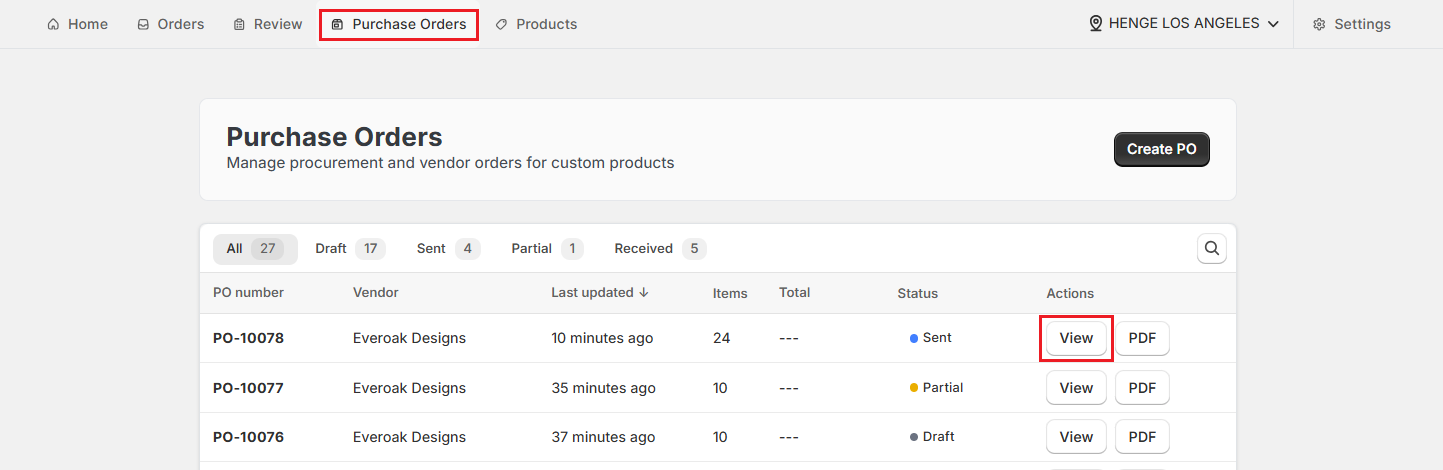
Go to the “Purchase Orders” tab in OrderPilot.
-
Find the purchase order with a “Sent” status that you want to receive. You can search by purchase order number, vendor name, or item name.
-
Click “View” next to the purchase order to open its detail page.
Step 2: Start the receiving process
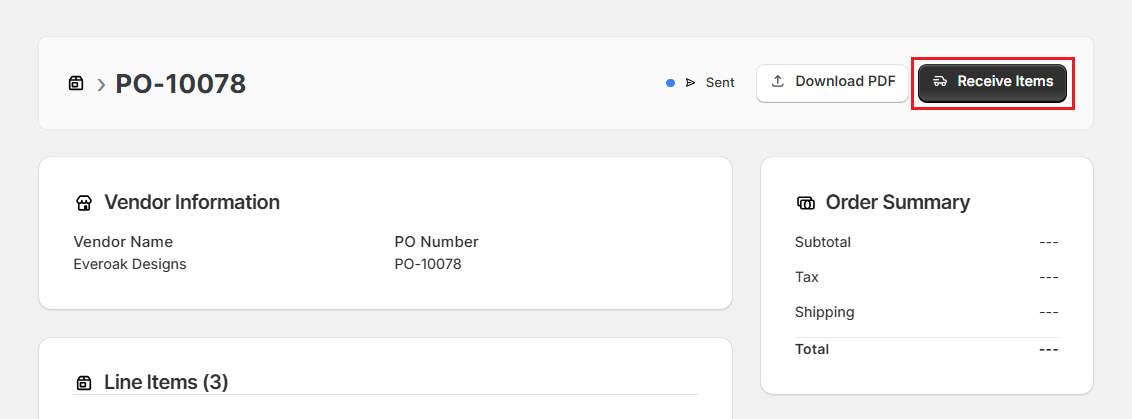
- Click “Receive Items” in the top-right corner.
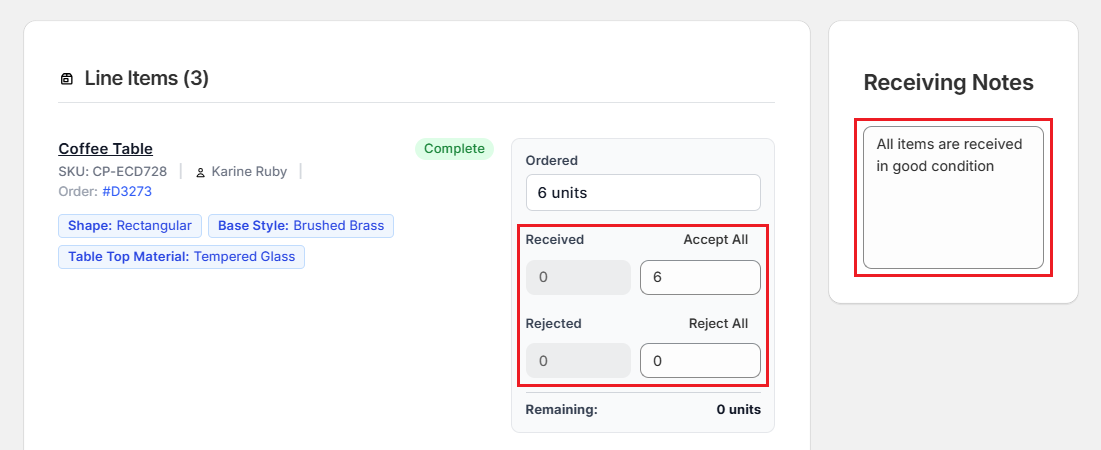
- The receiving screen opens, displaying each line item on the purchase order with fields for Ordered, Received, Rejected, and Remaining quantities.
Step 3: Enter received and rejected quantities
-
For each line item, enter the number of units you actually received next to the Received field. If all units have arrived, click “Accept All” to automatically populate the Received field with the full ordered quantity.
-
If some units were damaged or incorrect, enter that number next to the Rejected field. This keeps your records accurate without requiring a separate correction.
Step 4: Add receiving notes (optional)
Use the Receiving Notes field on the right side of the screen to record any relevant details, for example: "Received in good condition", or "2 units arrived damaged, rejected".
These notes are saved with the purchase order for future reference and are visible to all team members with access to the purchase order.
Step 5: Save the receiving record
Scroll to the top of the page and click “Save Receiving”.
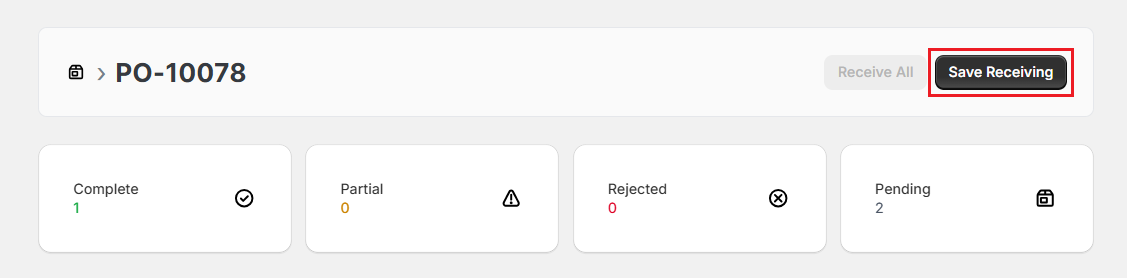
OrderPilot now updates the Shopify inventory for all received custom products and changes the purchase order status to “Received”. Any customer orders linked to the purchase order items are automatically updated to “Ready to Ship”.
How to Fulfill Custom Orders?#
Once a purchase order is received and inventory is updated, fulfilling the associated orders is straightforward. OrderPilot links received items to the original orders, ensuring nothing is missed.
Step 1: Find orders that are ready to fulfill
-
Go to the “Orders” tab in OrderPilot.
-
Look for quotes or orders with the status “Ready to Ship”. These orders have confirmed inventory and are cleared for fulfillment.
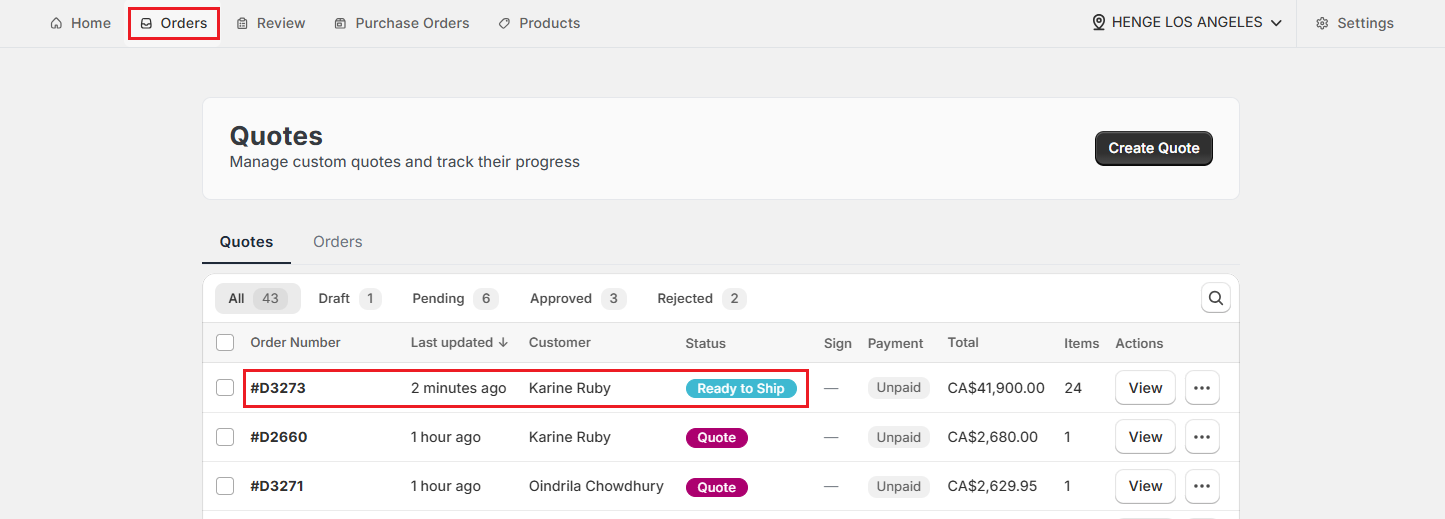
- Click “View” next to the quote or order to verify the details, including the custom attributes and specifications, before dispatching.
Step 2: Fulfill using Shopify
Once the custom order is ready to ship, use Shopify's native fulfillment workflow to pack and ship it to your customer.
All custom attributes, such as material, color, size, and add-ons, are visible on the Shopify order, making it easy for your fulfillment team to verify the correct product before shipping.
Partial Receiving#
If a vendor ships only part of a PO, you can receive the available items without waiting for the rest. Enter the actual Received quantity for each line item instead of clicking Accept All. OrderPilot tracks the remaining quantity and keeps the PO open until all items are accounted for.
Purchase Order Statuses at a Glance#
- Draft: The purchase order has been created but has not yet been sent to the vendor.
- Sent: The purchase order has been delivered to the vendor and is awaiting fulfillment.
- Received: All items listed in the purchase order have been received and recorded.
- Partial: Some purchase order items have been received, while others are still pending.
Important Notes#
Inventory is Updated Immediately#
When you click Save Receiving, Shopify inventory counts update in real time. Make sure the quantities you enter are accurate before saving. Units entered in the Rejected field are not added to Shopify inventory. Follow up with your vendor for replacements or credit.
PDF Download is Always Available#
Before or after receiving the purchase order, you can download a PDF copy from the PO detail page using the Download PDF button. This is useful for sharing with your warehouse team during the receiving process.
Best Practices#
Following these practices helps keep your inventory accurate and your operations running smoothly:
Receive POs on the Same Day Goods Arrive#
The sooner you update the system, the faster your team can fulfill orders for waiting customers.
Always Do a Physical Count Before Receiving#
Do not rely solely on the vendor invoice or shipping notification. Count the actual units received and compare them against the purchase order.
Use Receiving Notes for Every Discrepancy#
If any items arrive damaged, short-shipped, or incorrect, document this in the Receiving Notes field before saving. This creates an audit trail for vendor claims.
Assign a Dedicated Person to Receive#
Having a single point of contact for purchase order receiving reduces the risk of duplicate entries or missed items.
Review Ready to Ship Orders Promptly#
Customer orders marked “Ready to Ship” are waiting for fulfillment. Aim to fulfill these within your promised lead time to maintain customer satisfaction.
Download the PO PDF Before Warehouse Handoff#
Sharing the PDF with your warehouse team ensures they have all the custom product details, such as specifications and SKUs, before picking and packing.
Need Help?#
Need help receiving inventory, handling partial deliveries, or understanding why an order hasn't moved to “Ready to Ship”? Reach out to us at support@bevycommerce.com, and we'll help you work through the receiving and fulfillment flow.