View Price History
The Price History view provides a complete, immutable audit trail for individual product variants. Unlike the general sales dashboard, which tracks campaigns, this view focuses on the lifecycle of a specific item, allowing you to see exactly when a price changed, what rule triggered it, and what the value was before the change.
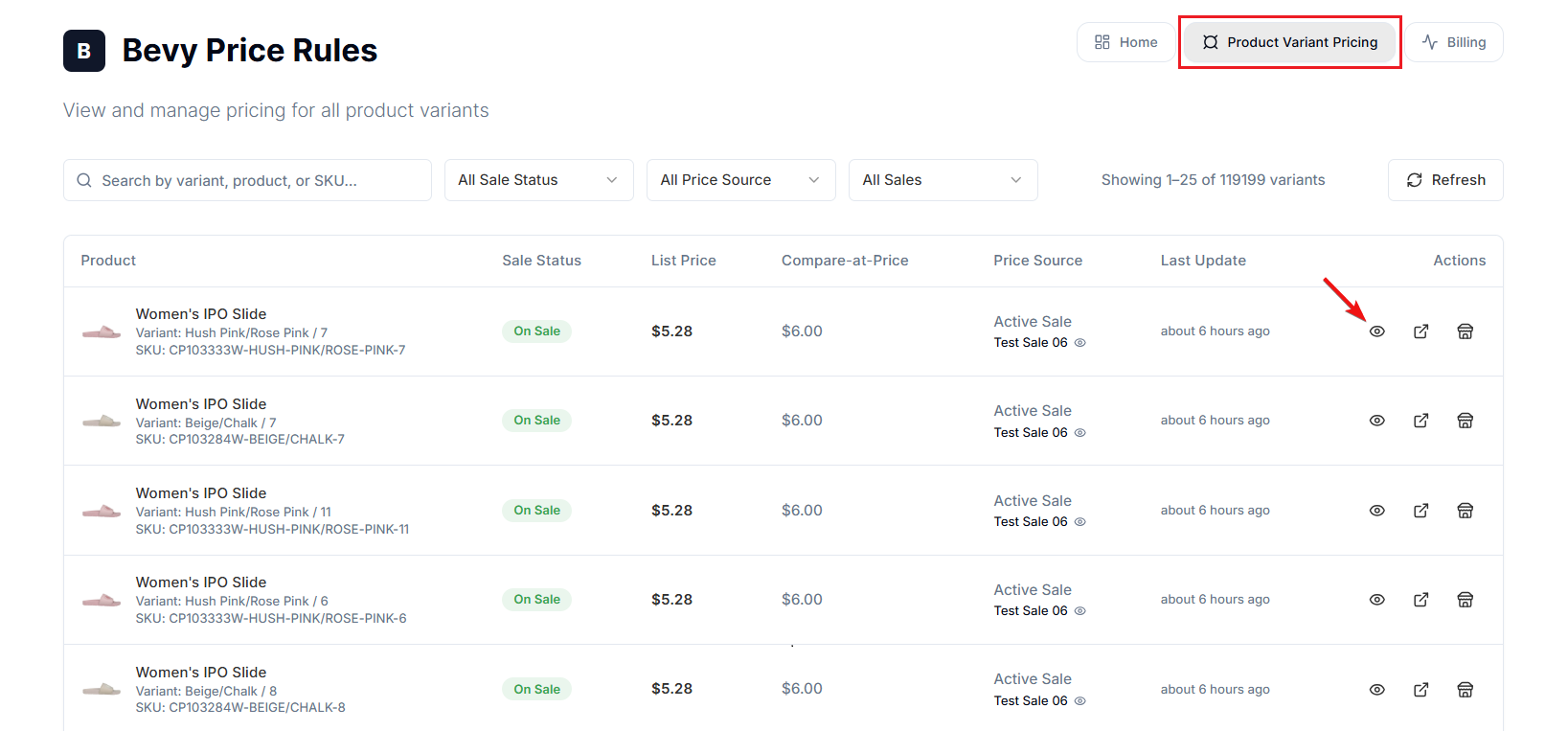
To access this view, navigate to the Product Variant Pricing dashboard, locate the specific variant you wish to audit, and select the View Details icon (eye symbol) in the Actions column.
The Price Timeline#
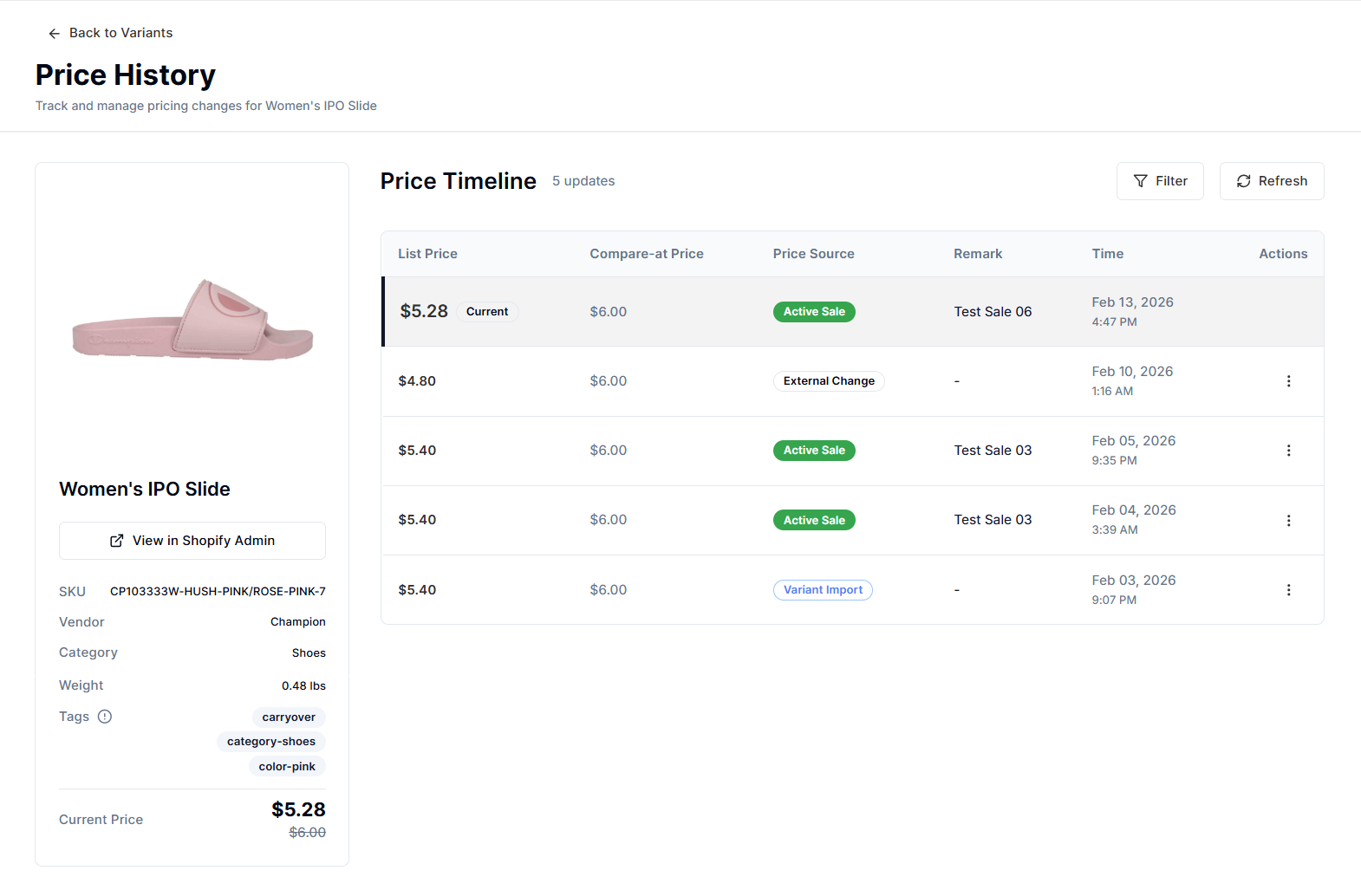
The central component of this page is the Price Timeline. This chronological table lists every pricing event associated with the variant.
Key Data Columns#
- List Price: The selling price of the product at that specific point in time. The most recent entry is marked with a "Current" badge.
- Compare-at Price: The original or "strike-through" price recorded at the time of the event.
- Price Source: This indicator reveals the origin of the price change.
- Active Sale: The price was modified by a specific Price Rules campaign.
- External Change: The price was modified by an external source (e.g., a manual update from the Shopify admin).
- Remark: Displays the context of the change, such as the specific name of the sales campaign (e.g., "Black Friday Sale 2025").
- Time: The timestamp of when the change was applied.
Product Context Sidebar#
To ensure you are auditing the correct item, the left sidebar provides essential product metadata synced from Shopify:
- Identity: Displays the Product Title, Variant Title, and Product Image.
- View in Shopify Admin: A direct link to open the product editing page in Shopify.
- Inventory Data: Shows the SKU, Vendor, Category, and Weight.
- Tags: Lists active tags. This is critical for verifying why a product was included in a tag-based "Smart Rule".
- Current Price: Displays the live price and the strikethrough or compare-at price.
Managing the View#
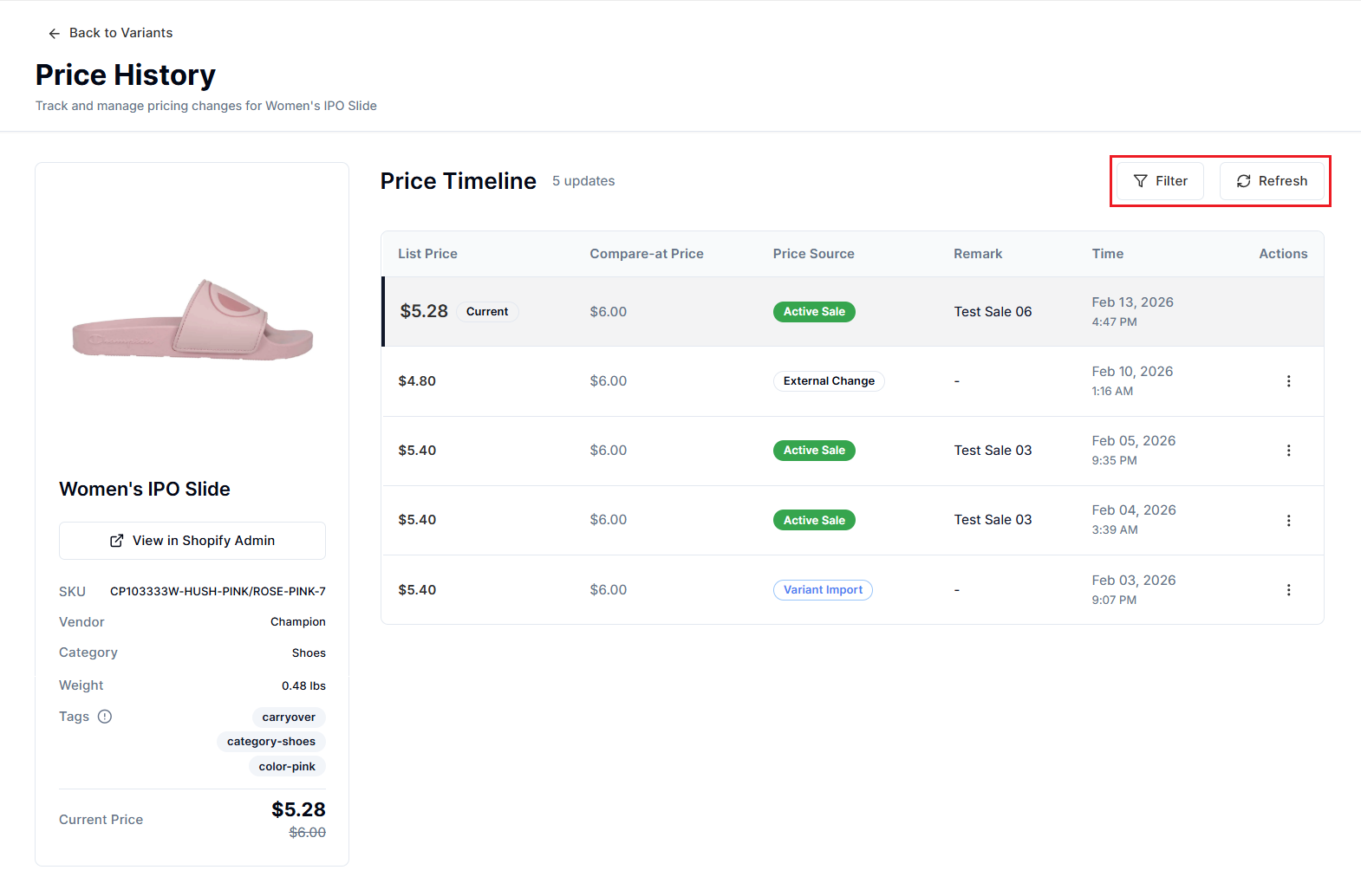
- Filter: Use the Filter button to narrow down the timeline by date or source, helpful for products with extensive price volatility.
- Refresh: Select Refresh to force a check against the latest data, ensuring recent background jobs are reflected in the timeline.
Important Notes#
Differentiating Sources#
The Price Source column is your primary troubleshooting tool for pricing conflicts.
- Scenario: A product price changed, but you don't recall scheduling a sale.
- Solution: Check the Price Source.
- If it says Active Sale, check the Remark column to see which rule caused it.
- If it says External Change, the change originated outside the Price Rules app (e.g., a manual edit in Shopify, a CSV import, or a third-party ERP tool).
Compliance & Audit#
For merchants in regulated sectors, this timeline serves as proof of compliance for "Was/Is" pricing laws. You can demonstrate that a product was sold at a higher price for a specific duration before a "Compare-at" discount was applied, validating the legitimacy of your strikethrough price.
Need Help?#
If you’re unsure why a price changed or need help interpreting the Price History timeline, email us at support@bevycommerce.com. Our team can review the audit log and clarify exactly what triggered the update.