Resolve Price Conflicts
It is common to run multiple sales simultaneously, for example, a “Summer Clearance” alongside a “Flash Sale on Footwear.” Occasionally, these rules may target the same products.
Since a single product variant can’t have two different prices at the same time on Shopify, the Price Rules app triggers a Conflict Detection mechanism to prevent errors and unintentional double-discounting.
When Does a Conflict Occur?#
A conflict occurs when you attempt to Publish or Schedule a new rule that targets a product variant that already matches the conditions of another active or scheduled rule.
Instead of guessing which price to apply, the app pauses the process and displays the Conflict Detected modal. This gives you full control over which rule to apply.
Understanding the Conflict Screen#
The conflict modal provides a side-by-side comparison of the competing prices along with other details:
- Price Rule Name: Displays the name of the rule that matches the product.
- Active Sale Price: The price currently live on your store (from the existing rule).
- New Price: The calculated price from the new rule you are trying to publish or schedule.
- Existing Compare At Price: The original reference price currently set on the product.
- New Compare At Price: The reference price that will be applied if you proceed with the new rule.
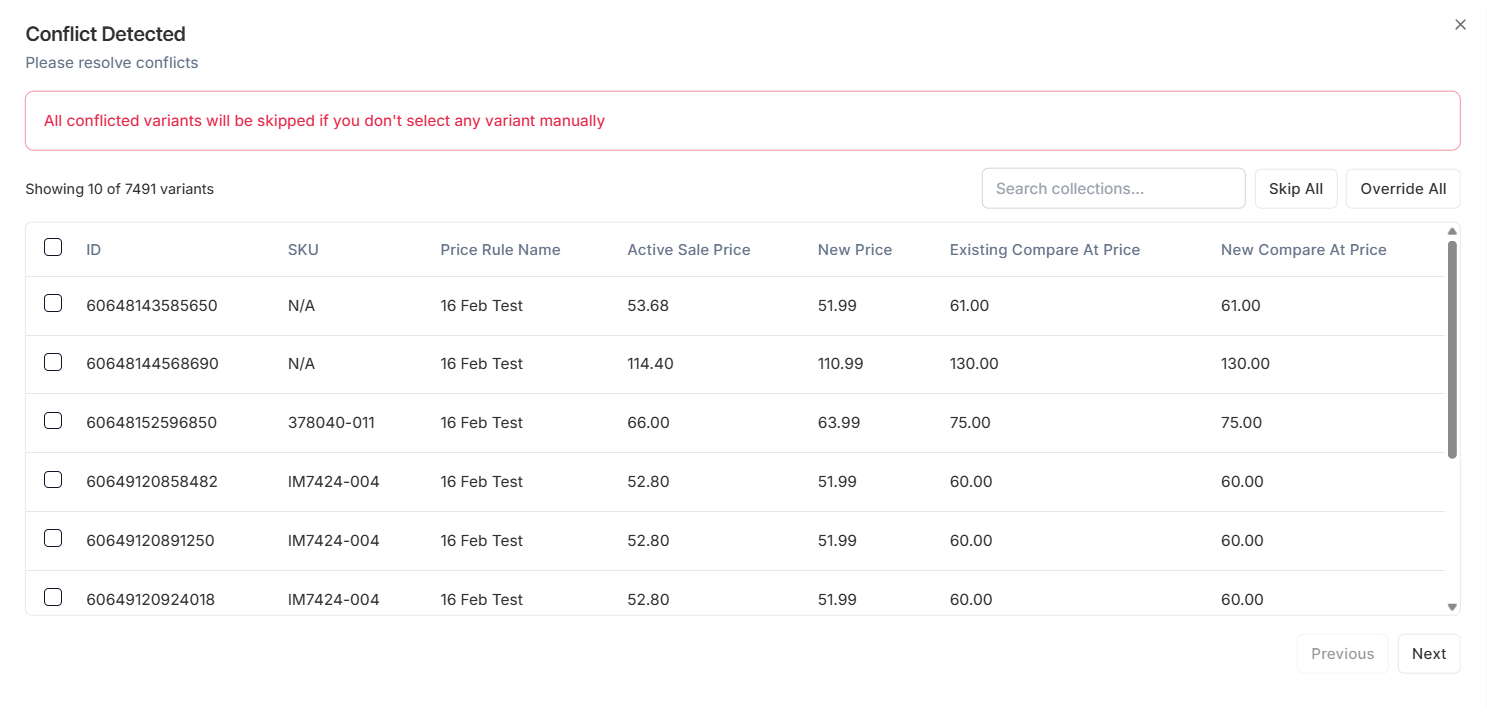
Example From the Interface#
- Active Sale Price: $5.28 (Current Deal)
- New Price: $5.10 (New Deal)
- Decision: In this case, the New Price is lower. You would likely want to override the existing rule to provide customers with a better discount.
Resolution Options#
You must resolve conflicts before publishing. You can follow three strategies:
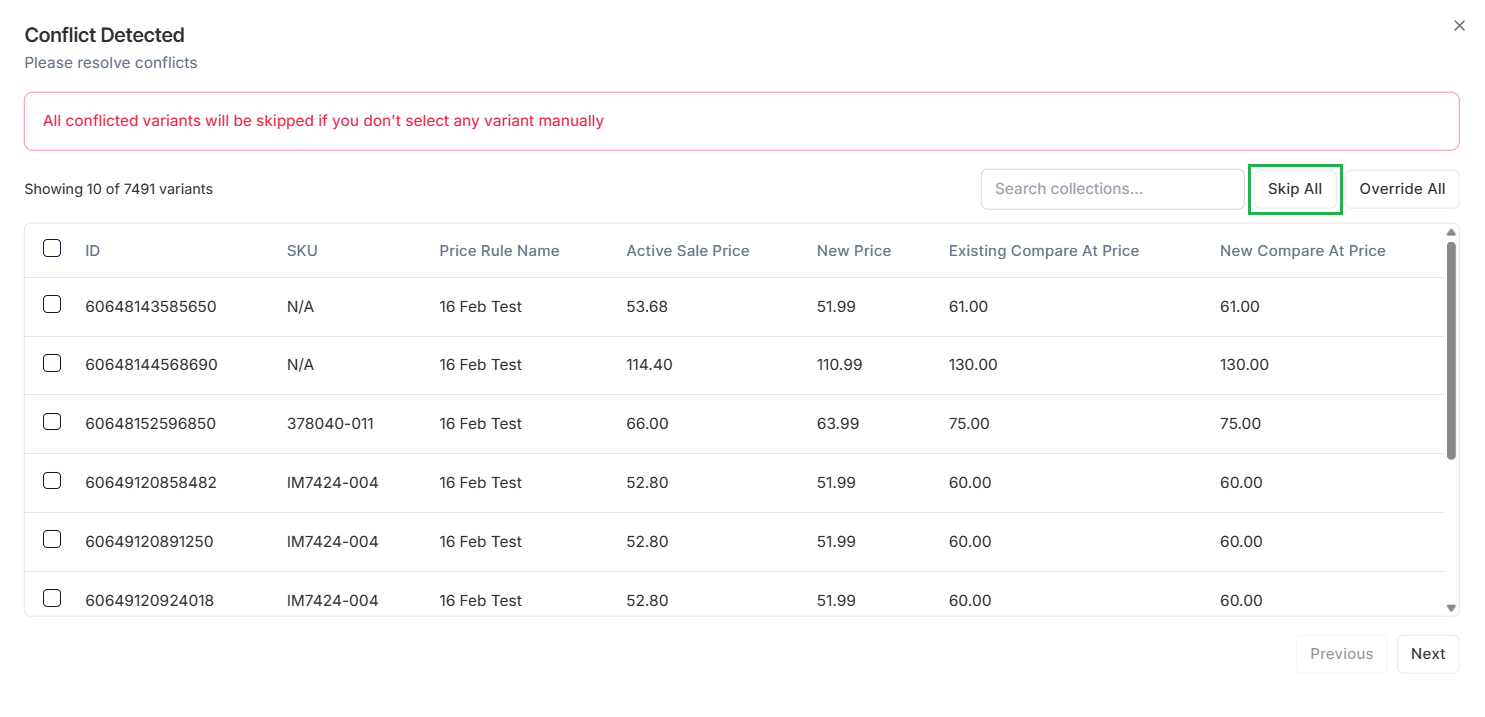
1. Skip All#
It is the default safety action. If you select Skip All, the system keeps the existing pricing unchanged.
- Behavior: The new rule will ignore these specific variants. They will remain priced according to the previous rule.
- Use Case: Choose this when an existing sale should take priority over the new rule you’re creating.
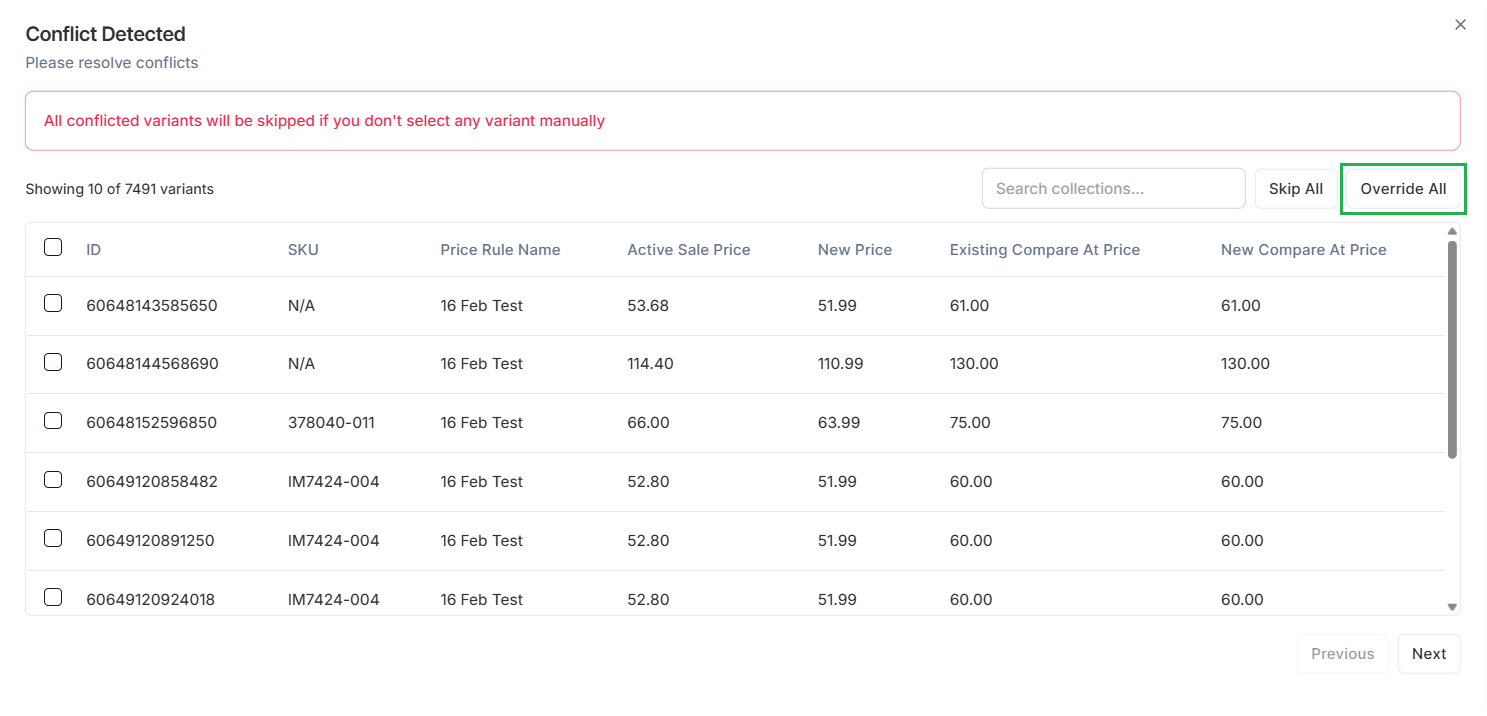
2. Override All#
Select Override All to force the new rule to take precedence.
- Behavior: The system removes these variants from the previous rule and applies the new price immediately.
- Use Case: Choose this when launching a deeper discount (e.g., moving from 10% off to 20% off) or when the new rule targets a narrower product group and should override a broader existing rule.
3. Manual Override#
You can also resolve conflicts line by line for granular control.
- Review the Active Sale Price vs. New Price columns.
- Select the checkbox next to any variant where you want the new price to apply. Leave the box unchecked for variants you want to keep the old price for.
- Select Override.
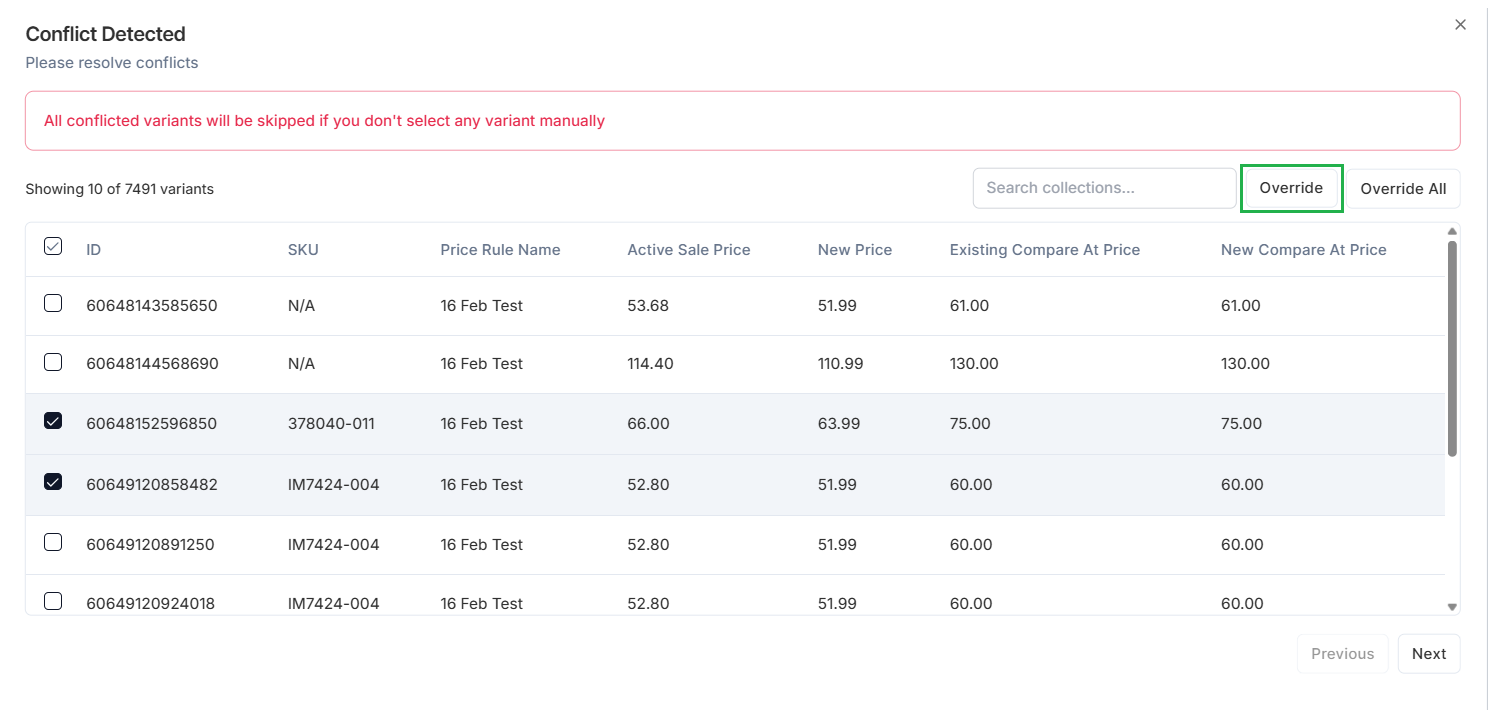
- The system will display a confirmation modal. Select Proceed to apply the changes. Checked variants will be overridden and follow the new rule. Unchecked variants will be skipped and remain unchanged.

Important Notes#
No Double Discounts#
A critical function of the resolve conflict feature is protecting your margins. The system uses a replacement logic, not an additive logic.
- Scenario: A product is $100. Rule A applies a 10% discount ($90). Rule B applies a 20% discount ($80).
- Result: If you override Rule A with Rule B, the price becomes $80. It doesn’t become $72 (20% off the $90). The app always calculates discounts based on the original base price, ensuring you never accidentally stack discounts.
Conflict Resolution Required#
Before you can proceed, all pricing conflicts must be resolved. The system will not allow you to publish or schedule the rule until you take action. You must choose one of the following:
- Skip All
- Override All
- Manually select which variants to override
This safeguard prevents accidental price changes and ensures every affected variant is handled intentionally, either skipped or overridden.
Need Help?#
If you’re unsure which rule should take priority, experiencing a conflict you can’t resolve, or want guidance on preventing overlapping sales, our support team is here to help.
Email support@bevycommerce.com, and we’ll get back to you as quickly as possible.