Edit Price Rules
You can modify existing price rules to update discount amounts, adjust product targeting, or extend sales schedules. This guide explains how to edit rules based on their current status safely and highlights key considerations for active campaigns.
How to Edit a Rule#
To make changes to a rule, follow these steps:
Step 1: Navigate to the Price Rules Home or dashboard.
Step 2: Locate the rule you want to modify in the Price Rules Table.
Step 3: Select the Edit button (pencil icon) in the Actions column.
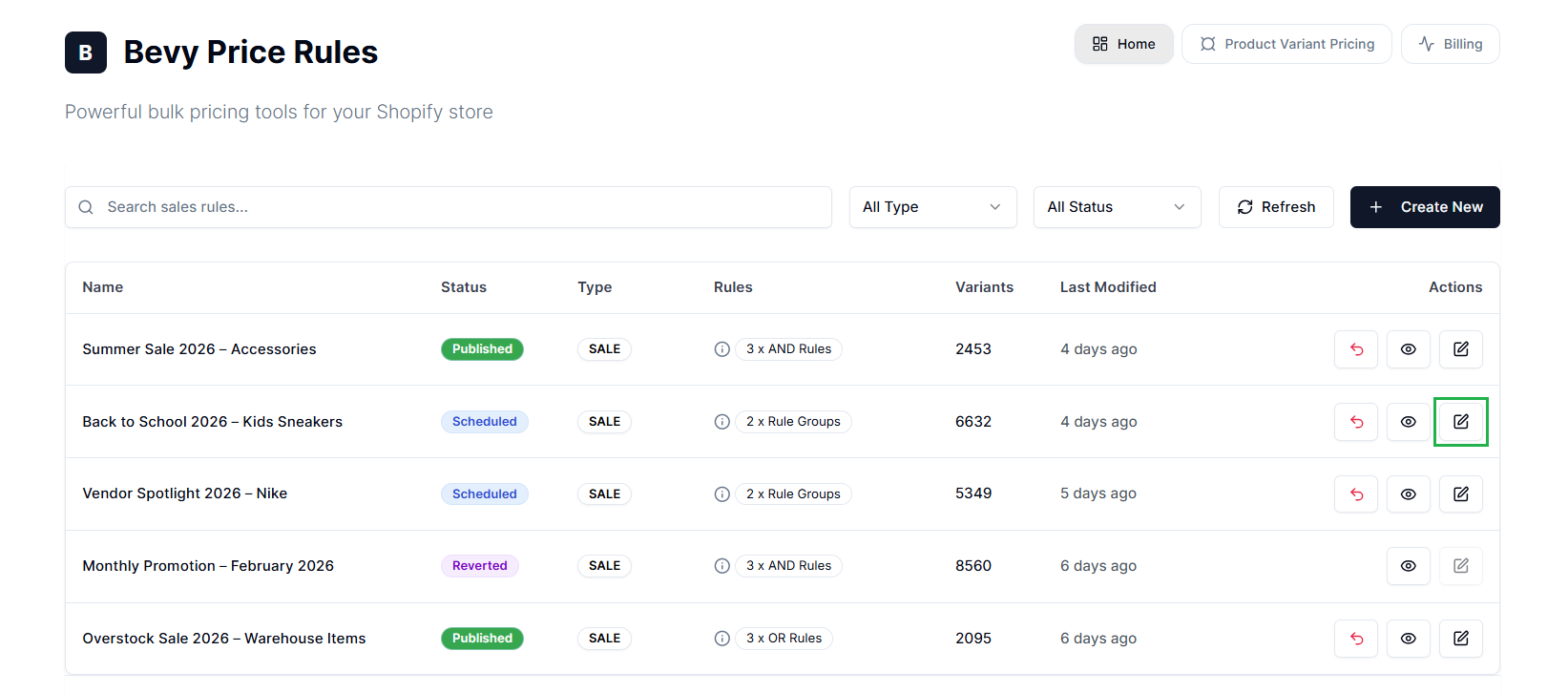
Step 4: The app opens the Edit Sale Rule interface, organized into four configuration tabs:
Basic Setup#
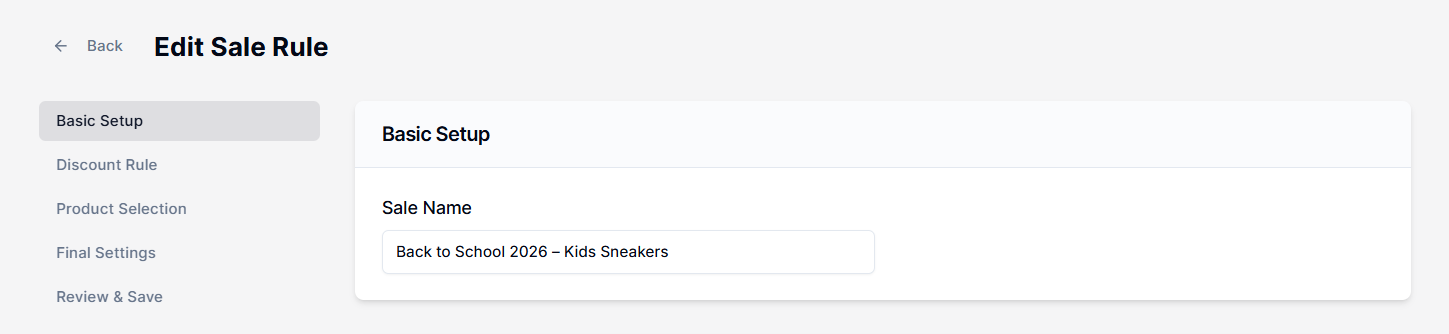
Edit the sale name when its purpose, timing, or scope changes. Merchants typically rename a sale when:
-
The campaign dates are extended or rescheduled.
-
The product selection is adjusted.
-
The campaign shifts from internal testing to live promotion.
-
Multiple similar campaigns need clearer differentiation.
Discount Rule#
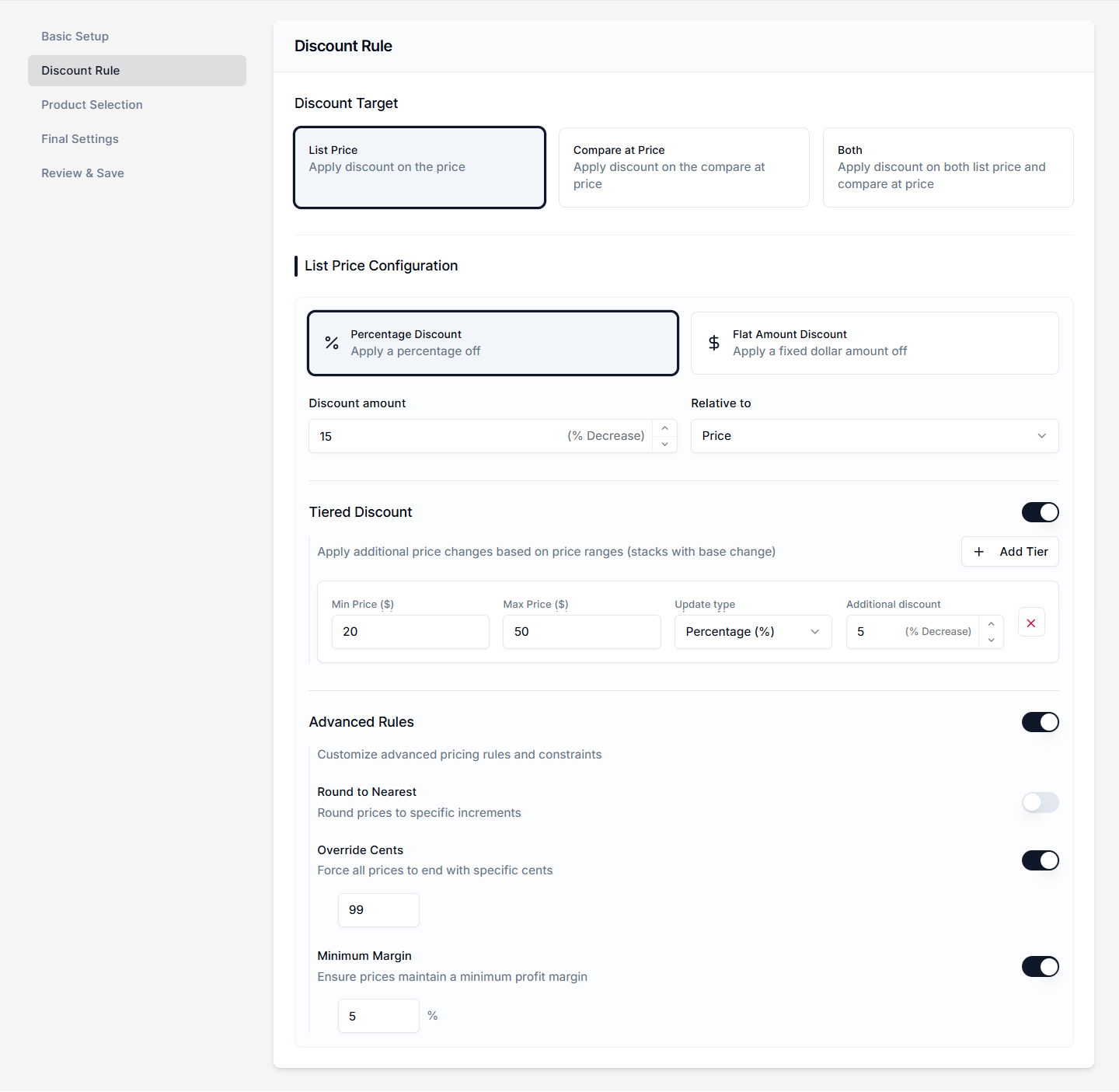
Reconfigure the following settings:
-
Discount Target: Reselect an option:
-
List Price
-
Compare at Price
-
Both
-
Discount Type: Reselect an option:
-
Percentage Discount
-
Flat Amount Discount
-
-
Discount amount: Enter a new amount.
-
Relative to: Reselect an option:
-
Price
-
Compare at Price
-
Tiered Discount: Edit the following options:
-
Min Price
-
Max Price
-
Update type
-
Additional discount
-
Advanced Rules:
-
Round to Nearest: Reselect a rounding option.
-
Override Cents: Update the decimal value.
-
Minimum Margin: Update the profit margin.
Product Selection#
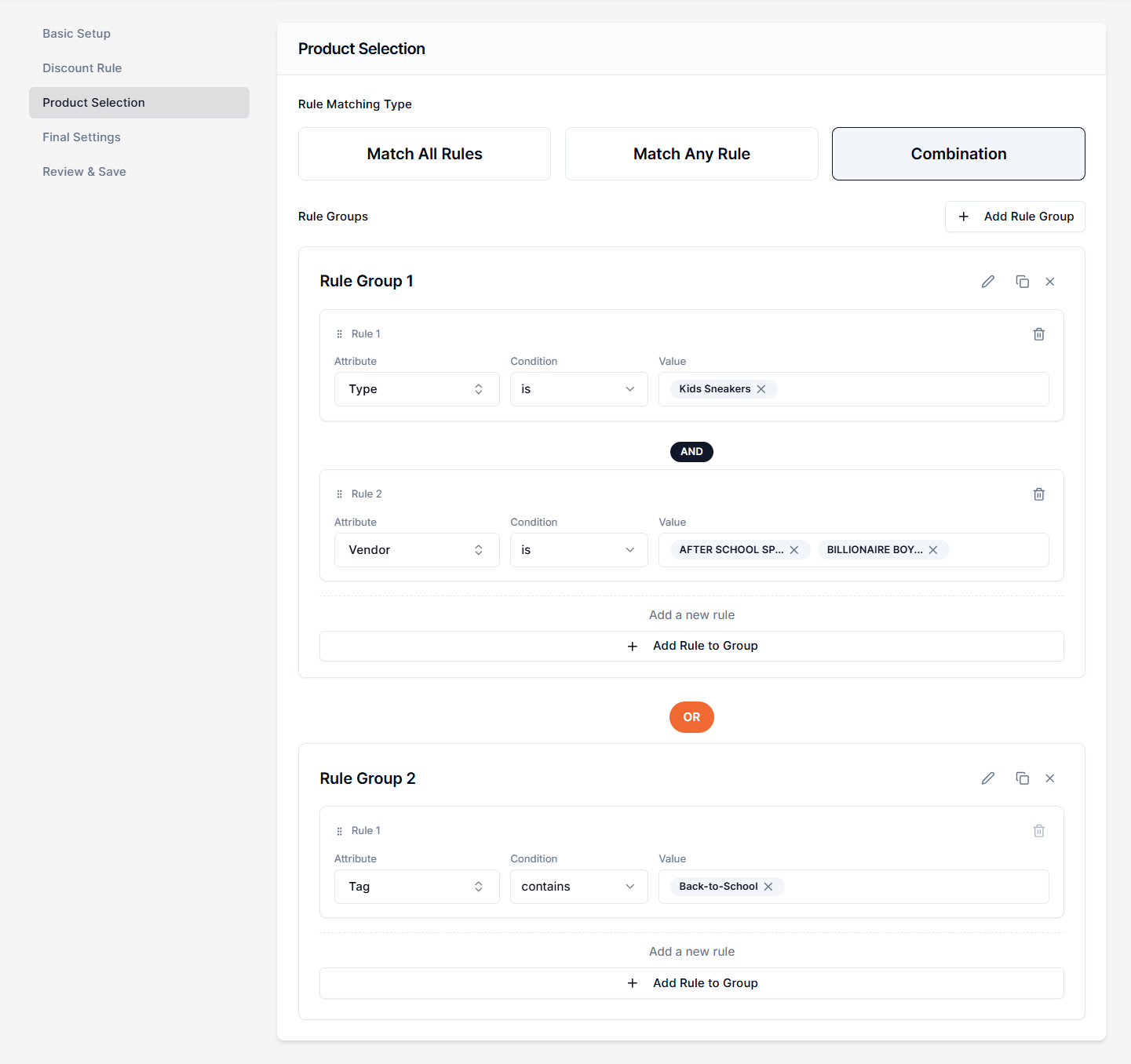
Update Rule Matching Type (Match All Rules/Match Any Rule/Combination). Add new rules or rule groups to target specific products.
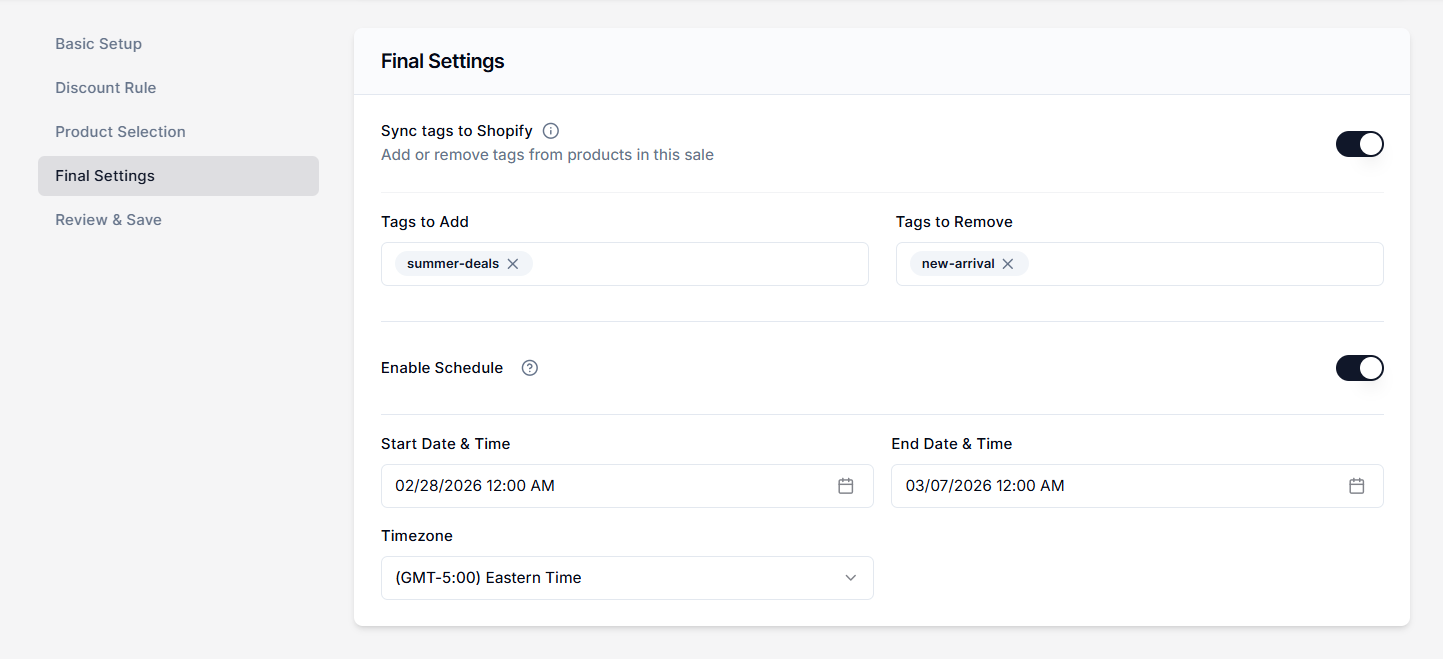
Final Settings#
Adjust Shopify tags and the schedule date and time.
Review & Save#
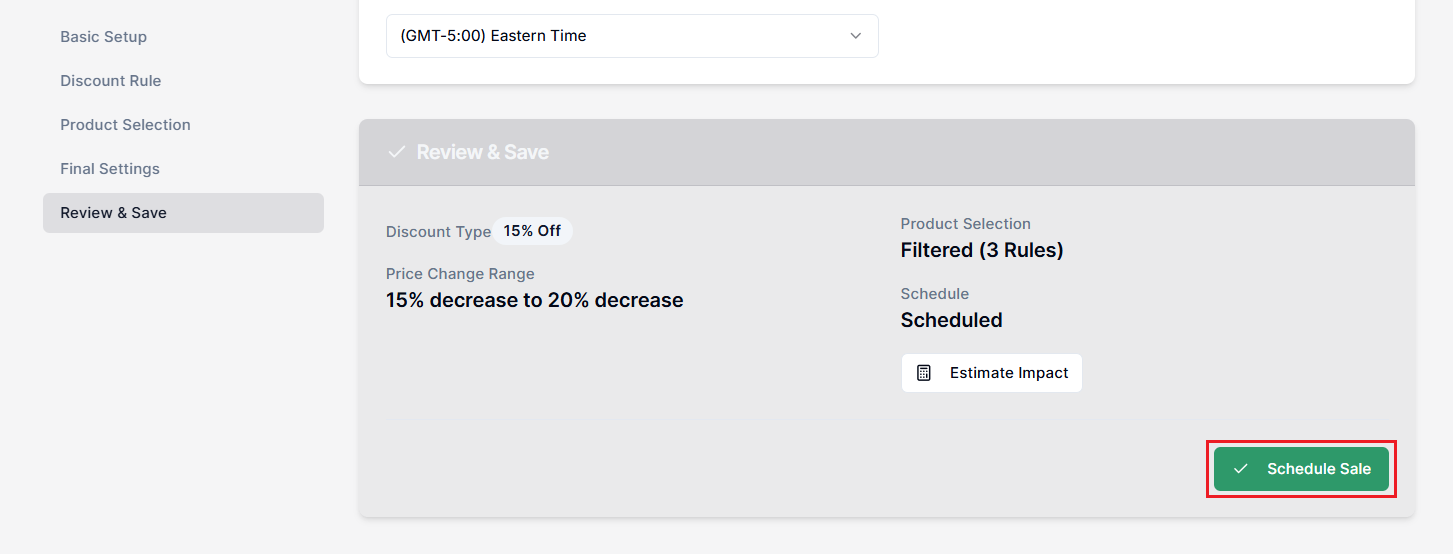
Review your changes in the Review & Save section. Then, select Schedule Sale or Publish Sale (if not scheduled) to apply the changes.
When to Edit a Rule?#
Here are the most common scenarios where editing is useful:
-
Refining Scheduled Campaigns: If you have a sale set to start next week (Status: Scheduled), you might want to add more products to the target list before it goes live.
-
Optimizing Active Sales: You can modify a live sale (Status: Published).
-
Strategy Pivot: If a “10% Off” sale isn’t generating enough interest, you can edit the rule to “20% Off.” The system will automatically recalculate and update the prices on your storefront.
-
Extending Duration: If a sale is performing exceptionally well, you can edit the End Date to keep the promotion running longer.
-
-
Completing Drafts: If you saved a rule as a draft, you can return to finish the configuration and publish it.
When Not to Edit?#
While the system is robust, there are specific transitional states in which you should never edit a rule. Interrupting these background processes can cause data inconsistencies.
Do not edit a rule if the status is:
-
Publishing: The system is syncing updated prices to Shopify.
-
Reverting: The system is currently restoring original prices.
-
Queued: The system is waiting for a worker slot to start processing.
Always wait for the status to settle to Published, Scheduled, or Draft before making changes.
Editing Based on Status#
The impact of your edits depends on the rule’s current status.
Editing a Draft or Scheduled Rule#
If a rule is in Draft or Scheduled status, you can edit all fields freely.
- Example: You scheduled a “Weekend Sale” to start on Friday, but realized on Wednesday that you selected the wrong product collection. You can just update Product Selection filters. The new criteria will apply automatically when the sale activates.
Editing a Published Rule#
Editing a rule that is currently live requires caution.
-
Price Updates: When you save changes to an active rule, the app triggers a background job to recalculate and sync prices. This process is not instant. Allow some time for changes to propagate.
-
Scope Changes: If you change the Product Selection filters (e.g., adding a new Vendor), the app will apply the discount to the newly matched products and revert prices for products that no longer match.
Key Configuration Options#
When editing, you have access to the same granular controls available during creation:
Discount Target#
You can switch between updating the List Price, the Compare at Price, or Both.
Note: Changing this setting on an active sale will trigger a large-scale update that moves values between fields in Shopify.
Tiered & Advanced Rules#
You can enable Tiered Discount to create complex logic, such as applying a higher discount percentage to lower-priced items (e.g., “Items between $10 to $50 get an additional 20% off”).
Shopify Tags#
You can modify the tags synced to Shopify (e.g., "Flash-Sale-Active"). This is useful if you need to align products with a new Klaviyo email segment mid-campaign.
Tips for Better Results#
The Re-Sync Delay#
For stores with large catalogs, editing an active rule is a resource-intensive operation. The system must fetch products, recalculate prices, and push updates to Shopify.
- Best Practice: Avoid making minor edits (like changing the Sale Name) to active rules during peak traffic hours, as this may still trigger a validation sync.
Extending a Sale#
A common practice is extending a promotion that is performing well. In that case, you can edit the live rule in the following manner:
-
Select Edit for a rule in the dashboard table
-
Go to Final Settings.
-
Update the End Date & Time in the Enable Schedule section.
-
Select Schedule Sale to save the updated rule. The auto-revert job will reschedule to the new time.
Safest Workflow for Major Changes#
If you need to fundamentally change the logic of a live sale (e.g., switching from a Percentage to a Flat Amount discount type), the safest approach is to start fresh.
Recommended Steps:
-
Revert the Active Sale: Click the Revert icon on the live rule to restore your product prices to their previous state.
-
Wait for Completion: Monitor the dashboard until the status changes to Reverted. This ensures a clean data state and prevents calculation errors that could apply a discount on top of an already discounted price.
-
Create a New Rule: Click Create New to build a fresh rule with your updated logic.
-
Publish: Launch or schedule the new rule.
Need Help?#
If you’re unsure how edits will affect an active sale, need guidance on adjusting product targeting, or want to extend a promotion safely, our support team is happy to assist.
Email support@bevycommerce.com, and we’ll help you make changes without disrupting your live pricing.