Create Quotes/Orders
Your sales reps don't need a desktop or an admin login to take a custom order. The OrderPilot POS Extension puts the full quote and order-creation flow directly on your tablet and mobile devices, right on the showroom floor where customers are making decisions.
Setup Checklist (Completed by Admin)#
Before a sales rep can create a quote or order from the POS app, a store admin needs to make sure:
- OrderPilot's initial setup is complete, including vendors, categories, custom attributes, and at least one product template.
- The Create Quote tile has been added to the Shopify POS smart grid for the relevant locations. See the POS Extension Overview to know more.
- The sales rep has a Shopify POS staff account for the location. No admin credentials are needed beyond this.
- The sales rep's device has the Shopify POS app installed and updated to the latest version.
- The device has a reliable Wi-Fi connection. The POS extension requires network access to save orders and sync data.
First Time Taking a POS Order?#
Ask your admin to walk through one test order with you before your first customer interaction. It only takes a few minutes and ensures the product templates, attribute fields, and tile layout are all set up the way you expect.
POS Extension vs. Web App: When to Use Which?#
The POS extension and the Shopify admin both support full quote and order creation. The experience is optimized differently for each context.
Use the POS Extension When#
- You're standing with a customer on the showroom floor.
- You don't have or need Shopify Admin credentials.
- Speed is a priority, and the configuration is straightforward.
- You're collecting a deposit or full payment on the spot.
Use Web App When#
- You're at a desk, and the order has complex multi-line items.
- You need to apply detailed discount logic or shipping.
- You want to access the full order history alongside creation.
- You need to manage settings or templates at the same time.
Both Routes Create the Same Record#
A quote or order created from the POS extension appears in the web app immediately, with the same data and statuses. There's no difference in what gets created, only in how you get there.
How to Create a Quote or Order?#
Open the Shopify POS app on your device and make sure you're logged in to the correct location. Then follow these steps:
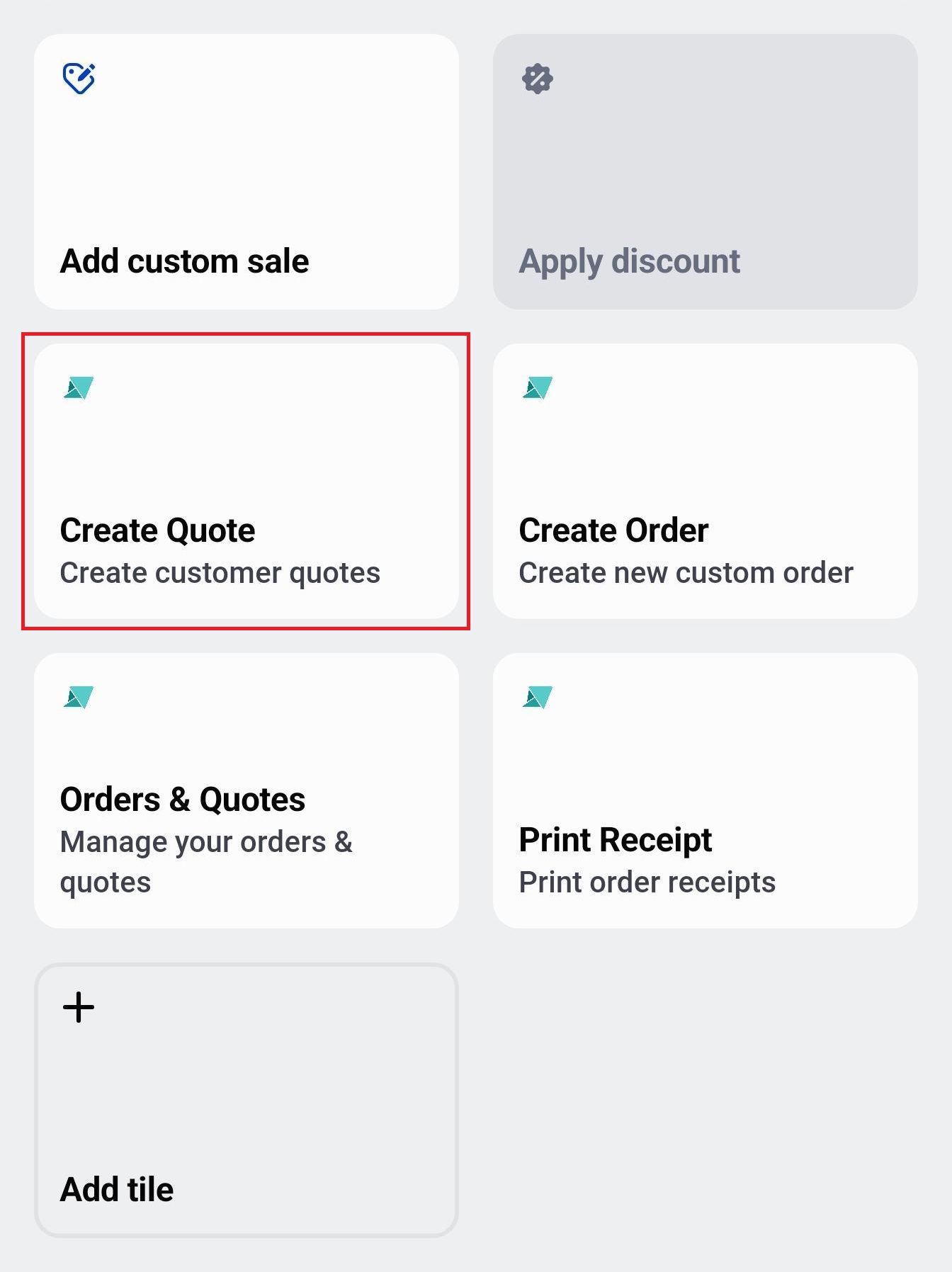
Step 1: From the Shopify POS home screen, tap the “Create Quote” tile in your smart grid. This opens the OrderPilot quote creation screen.
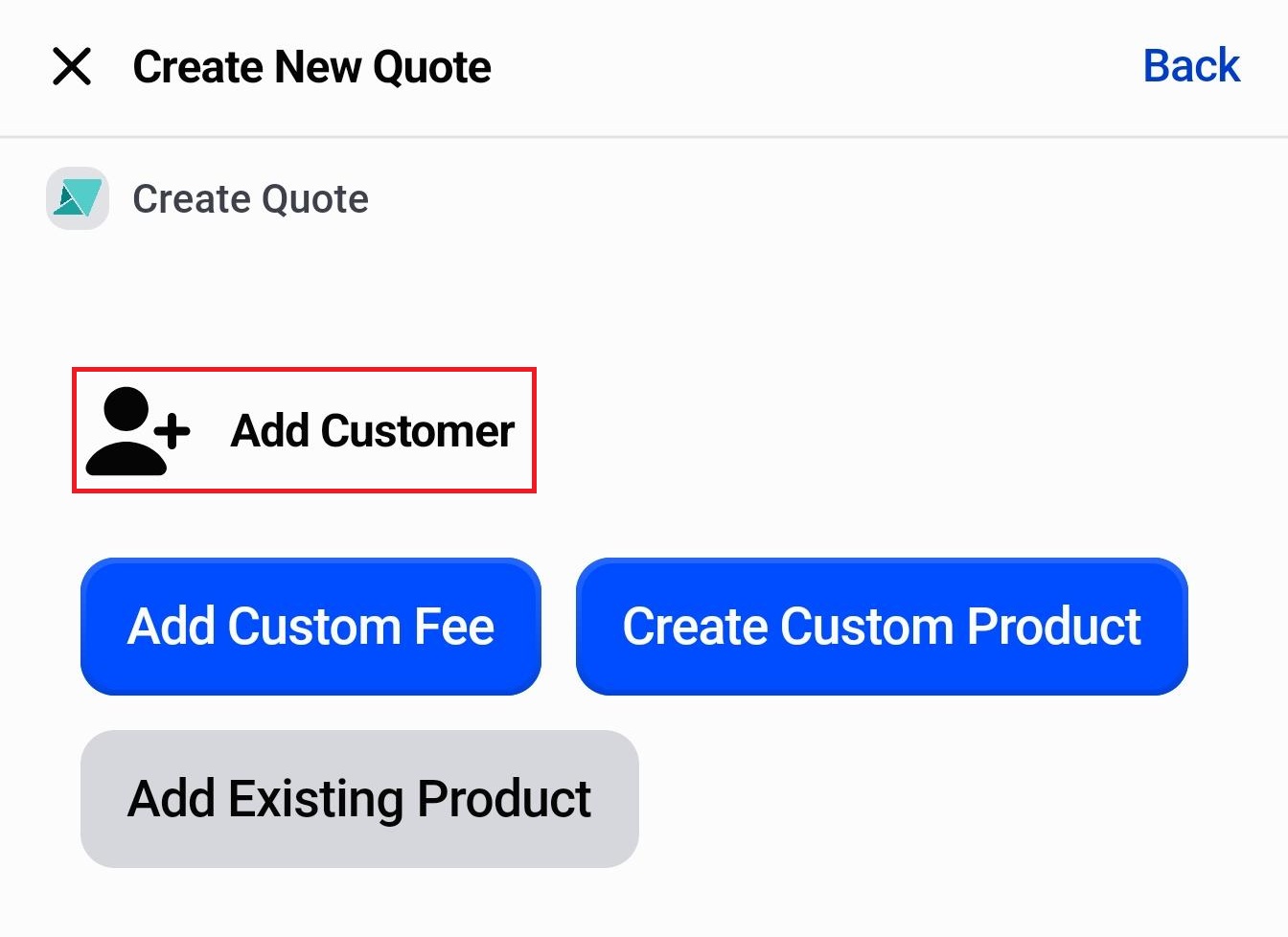
Step 2: Tap “+ Add Customer”.
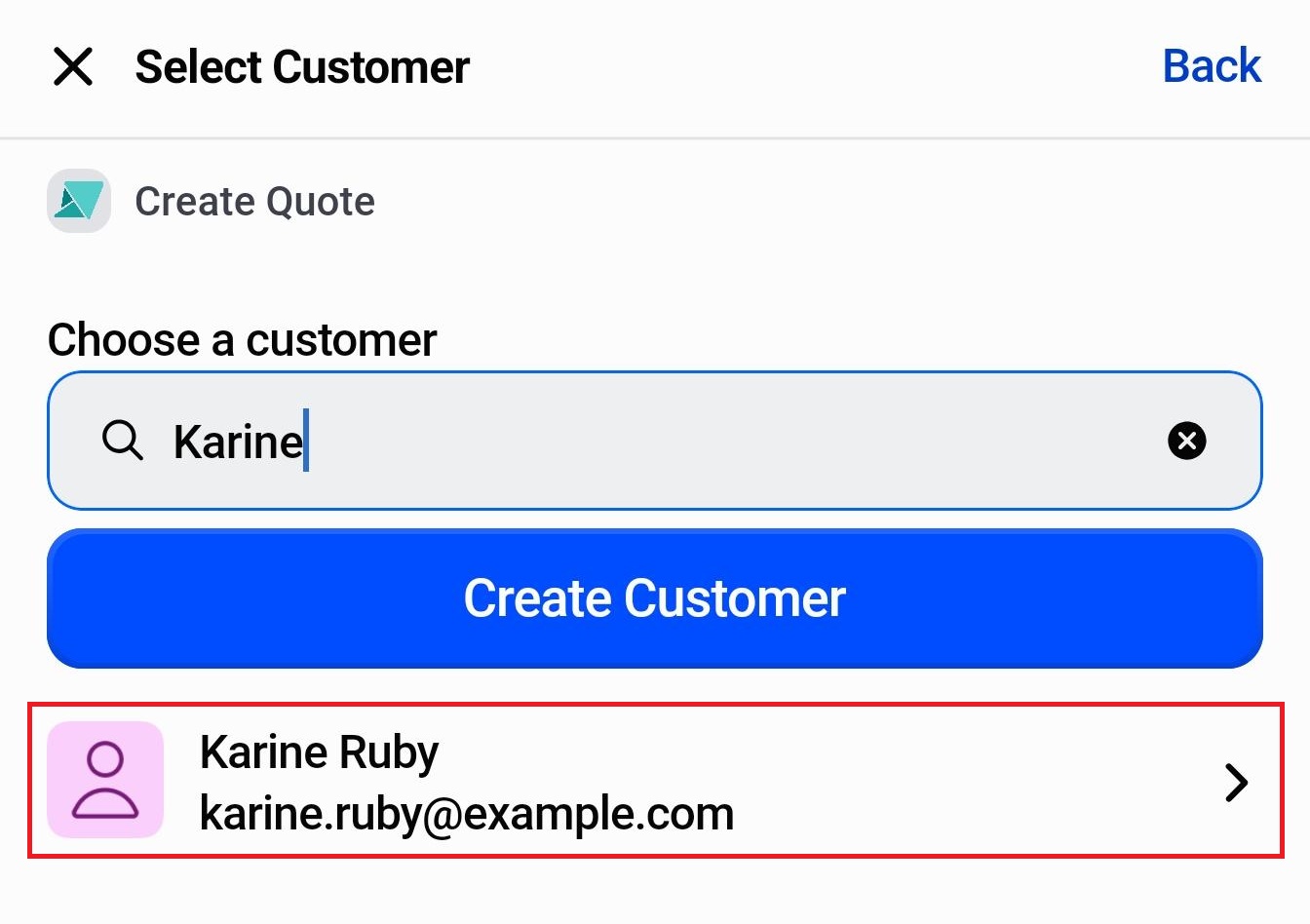
Search by name or email to find an existing customer and select it. If this is a new customer, tap “Create Customer” and enter their details.
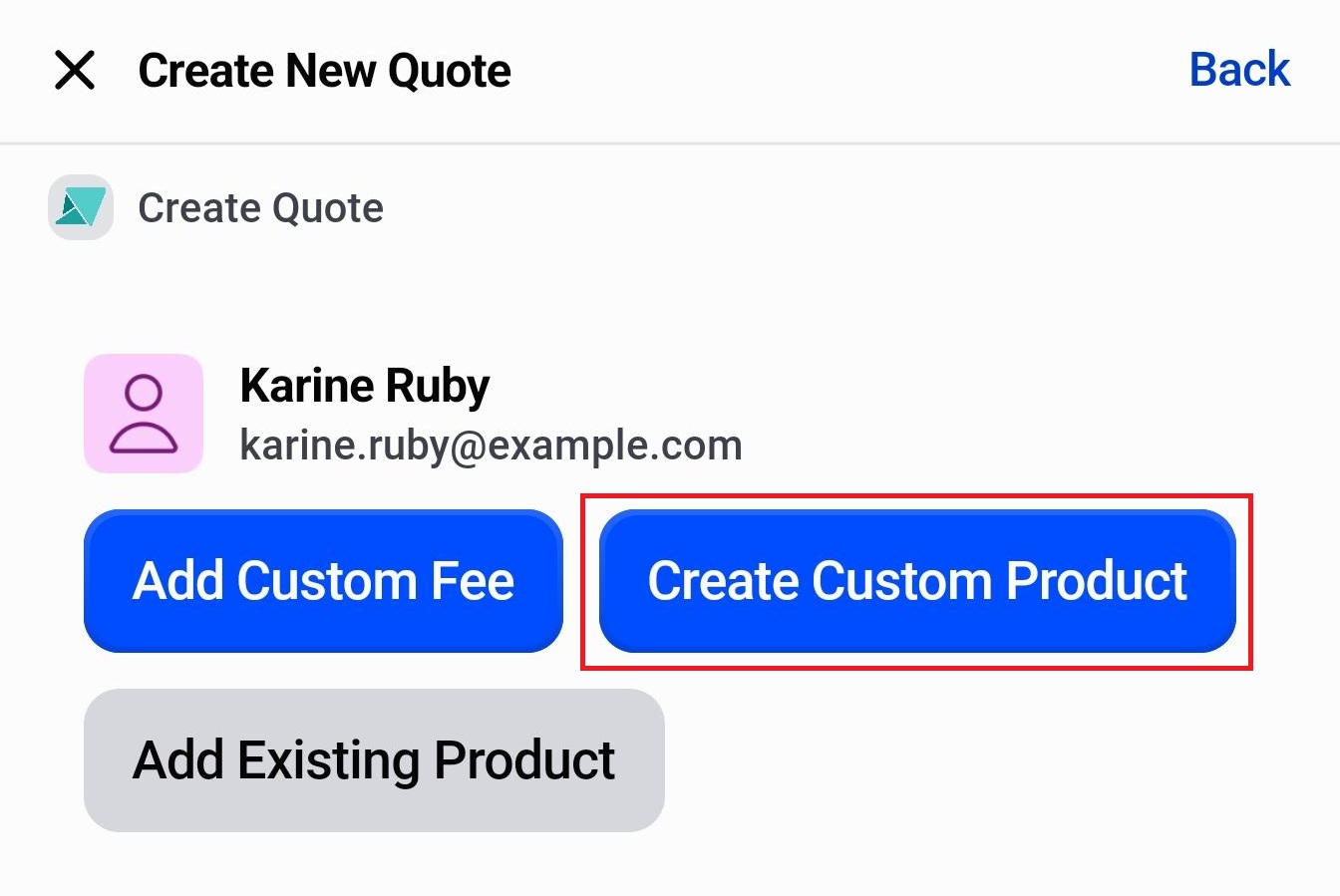
Step 3: Tap “Create Custom Product”.
A search panel opens, showing your active product templates. Type a name or scroll to find the right template, for example, “Modular Wardrobe” or “Coffee Table”. Tap the template to select it.
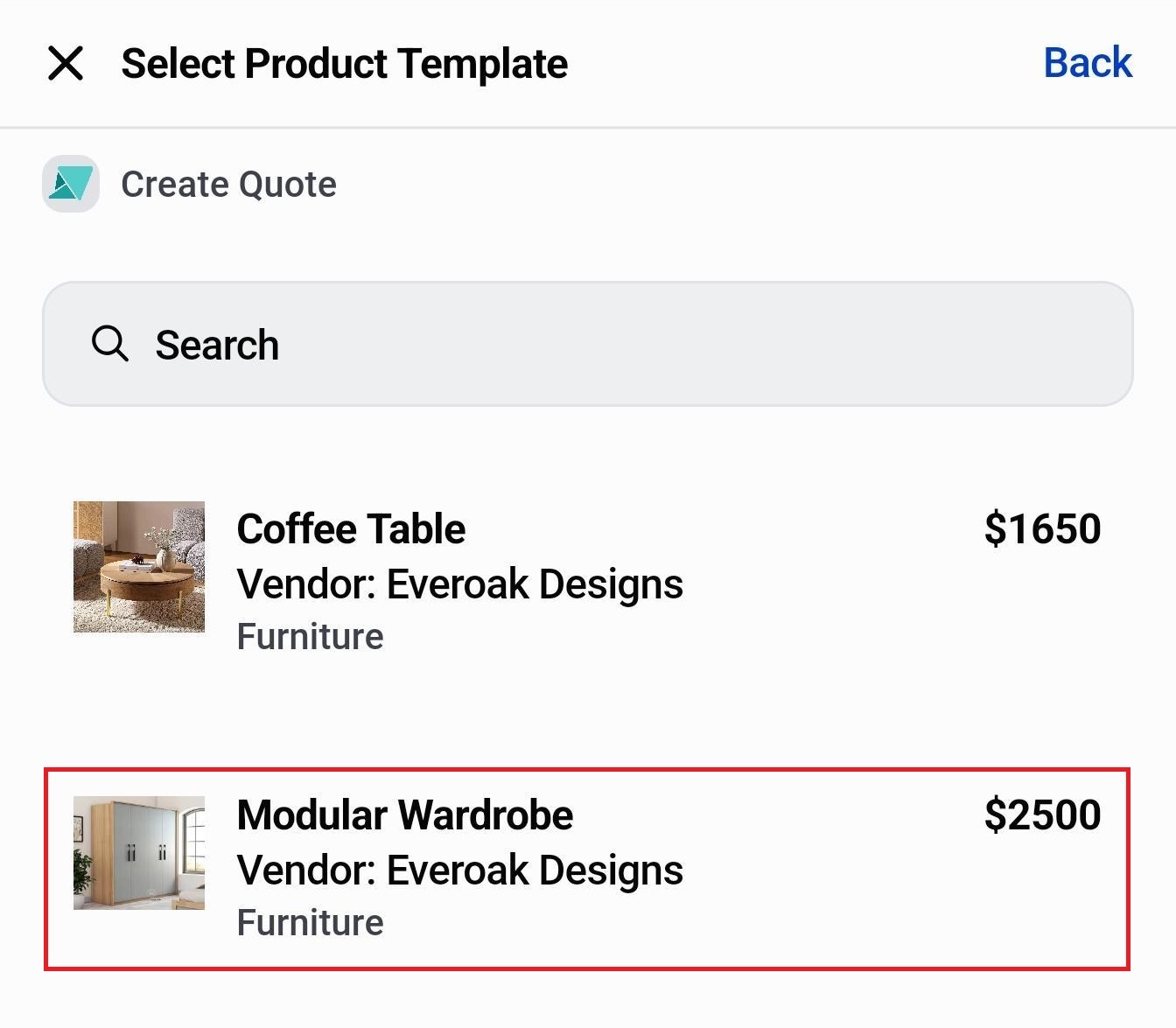
The template automatically loads the custom attribute fields for that product category.
Step 4: Fill in the customer's specification choices using the attribute fields. Depending on the template, these might include options like Door Style, Configuration, Material, and Finish for a wardrobe, or Color, Size, and Leg Style for other products.
Note: Required custom attribute fields must be configured before you can add the product to the quote. Optional fields can be left blank and filled in later if the customer is still deciding.
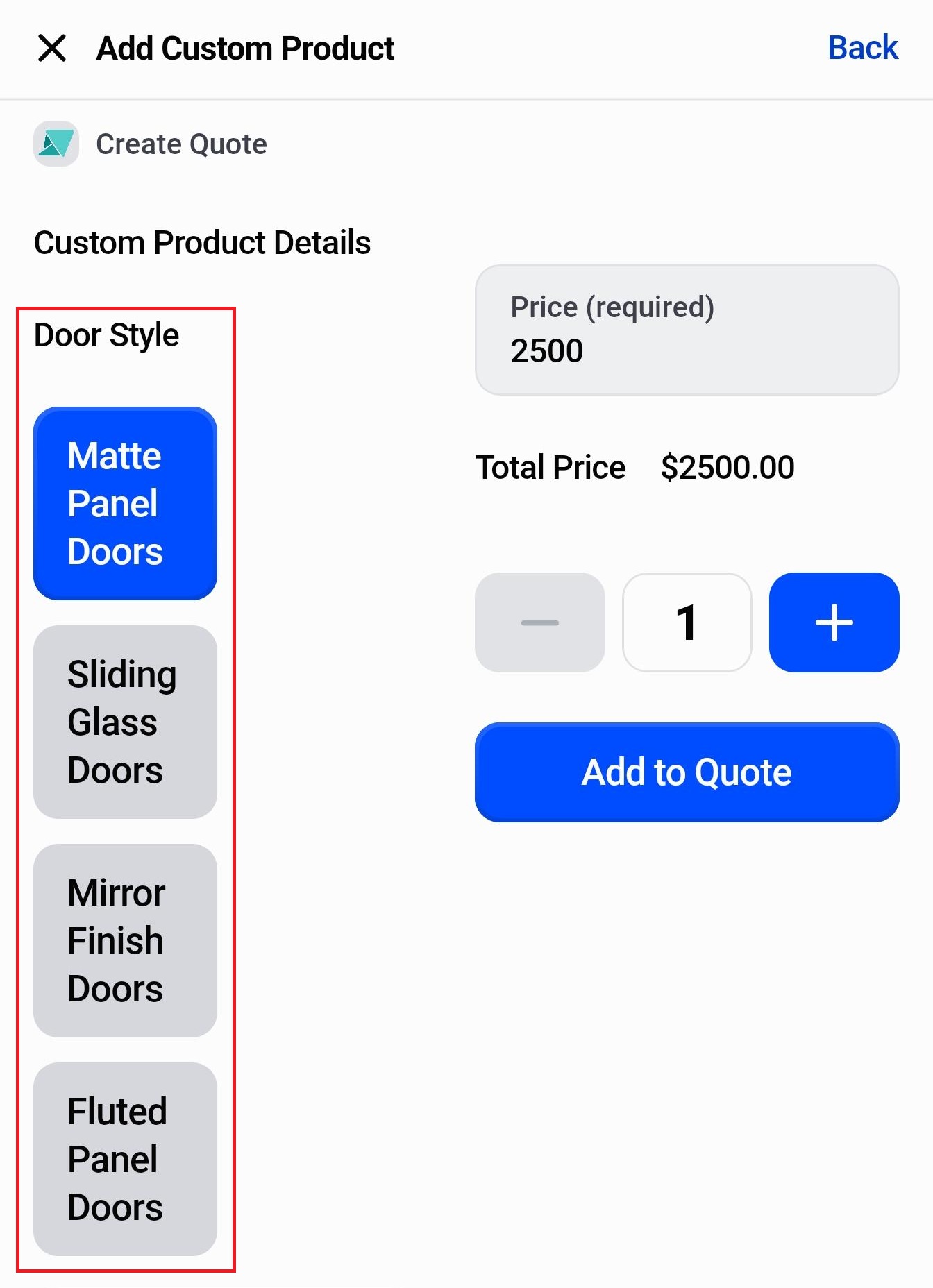
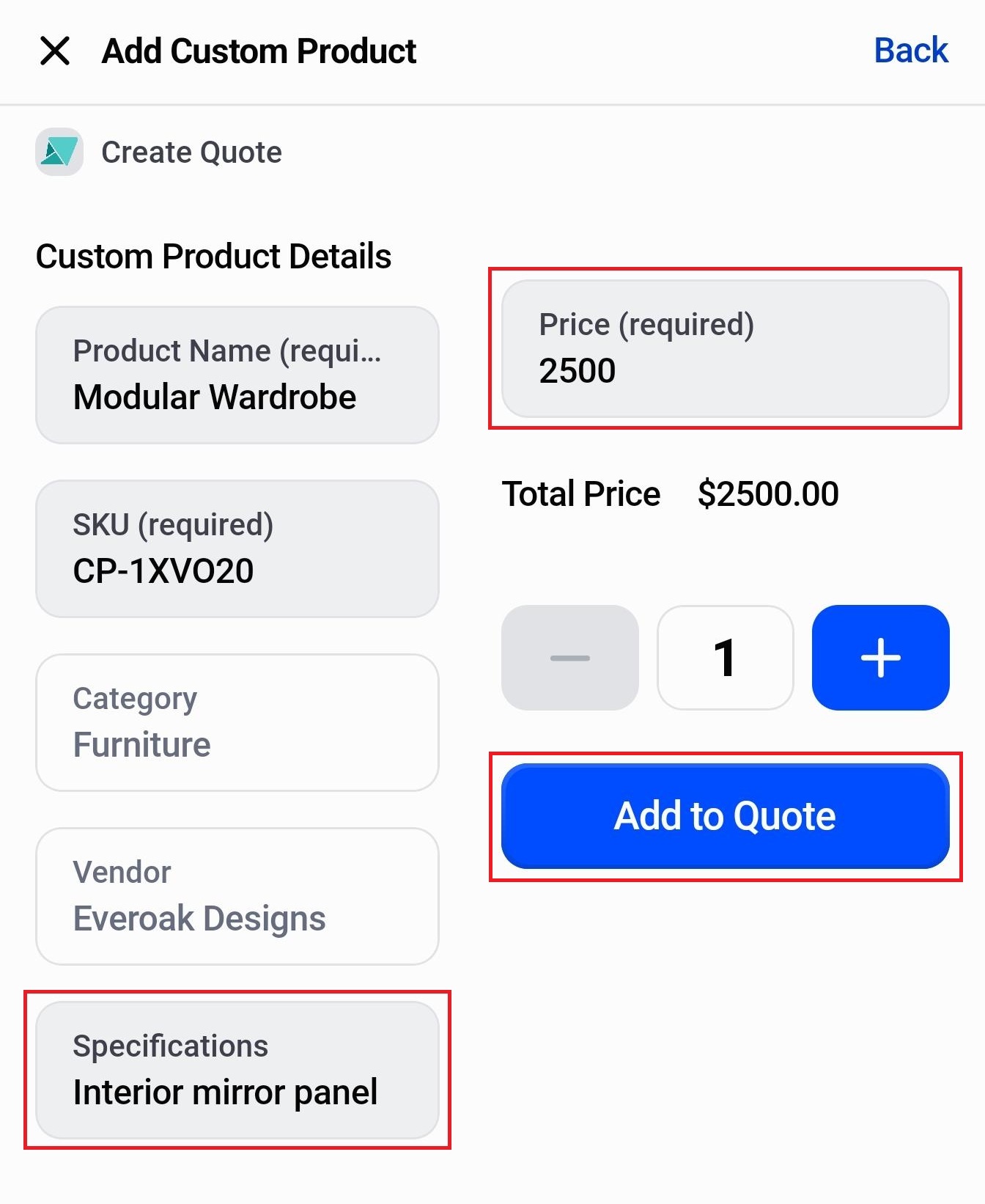
Step 5 (Optional): If the customer has additional requirements that don't fit the predefined attribute fields, add them as free-text specifications (pre-configured). You can also update the base price if the customer's configuration differs from the template's default.
Step 6: Once you've filled in the attributes, tap “Add to Quote”. The product is added to the quote line items.
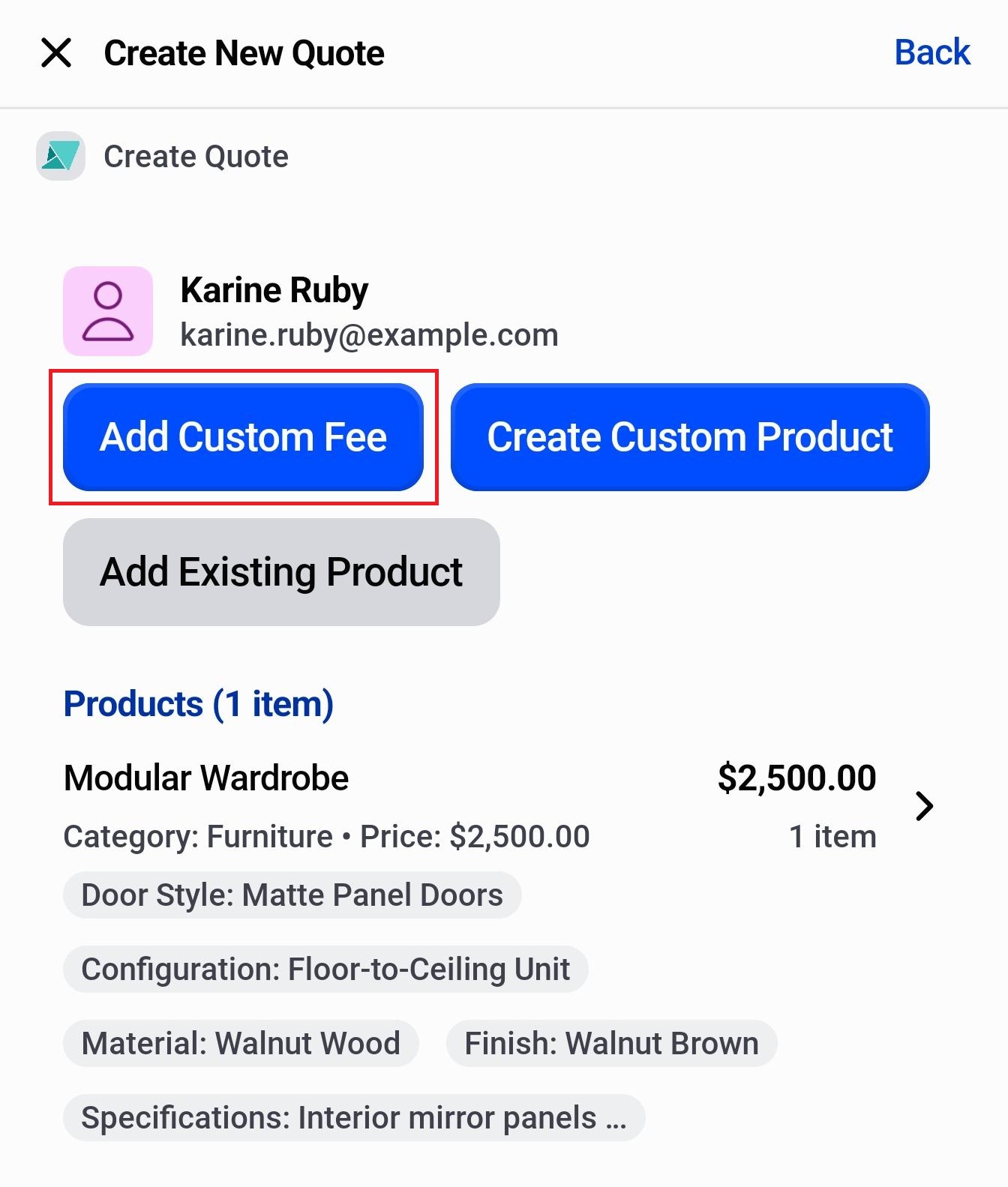
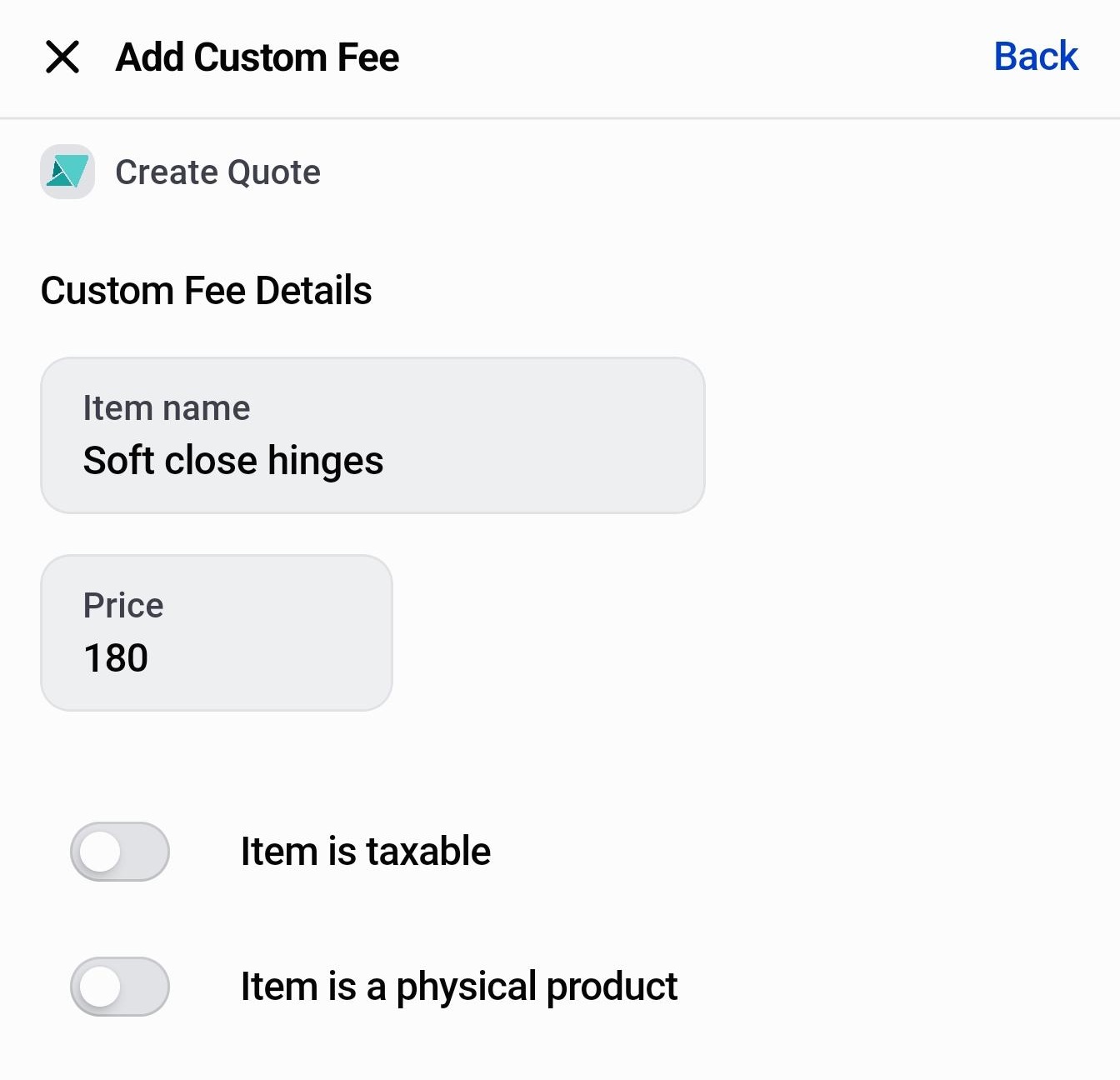
Step 7 (Optional): If the customer wants accessories or extras alongside the main product, enter them as add-ons. Tap “Add Custom Fee” to add a priced line item for each add-on.
In the panel that appears:
- Enter the Item name, for example, “Soft close hinges”.
- Enter the Price.
- Turn on “Item is taxable” if tax applies.
- Turn on “Item is a physical product” if it requires fulfillment.
- Tap “Submit” to confirm.
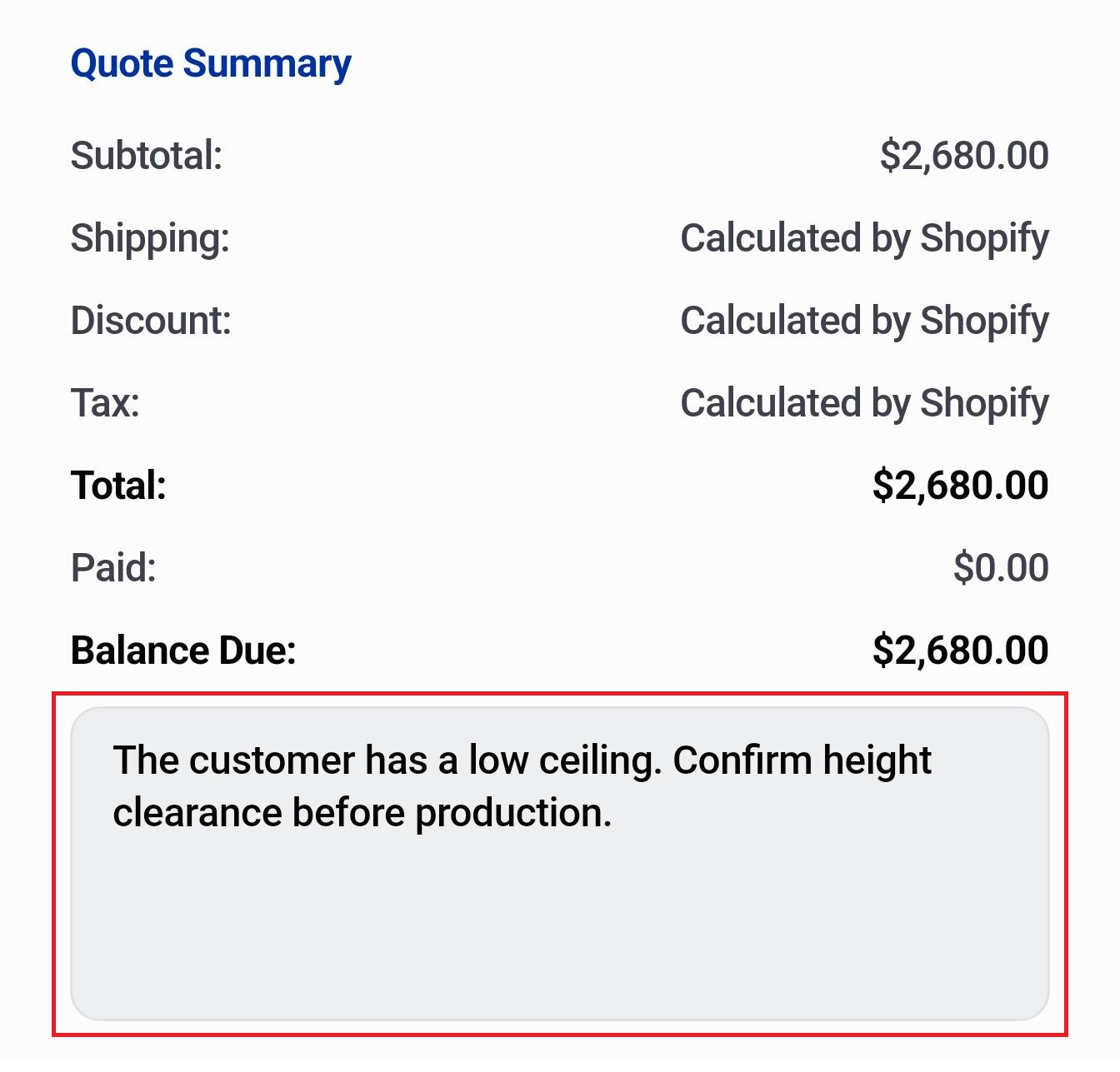
Step 8: Review the Quote Summary. If there's anything the production team should know that doesn't fit the structured fields, add it in the Special Notes field, for example, delivery access constraints or installation requirements.
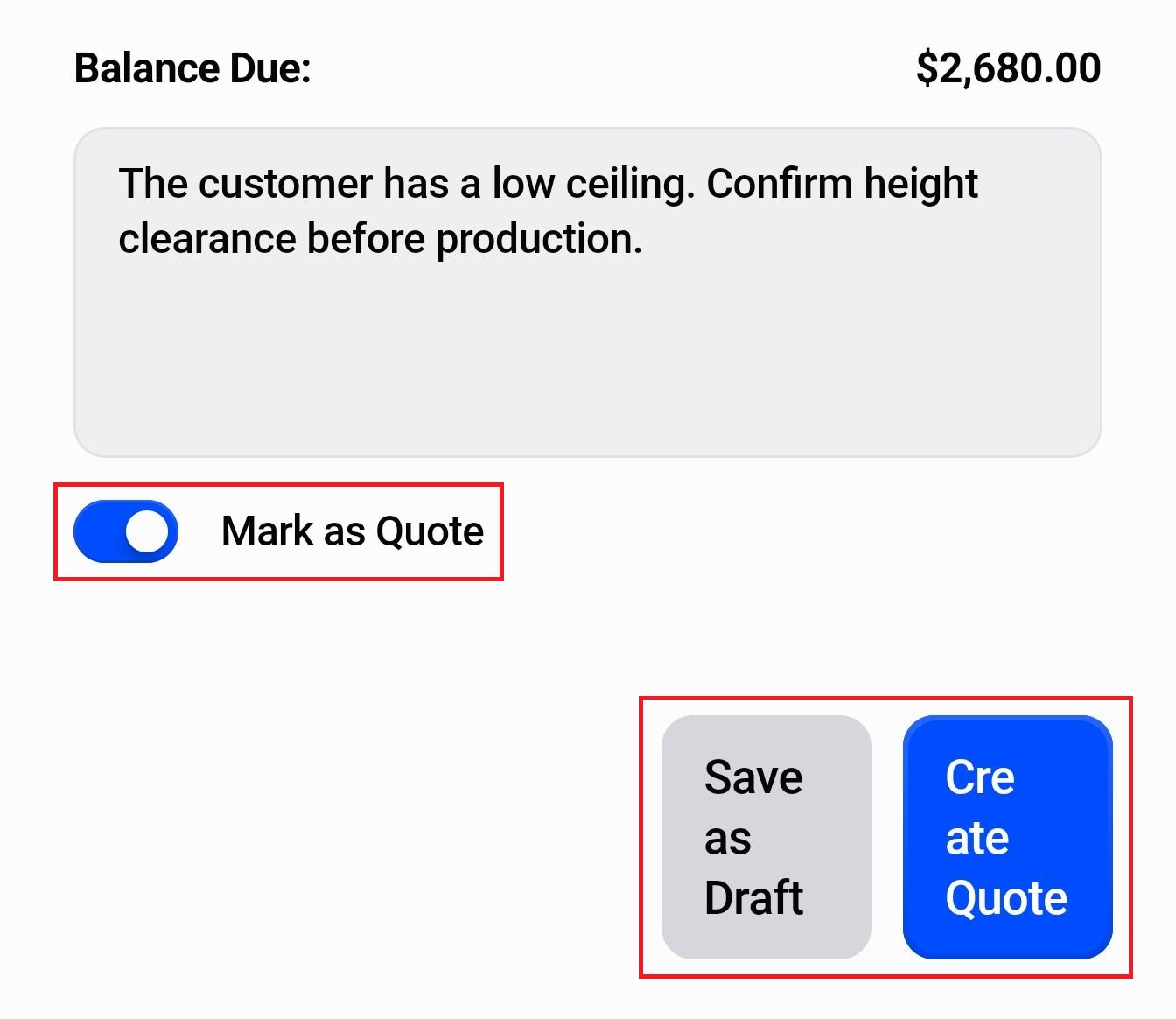
Step 9 (Optional): Finally, configure the “Mark as Quote” toggle to decide whether it's a quote or an order.
- Toggle ON: The record is saved as a quote.
- Toggle OFF: The record is saved as a confirmed order.
Step 10: Tap “Create Quote” or “Create Order”(if the toggle is off) to submit. The record is created immediately and syncs to the OrderPilot web app in real time.
If you need to step away and finish later, tap “Save as Draft”. Drafts can be accessed again from the Orders & Quotes tile.
What Happens Next?#
OrderPilot creates a Shopify product that includes all custom attributes and specs. The quote or order enters the review queue if your settings require it. The rep can see it as pending immediately in the Orders & Quotes tile on the POS, and the production team sees it in the Review tab on the web app dashboard.
Note: A saved draft sits in a holding state. No review triggers, no automation fires. The rep can find it in the Orders & Quotes tile and confirm it from the POS at any time.
Example: Creating a Modular Wardrobe Quote#
A customer is browsing a bedroom furniture showroom and wants a quote for a custom “Modular Wardrobe”. The sales associate walks the customer through the showroom display and pulls up the OrderPilot tiles on their iPad. The customer wants a four-door sliding wardrobe in a matte grey finish with interior mirror panels and soft-close mechanisms. They'd also like a matching “Open Clothing Rack”. Since they want to take the quote home before deciding, the rep creates it as a quote.
-
The associate taps the “Create Quote” tile from the POS home screen.
-
They tap “+ Add Customer”, search for the customer's name, and select their existing record. The customer has shopped with the store before.
-
They tap “Create Custom Product” and search for “Modular Wardrobe”. The template appears, and they tap it to select it. Four attribute fields load: Door Style, Configuration, Material, and Finish.
-
They fill in the customer's choices:
- Door Style → Matte Panel Doors
- Configuration → Floor to Ceiling Unit
- Material → Walnut Wood
- Finish → Walnut Brown
-
In the Specifications field, they type “Interior mirror panels on doors 2 and 3”. They leave the base price as it is since the configuration matches the template's default and tap “Add to Quote”.
-
The customer wants soft-close mechanisms added. They tap “Add Custom Fee”, enter “Soft close mechanisms” as the Item name, set the Price to “$180”, and tap “Submit”.
-
They review the Quote Summary. The product is listed with the correct specs and fees. In the “Special notes” field, they type: “Customer has a low ceiling, confirm height clearance before production.”
-
The “Mark as Quote” toggle is on. They tap “Create Quote”. The quote syncs to the web app immediately.
Works for Any Product Category#
The same steps apply whether you're quoting a wardrobe, a custom sofa, a dining set, pendant lighting, or any other made-to-order product. The only things that change are the product template and its attribute fields.
Best Practices#
Confirm All Specs Before Tapping the First Tile#
Filling in attribute fields while the customer is talking is faster than stopping to ask follow-up questions mid-form. Run through the key choices, material, color, size, and any extras, before you open the creation screen, so that you can move through it in one pass.
Search for the Customer Before Creating a New One#
Tap Add Customer and search by name or email before assuming the customer is new. Duplicate customer records cause reporting issues in Shopify. If the customer already exists, use that record.
Use Custom Fees for Add-ons Rather Than Editing the Base Price#
When a customer adds an extra item, record it as a custom fee rather than manually bumping the base price. This provides a clear breakdown of the main product costs and any additions, which helps your production team and supplier when purchase orders are raised.
Review the Summary on Every Order#
A quick summary scan before tapping Create takes a few seconds and catches mistakes that would otherwise take much longer to fix. Make it a habit, even for simple repeat orders.
Need Help?#
If you'd like a quick walkthrough of the POS order flow or want to confirm your setup is ready, reach out to us at support@bevycommerce.com. We'll help you get comfortable creating a quote or order on the floor.